Talk it through.
Out loud.
Call your Moon, or any Orb about its chat, and just talk. Interrupt it when you like. In Work mode it carries on using its tools while you speak, and tells you what it did.
One click to call.
In any Orb, click the microphone in the message box and the call is about that chat. In your Moon's chat, click Call Juno (with your Moon's name).
A call bar shows who you're talking to and whether it's listening, working on it or speaking, with the last few lines said. The first time, macOS asks for the microphone; say yes, or allow it later in System Settings.
- Interrupt: just talk over it, and it stops and listens
- Push to talk: hold Space while the call bar has focus
- Mute from the bar, and hold Space to talk while muted
- Change the voice per chat; each chat keeps its own
- End from the bar, or click the microphone again
Chat, or get work done.
Chat gives short spoken replies with no tools unless you ask. Work is the normal chat: the Orb edits files, browses and runs its tools while you talk, then tells you in one spoken line what it did.
Everything also appears in the chat as text, so you can read it back later. Talk through a bug while the Orb works on the fix, or plan your afternoon with your Moon while you make a coffee.
Give your Moon a voice.
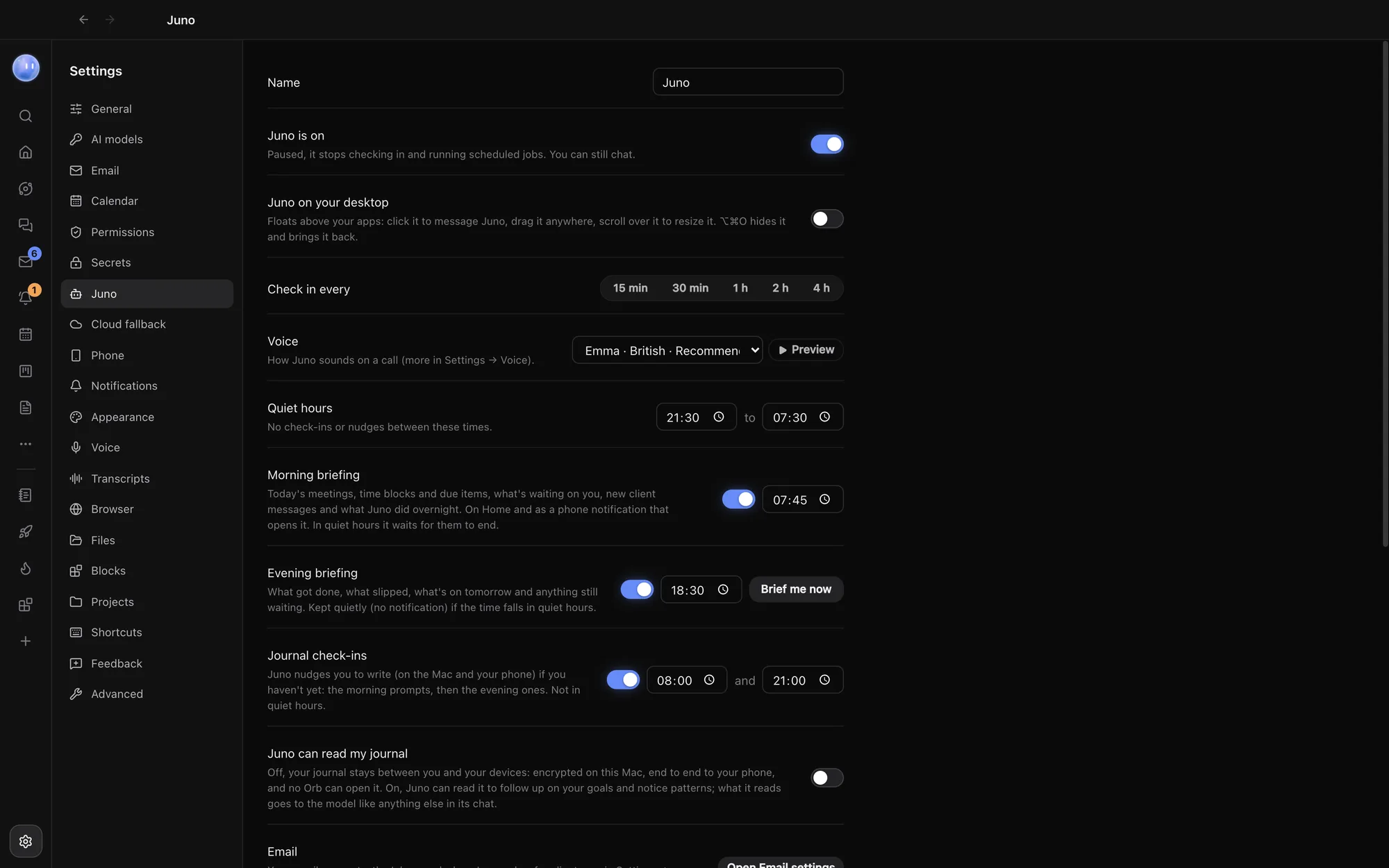
Pick your Moon's voice, and one for Claude and Grok chats, then set the speed and how long a pause means you've finished. Orbit's own voices are a one-off download that runs on your Mac; until then, calls use your Mac's built-in voices.
Tuned to how you talk.
In Settings, Voice, set the speed, how long a pause means you've finished talking, and how much speech it takes to interrupt. Open another chat during a call and a small bar reminds you who you're talking to, with Open to go back. Click End when you're done.
In Cloud mode, your call audio streams from your Mac to AssemblyAI to be turned into text, and the Orb's voice comes back from Inworld through Orbit's server.
In the cloud, or on this Mac.
Calls start in Cloud mode, which comes with an Orbit subscription and has a monthly allowance of cloud hearing. Past it, or offline, calls carry on with your Mac's own hearing and voices.
Choose On this Mac to keep the call audio on your Mac: free, private and a little slower to answer. What you say still goes to your AI model as text, like typing.
- Mac only for now: calls use macOS's own speech recognition
- On your own plan: the Orb's thinking runs on your Claude, Grok or Codex sign-in
- From your phone: the phone app's message bar has a call button too
Learn how: Voice calls · Transcripts · What the Moon does
No more app switching.
7 days free, then $29 a month at the founding price, locked for life. On the AI plans you already pay for.