Use cases
Orbit for small agencies
A small agency's week is several clients at once, a handful of people, and a lot of copying between tools. Here's how that week runs in Orbit, using our made-up demo studio: Alex Rowe and a teammate, with Kestrel Books and Fern & Field as clients.
In Orbit, each client is a project with its own lead Orb, teammates see only what you assign them, and the Board, Planner, Inbox, Chat and Docs sit next to the AI chats doing the work, so status updates, client replies and handovers stop living in five other apps.
The setup
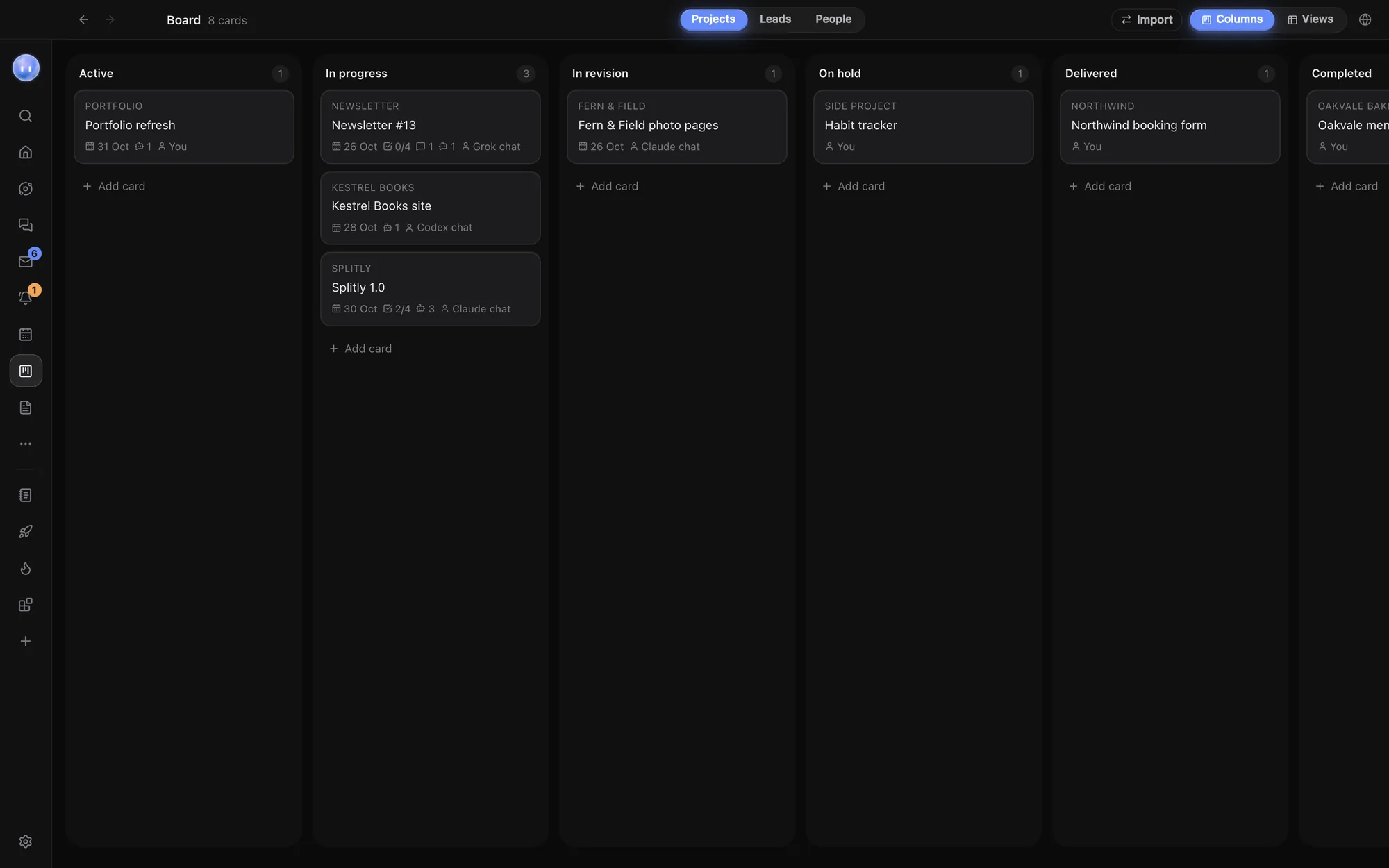
In our demo, Alex Rowe has grown from solo developer into a two-person studio. Two client projects are in progress on the Board:
- Kestrel Books site, due 27 October, client contact Priya Shah, run by a Codex Orb.
- Fern & Field photo pages, in revision, due 24 October, run by a Claude Orb.
On the Leads side, Marlow Tea has a call booked, Tidewater Surf has a proposal out with a follow-up on 26 October, and Kiln Pottery has just said yes. Each project is linked to its folder, and each has a lead Orb that keeps its card current and hands work to specialist sub-threads.
Coming from another tool? Orbit can bring projects, tasks, sub-tasks, comments, files and people over from ClickUp, Asana, Trello, monday.com, Todoist or Notion. An Orb does the move and tidies up afterwards. See Import from ClickUp, Asana and more.
1. Bring the team in, one project at a time
Alex starts a team in Settings, Team, and invites the teammate by email. There's no shared space where everything is visible: you share by assigning. Alex puts the teammate on the Fern & Field project, so it shows on their Board and Planner, with its tasks and linked docs, and they get a notification. Kestrel Books stays private to Alex until someone is assigned.
Each person keeps their own Orbs, their own Moon and their own AI plans. Nobody's work runs on someone else's subscription. See Teams and teammates.
2. Talk where the work is
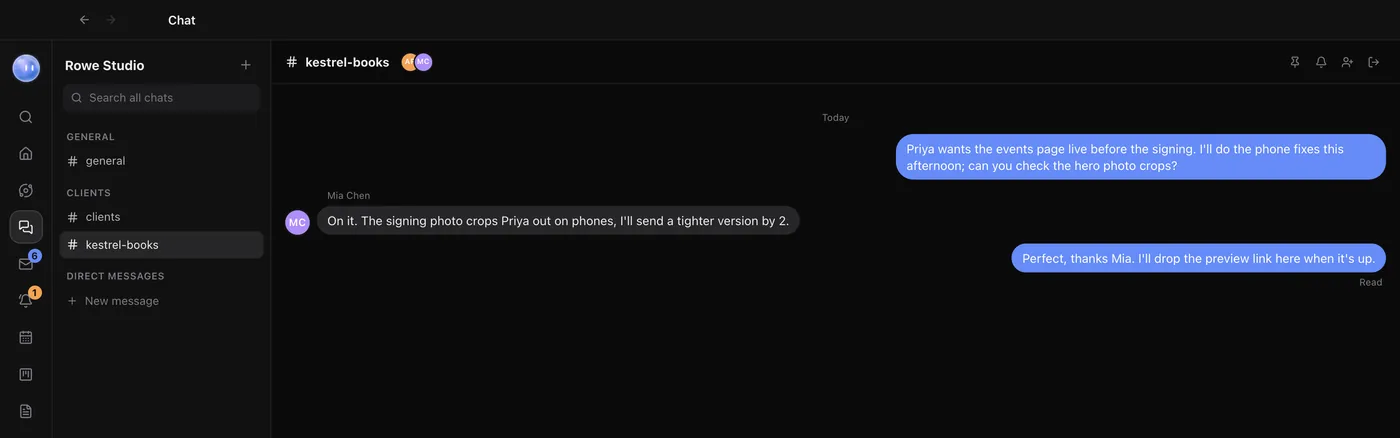
Chat has spaces, channels and direct messages, with threads, reactions, files and voice notes. Orbs can post short updates in a channel, and @Moon answers there. So "has the Fern & Field gallery been fixed on phones?" gets an answer from the Moon, which knows what the project's Orbs did. See Chat.
3. Write the brief together
The Kiln Pottery job needs a brief before it starts. Alex creates a page in Docs, shares it with the teammate, and they edit it together, live, with each other's cursors. Docs can hold a live view of a project's tasks, and mentions of people and records always show where they're up to. See Docs and databases.
4. Let the Moon handle the inbox, up to a point
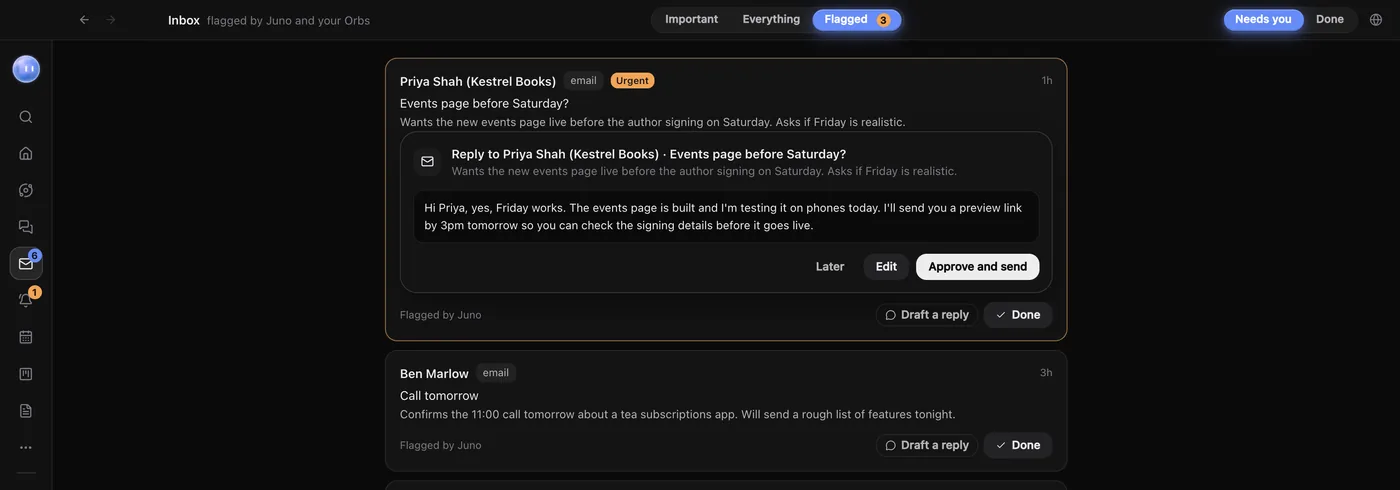
Priya at Kestrel Books emails: could the events page be live before Saturday? The Moon flags it, sees Kestrel Books on the Board, and drafts a reply:
Hi Priya, yes, Friday works. The events page is built and I'm testing it on
phones today. I'll send you a preview link by 3pm tomorrow so you can check
the signing details before it goes live.
The draft waits in the Inbox. It never sends itself. Meanwhile the Moon has asked the Kestrel Books Orb to check the events page on phones, and reported back: two layout fixes made, preview ready. The Moon's rules decide what it does alone, what it asks about and what it always hands back; out of the box, sending, publishing, payments and passwords come back to you. See Drafts and replies and Name, colour and rules.
5. See who's overloaded
Workload shows how much each person has on this week, and My Work lists everything assigned to you, where you've been mentioned and what's overdue. Before saying yes to Kiln Pottery's start date, Alex checks both. See Workload and Tasks and My Work.
6. Show the client, not a screenshot
The site an Orb is building opens beside the chat and reloads as it changes. You can open the same live preview on your phone or tablet from a link. Before handover, an Orb runs page checks: phone and desktop layout, page speed with Lighthouse scores, and SEO basics like titles, headings and missing alt text. See Page checks.
Features that matter most for agencies
| Need | In Orbit |
|---|---|
| One place per client | A project linked to a folder, with a page listing its chats, tasks, docs, calendar, emails, calls and files |
| Status without chasing | Lead Orbs keep the Board card current; the Moon notes changes on Home |
| Pipeline | Leads from new enquiry to won, with values, contacts and follow-up dates the Moon reminds you about |
| Calls | Transcripts (Mac and Windows): Orbit spots a Zoom, Meet or Teams call, asks first, writes it up and files it under the project |
| Client logins and keys | The Secret box and Orbit's password manager, so no model sees them |
| Approvals | Waiting on you: every Orb's questions in one list, on your computer and phone |
What to know before you switch
Orbit's Teams are built for small teams sharing projects, tasks, Chat and Docs. There's no company-wide admin console, single sign-on or per-seat billing controls of the kind larger firms need. Each teammate runs Orbit on their own computer with their own AI plans. And Orbit never sends a client anything without your OK, which is the point, but it does mean someone still presses send.
Common questions
Can a client see their project in Orbit?
Teams are for people on your team. Share a live preview link to show a client the work in progress.
Do teammates need their own AI plans?
Yes. Each person keeps their own Orbs, Moon and AI plans, so nobody's work runs on someone else's subscription.
Can we move over from ClickUp or Asana?
Yes. Orbit imports from ClickUp, Asana, Trello, monday.com, Todoist and Notion, and an Orb tidies up after the move.
Will the Moon email clients for us?
It drafts replies and leaves them in the Inbox for you to check and send. Its default rules hand sending back to you.
Try Orbit free for 7 days · Your day in Orbit · Orbit for freelancers
Updated 24 October 2026