Help/Your Moon
Name, colour and rules
Your Moon is yours to shape. Give it a name, a colour and a voice, and tell it which actions it can take on its own and which come back to you.
Name and colour
- Open your Moon's chat (top of the Orb list) and click Profile.
- Open the Look tab.
- Type a new name, and pick a colour from the swatches, or any colour with the picker.
- Click Save.
The colour tints Orbit throughout. Under the name you'll see its handle, made from your first name and its name, for example @alex-juno. You can also click the Moon's name in its profile to rename it, or change it in Settings, in the section with your Moon's name, Name.
Voice
On a Mac, the Look tab has Voice on calls, and its settings section has Voice. This is how your Moon sounds on a call and when it reads aloud. More choices are in Settings, Voice.
Rules
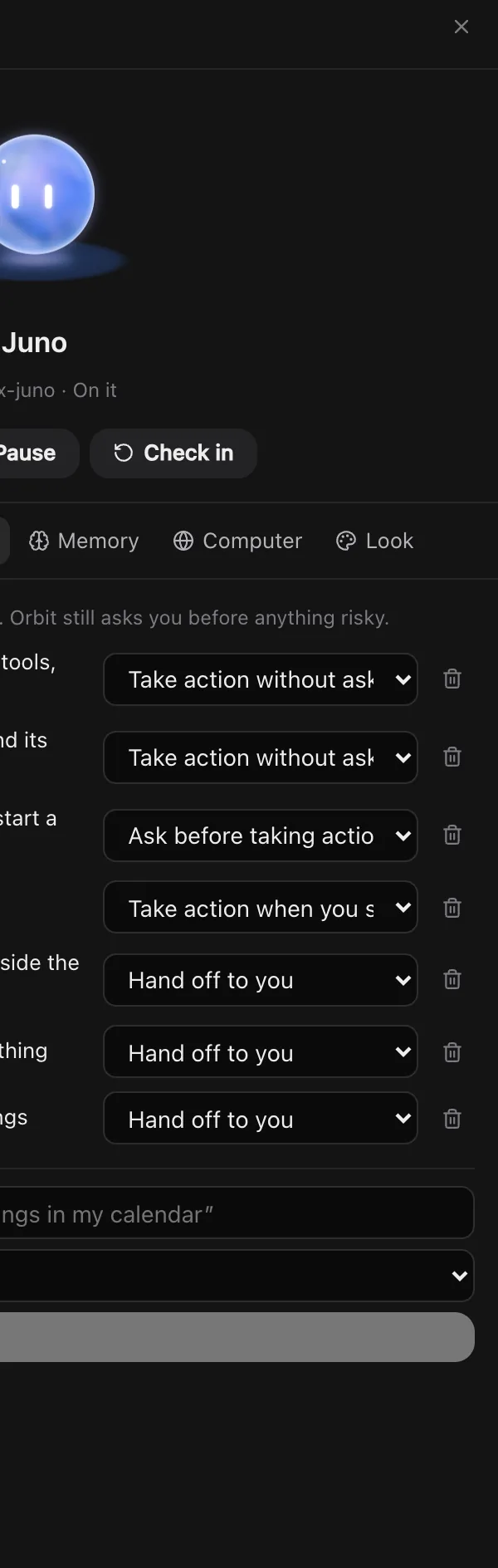
Rules tell your Moon how to handle each kind of action. Open Profile, then Rules. Each rule has one of four behaviours:
| Behaviour | What it means |
|---|---|
| Take action without asking | It goes ahead on its own. |
| Take action when you say so | Only when you've asked for it. |
| Ask before taking action | It checks with you first. |
| Hand off to you | It never does it. It gets things ready and passes them to you. |
The rules it starts with
| Action | Starts as |
|---|---|
| Read email, calendar, chat apps, project tools, files and Orbit chats | Take action without asking |
| Update the Board, Leads and Comms, and its own notes | Take action without asking |
| Pass an instruction to a project chat, or start a new one | Ask before taking action |
| Draft a reply to someone | Take action when you say so |
| Send an email or message to anyone outside the team | Hand off to you |
| Push anything live, publish or delete anything | Hand off to you |
| Payments, passwords and account settings | Hand off to you |
So out of the box your Moon never sends, publishes or pays without your OK. Orbit still asks you before anything risky, whatever the rules say.
Change or add a rule
- Change one: pick a different behaviour from the menu beside it. It saves straight away.
- Add one: describe the action in the box at the bottom, for example "Book meetings in my calendar", pick a behaviour and click Add rule.
- Remove one: click the bin beside it.
Other things to set
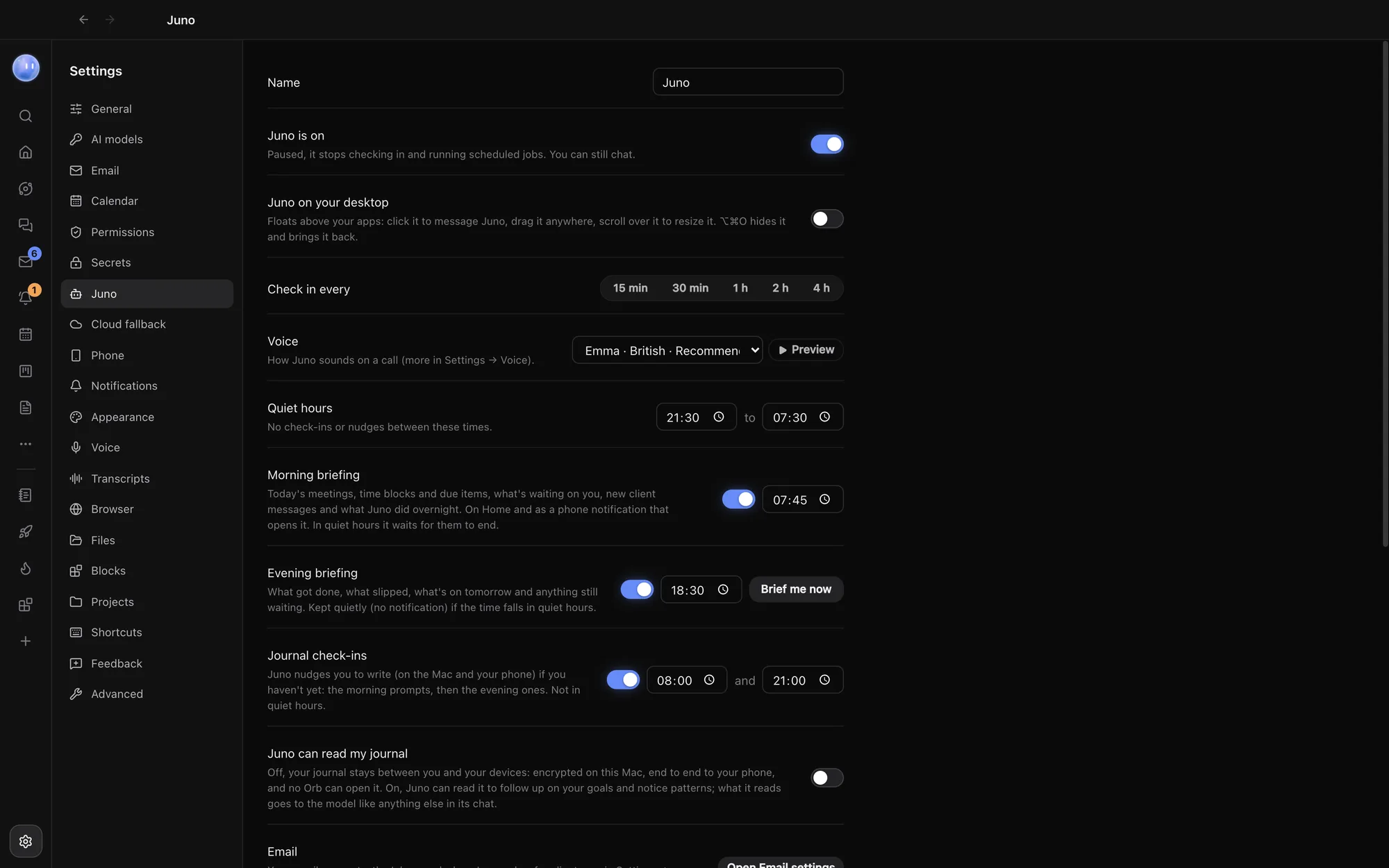
In Settings, the section with your Moon's name:
- Check in every: 15 min, 30 min, 1 h, 2 h or 4 h.
- Quiet hours: no check-ins or nudges between these times (21:30 to 07:30 to start with).
- Morning briefing and Evening briefing: on or off, and when. Brief me now sends one straight away.
- Working folder: where it runs. Leave it blank for your first project.
- Model: which model it runs on.
Common questions
Can I tell my Moon how to behave in plain words?
Yes. Tell it in its chat, for example "never message clients after 6pm". It keeps standing decisions in its memory, which you can read and edit in the Memory tab.
Does the colour change anything but looks?
No. It's your Moon's colour and Orbit's accent colour, nothing more.
See also What the Moon does, Permissions and plan mode and The Moon on your desktop.
Updated 24 October 2026 · Orbit 0.1.15