Help/Getting started
Your first project
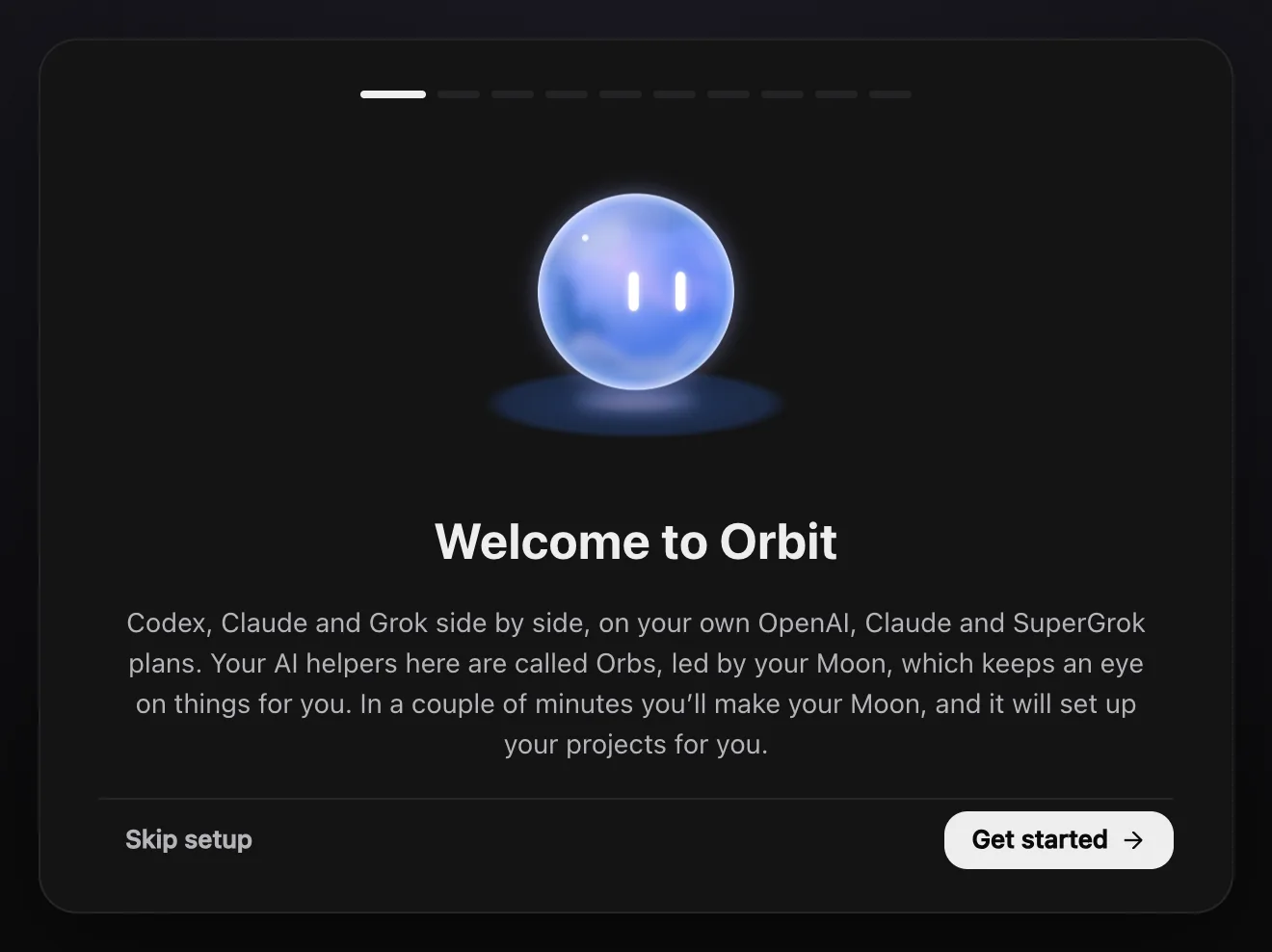
In the last part of setup you make your Moon, tell it what you work on, and let it find your projects. Then you start your first Orb in one of them.
Make your Moon
Your Moon is your lead Orb, always on. It checks in on your work, nudges you when something needs you and hands jobs to your other Orbs. On the Make your Moon step:
- Type Your name, so it knows what to call you.
- Give it a name under Its name, for example Juno.
- Pick a Colour, or any colour with the picker. Orbit takes on that colour while you choose.
- Pick a voice for calls and read-alouds, then click Continue.
You can change all of this later. See Name, colour and rules.
Tell it what you work on
The What you work on step asks a few quick questions. Your Moon keeps the answers in its notes:
- What do you mostly do? Software, Design, Writing, Research, Running a business, Studying or A bit of everything.
- How do you work? On my own, With a team or Both.
- How often should Juno check in? A few times a day (every 3 hours, quiet at night), Every hour, or Only when I ask.
- Where do you keep your projects? Tick the folders to look through, or click Add a folder. Folders marked macOS asks first show a permission prompt.
Click Let Juno look. With no folder ticked, the button says Continue and you add projects yourself later.
Pick the projects it found
Your Moon reads through the folders and lists the projects it found, with a short summary, when each was last worked on and a stage for the Board. It only reads: nothing on your disk is moved or changed, and nothing is added until you say so.
- Untick any you don't want. Projects you already have show Already added.
- Edit a name if you like, and pick each project's stage.
- Click Add 3 projects (the number matches what you ticked).
Each one becomes a project in the Orb list, with a card on the Board. Orbs you start in its folder are filed under it.
Choose how much Orbs ask first
The last step, How much should Orbs ask first?, sets permissions for every chat: Read only, Plan, Auto or Full access. Auto is the usual choice: Orbs edit files in the project and ask before anything riskier. See Permissions and plan mode.
Then click Say hello to Juno. If no model is connected yet, the button says Connect a model and takes you to Settings.
Start your first Orb
- Click Orbs in the rail on the left.
- Find your project in the list and click its Start a chat here button (it shows when you point at the project).
- Type what you want done, for example "Read this project and tell me what's left to finish", and press Enter.
The Orb works in that project's folder. While it works you see its plan ticking off and one line for its steps, then its reply.
Common questions
I skipped setup. How do I go back?
Settings, General, Run setup again.
How do I add a project later?
See Projects and folders.
Next: A tour of the window. Also see Start a new Orb.
Updated 24 October 2026 · Orbit 0.1.15