Help/Your day
Home and widgets
Home is the first page in Orbit's left rail: a dashboard of widgets you arrange yourself. This page shows what each widget does and how to set Home up the way you like it.
What Home shows
Open Home at the top of the left rail. The header shows your Moon and what it's doing (for example Keeping an eye on things or Quiet hours), with three buttons:
- Talk to Juno opens your Moon's chat (it uses your Moon's name).
- Customise Home (the grid icon) lets you arrange widgets.
- Check in now asks your Moon to look over everything straight away.
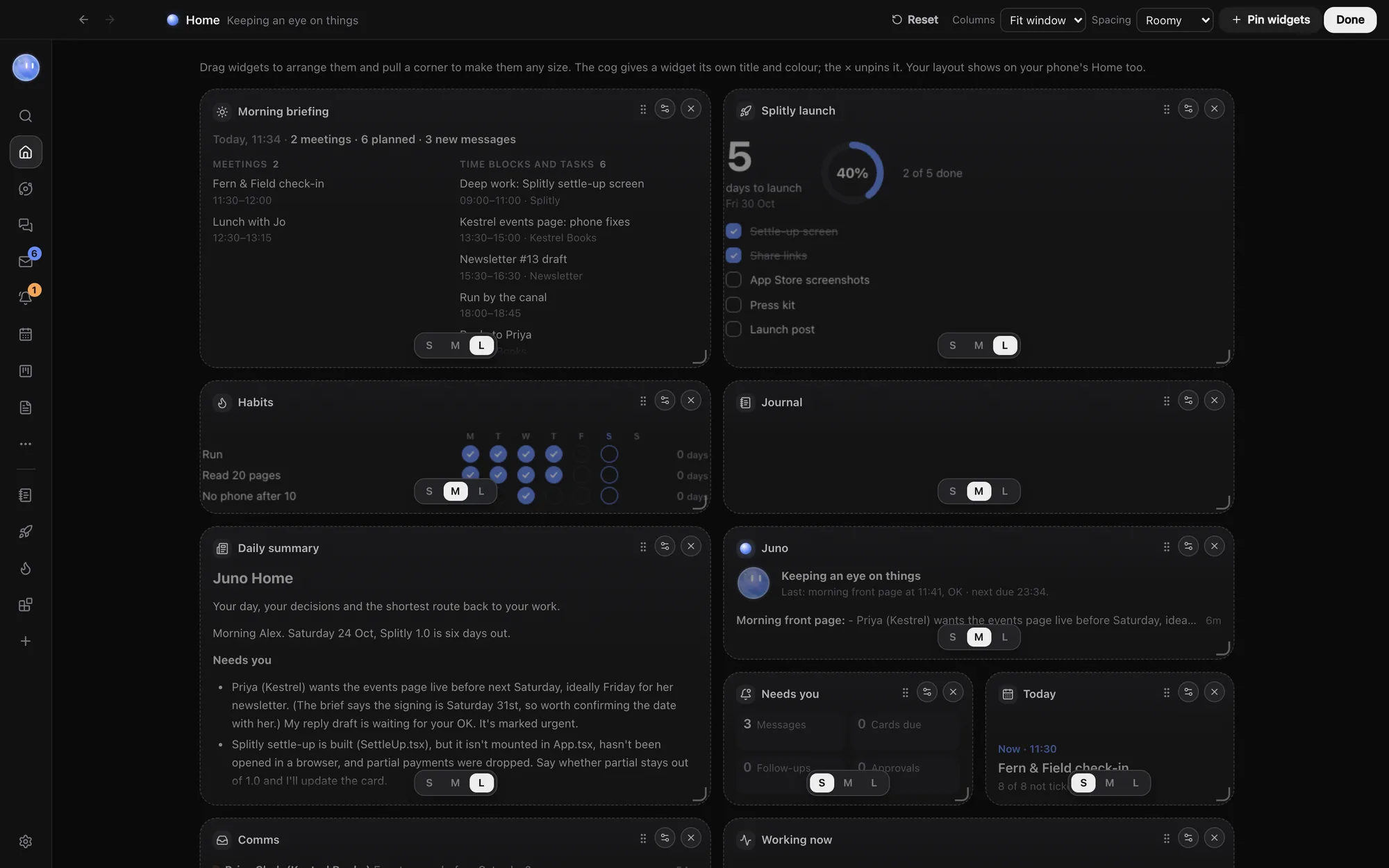
Until you change it, Home shows the Briefing, Daily summary, Moon, Needs you, Today, Comms and Working now widgets. Your layout is saved with your settings, so the phone app shows the same widgets, stacked.
Your Moon's greeting
Home opens with your Moon and a line or two about your day: what's next in your calendar, a quiet day, what's waiting on you, or a nudge to get some sleep when it's late. Tap a chip under it to jump straight to that meeting or to Waiting on you. Your Moon writes the lines at its check-ins; with the Moon off, Orbit writes them from your calendar, tasks and Waiting on you. In a team, each person sees their own.
The built-in widgets
| Widget | What it shows |
|---|---|
| Briefing | Your morning and evening briefing, with earlier ones in a menu and Brief me now. See Briefings. |
| Daily summary | Your Moon's front page for the day. |
| Moon | Its status, health and latest nudges. |
| Needs you | Counts of flagged messages, cards due, lead follow-ups and approvals. Click a count to go there. |
| Today | Today's time blocks and meetings from the Planner, with what's on now or next. Tick a block off from here. |
| Tasks | Open tasks to tick off, with a box to add one. |
| Board | Projects by stage, what's due this week and how many are late. |
| Sales | Pipeline value by stage and lead follow-ups due. |
| Comms | Messages flagged for you, and how many drafts are ready. |
| Approvals | Chats waiting for your OK. |
| Working now | Orbs running right now. |
| Note | A sticky note: a goal for the week, a reminder, anything. |
| Shortcuts | Buttons to the parts of Orbit you open most (Planner, Board, Inbox and Docs to start with). |
Arrange Home
- Click Customise Home (the grid icon in the header).
- Click Pin widgets to open the gallery. Click a widget to pin it; click one marked as on Home to unpin it.
- Drag a widget by its grip to move it. Drag its corner to resize it, or pick small, medium or large.
- Click a widget's options button to give it your own Title, an accent colour, an exact Size in columns and rows (1 to 4 each), and for Shortcuts, the places it opens.
- Set Columns (Fit window, or 2 to 6) and Spacing (Roomy or Compact) at the top.
- Click Done.
To start again, click Reset while customising. It puts Home back to the standard widgets.
Put your own blocks on Home
Blocks you make or install from the Block Store appear in the gallery under Your blocks. Pin one and it shows its data at a glance, or its own widget if it has one. The Journal is a block too, so you can pin it here. See Make a block.
The Get started card
On a new copy of Orbit, Home shows a Get started card with five steps: connect a model, add a project folder, connect your email, connect your tools and say hello to your Moon. Each step has a button that takes you to the right place. Hide the card when you're done with it.
Common questions
Can I have two Note widgets?
Yes. Notes are the one widget you can pin more than once, each with its own text.
Why does the phone show my widgets in a different order?
The phone uses the same widgets but stacks them in one column, so wide widgets sit one under another.
Related: Briefings, Planner, What the Moon does.
Updated 24 October 2026 · Orbit 0.1.15