Every call,
written up.
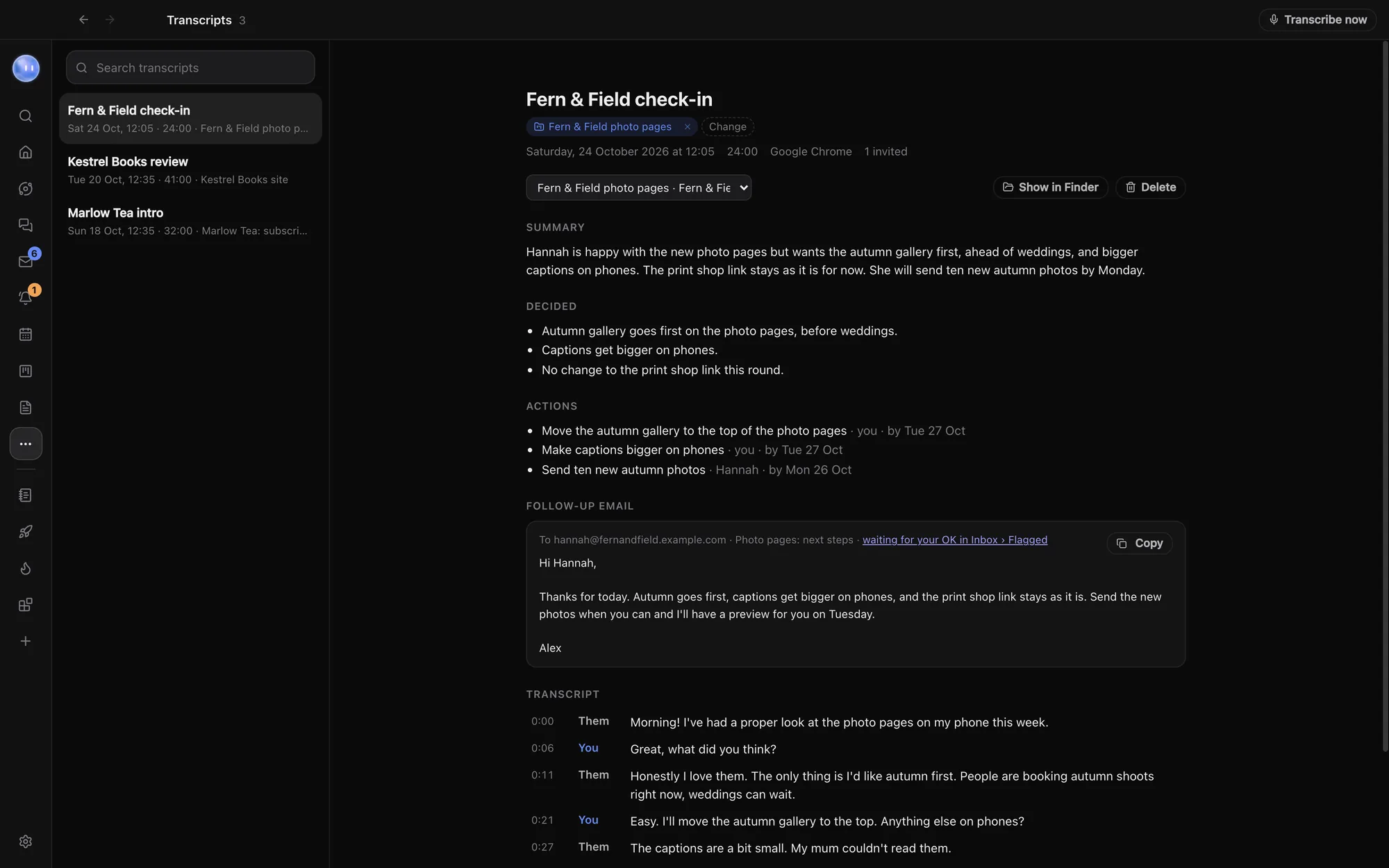
Join a Zoom, Meet or Teams call as normal. Orbit listens on your Mac or PC, with no bot in the call, then writes the summary, what was decided, who's doing what and a follow-up email for your OK.
Say yes, then just talk.
Orbit doesn't join the call as a bot. It listens on your computer, the way you hear the call, so nobody else sees it there.
Join the call
Zoom, Google Meet, Microsoft Teams, Slack huddles, FaceTime, Webex or another app.
Choose Yes
A small window asks "Transcribe this call?" Pick Yes, No, or Always for that kind of call. Nothing is recorded until you say yes.
Hang up
Orbit writes it up and files it to the right project. If it can't tell which, it asks.
The notes you'd never get round to.
Every call gets the same write-up, so nothing agreed on a call slips through. The summary lands on the project's card, your own actions land on the Planner, and the follow-up waits in the Inbox, so the call is filed before you've closed the window.
- Summary in a few plain sentences, added to the project's card
- Decided: each decision, one line each
- Actions with who and by when; yours become tasks on the Planner
- Follow-up email waiting in the Inbox for your OK, never sent by itself
- Transcript line by line, marked You or Them
Search what was said.
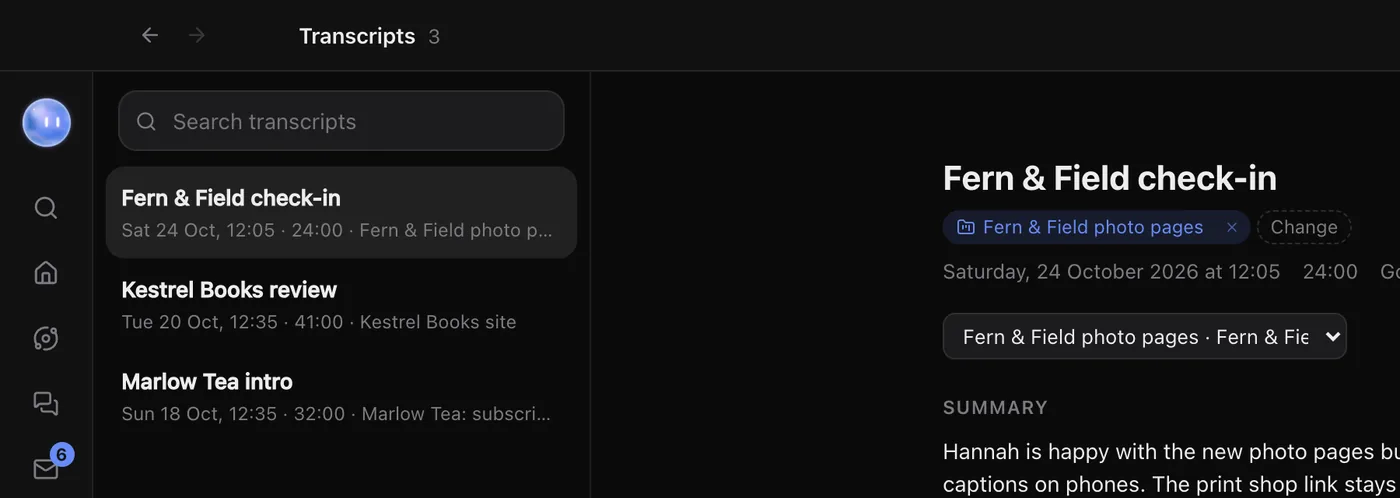
Every call sits in Transcripts with its date, length and project. Search across all of them to find the moment a client mentioned the deadline.
Missed the prompt? Click Transcribe now while you're on the call. You can move a call to another project, open its transcript in Finder or File Explorer, or delete it.
Ask, Always or Never.
Choose how Orbit treats each kind of call in Settings, Transcripts: Google Meet, Zoom, Microsoft Teams, Slack huddles, FaceTime, Webex and other calls, each set to Ask, Always or Never. Other calls covers Discord, WhatsApp, Whereby and the like, and anything using the microphone during a meeting on your calendar.
- Offer to transcribe calls turns the whole feature on or off
- Language: English, French, German, Spanish, Italian or Portuguese
- Keep the audio: off keeps only the transcript, on saves the audio beside it on your computer
- Check browser tabs tells a Meet or Teams tab apart from another site using the microphone
Mac and Windows. Kept on yours.
Transcripts work on Mac and on Windows 11 and Windows 10 (version 2004 or later), with 20 hours of calls a month included across all your computers. While a call is transcribed, its audio streams straight to AssemblyAI, which turns it into text, is set to delete the audio and text after a day, and never uses them for training. The transcript, and any audio you keep, are saved only on your computer. To write the summary and follow-up, Orbit sends the transcript to the AI model you've connected. Let people on the call know you're transcribing it.
Learn how: Transcripts · Drafts and replies · Planner
No more app switching.
7 days free, then $29 a month at the founding price, locked for life. On the AI plans you already pay for.