Your Moon,
on your desktop.
Your lead Orb can float over every app you use. Its eyes follow your pointer, its bubble says what your Orbs are up to, and one click opens a message box.
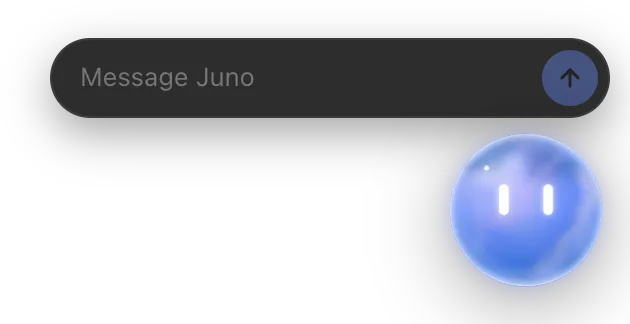
Click it. Tell it.
Click your Moon, type, press Enter. The box says "Sent. Anything else for Juno?" and you carry on with what you were doing. Paste up to four pictures too, like a screenshot of the thing that's broken.
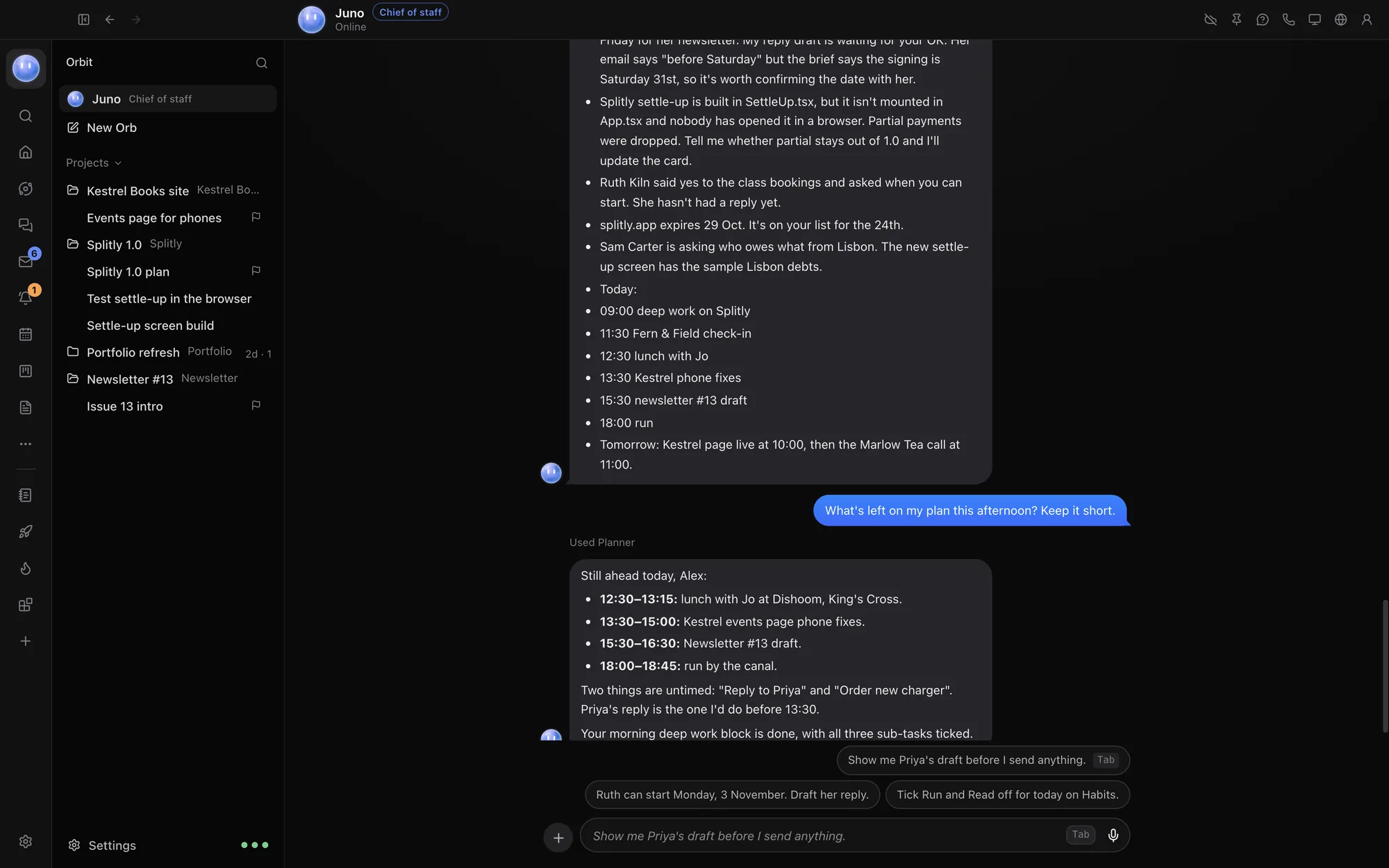
Its reply shows in its bubble and in its chat in Orbit, so nothing gets lost.
- Click to open a small message box
- Drag to move it anywhere on screen
- Scroll or pinch over it to make it bigger or smaller
- Right-click for Message, Open Orbit, sizes and Hide
- ⌥⌘O hides it or brings it back from any app (Ctrl Alt O on Windows)
A bubble that keeps you posted.
You don't need the Orbit window open to know how things are going. A speech bubble beside your Moon tells you, and a number on the Moon shows how many Orbs are working.
Click the bubble to jump to that chat in Orbit, or its × to dismiss it.
- Claude is working on "Kestrel Books site" and 2 more
- Codex finished "Splitly invoice export"
- Grok needs your OK in "Landing page copy"
- Juno is checking in…
The same Moon, everywhere.
The desktop Moon is your Moon, not a separate helper. What you send it lands in its chat, where it plans your day, hands work to project chats and checks in on its own.
Ask what's left this afternoon and it answers from your Planner. Ask it to chase a client, check on a project chat or move tomorrow's blocks, and it works through its rules: some things it just does, some it asks about first, and sending, publishing and payments always come back to you.
There when the window isn't.
The desktop Moon stays on screen as long as Orbit is running, even with the main window closed. Choose Open Orbit from its menu to bring the window back.
Make it as big or as small as suits your screen: scroll or pinch over it, or pick Bigger, Smaller or Normal size from its menu. Need a clear screen for a call or a screen share? Press ⌥⌘O to hide it, and again to bring it back.
One switch to turn it on.
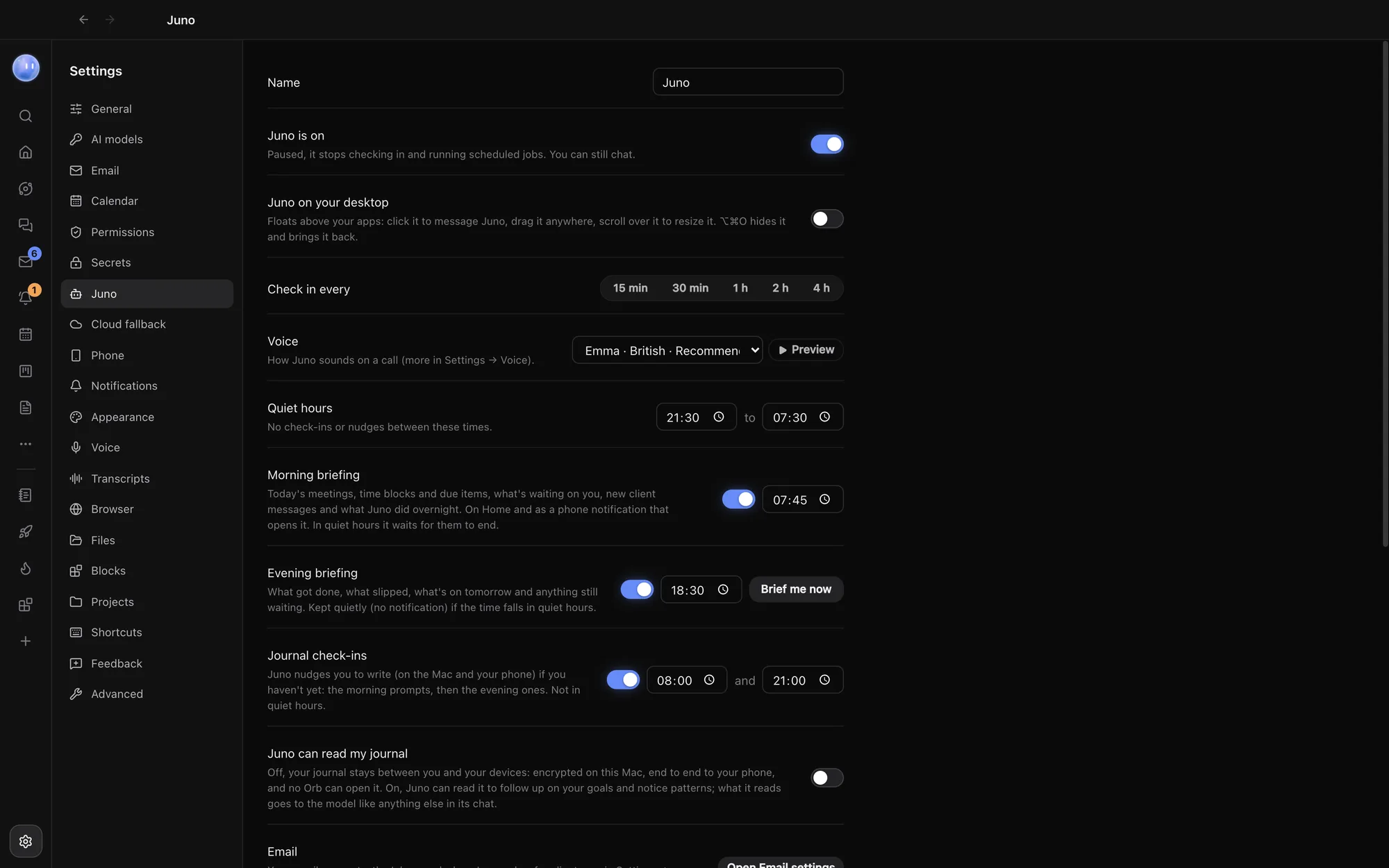
Open Settings, choose the section with your Moon's name and switch on "on your desktop". The Moon appears and stays above your other apps.
Clicks only land on the Moon, its bubble and its message box. Everywhere else they go straight through to whatever's underneath, and it follows your computer's reduce motion setting.
Learn how: The Moon on your desktop · What the Moon does · Name, colour and rules
No more app switching.
7 days free, then $29 a month at the founding price, locked for life. On the AI plans you already pay for.