Help/Messages and calls
Drafts and replies
Your Moon can draft replies to email and chat messages for you. You read each draft, change it if you like, and send it yourself. Nothing goes out until you say so.
The rule
Orbit never sends a message on its own. A reply goes out only when you tap Send, or Approve and send on a draft your Moon wrote. That holds on your computer and your phone.
Draft a reply in a conversation
- Open the conversation in the Inbox.
- Write the reply yourself in the box at the bottom, or click Draft with Juno (your Moon's name).
- To steer the draft, type in Tell Juno what to say (optional) first, for example "say yes to Thursday, ask for the logo files", then press Enter or click the draft button.
- Edit the text in the box as much as you like. Click Redraft for a fresh version, or discard the draft.
- Click Send.
The line above the box says whose draft it is and that nothing is sent until you tap Send, or where the reply will go from. Email replies go from the account the message came to; chat replies go back through Beeper.
Drafts your Moon prepares by itself
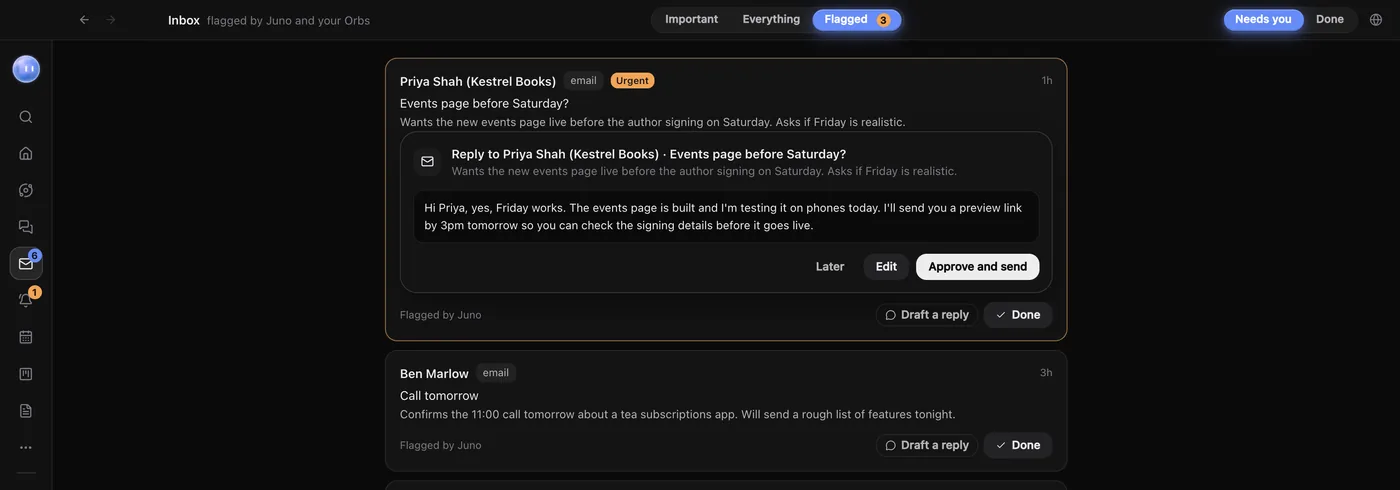
When your Moon checks in and finds a message that needs you, it flags it and can write a draft ready for you. These show in the Inbox's Flagged tab, under Needs you, and in Waiting on you. Call transcripts add follow-up email drafts here too. Each card shows who it's from, a summary, and the draft, with three buttons:
| Button | What happens |
|---|---|
| Approve and send | Your Moon sends the draft as it is. |
| Edit | Type what should change, or write the reply yourself, and click Send to Juno. Your Moon makes the change and brings the draft back for your OK. |
| Later | Puts it aside. It stays in Flagged, and you can approve it later. |
Flagged items without a draft have Draft a reply, which asks your Moon for one in its chat, and Done to clear them. Done items can be reopened from the Done tab.
From your phone
Drafts waiting for you show on your paired phone too, with the same Approve, Edit and Later choices. See Approve from your phone.
Common questions
Can my Moon send replies without asking me?
No. Your Moon's default rules hand sending back to you, and a reply only goes when you approve it.
Does a draft use my AI plan?
Yes. Your Moon writes drafts on the model it runs on, using your own Claude, Grok or Codex sign-in.
Related: Inbox, Waiting on you, Name, colour and rules.
Updated 24 October 2026 · Orbit 0.1.15