Help/Phone
Orbit on Android
Orbit for Android puts your Orbs, your Moon and everything waiting on you in your pocket. Your computer still does the work, so the phone app pairs with Orbit on it, at home or away.
Before you start
- Orbit on your Mac or Windows PC, signed in. The phone is a remote for it: everything still runs on your computer, so it needs to be on with Orbit open.
- An Android phone. Orbit for Android is a direct download (an APK file). Google Play is coming soon.
Pair your phone
- On your computer, open Orbit's Settings, then Phone.
- Turn on Use Orbit from your phone.
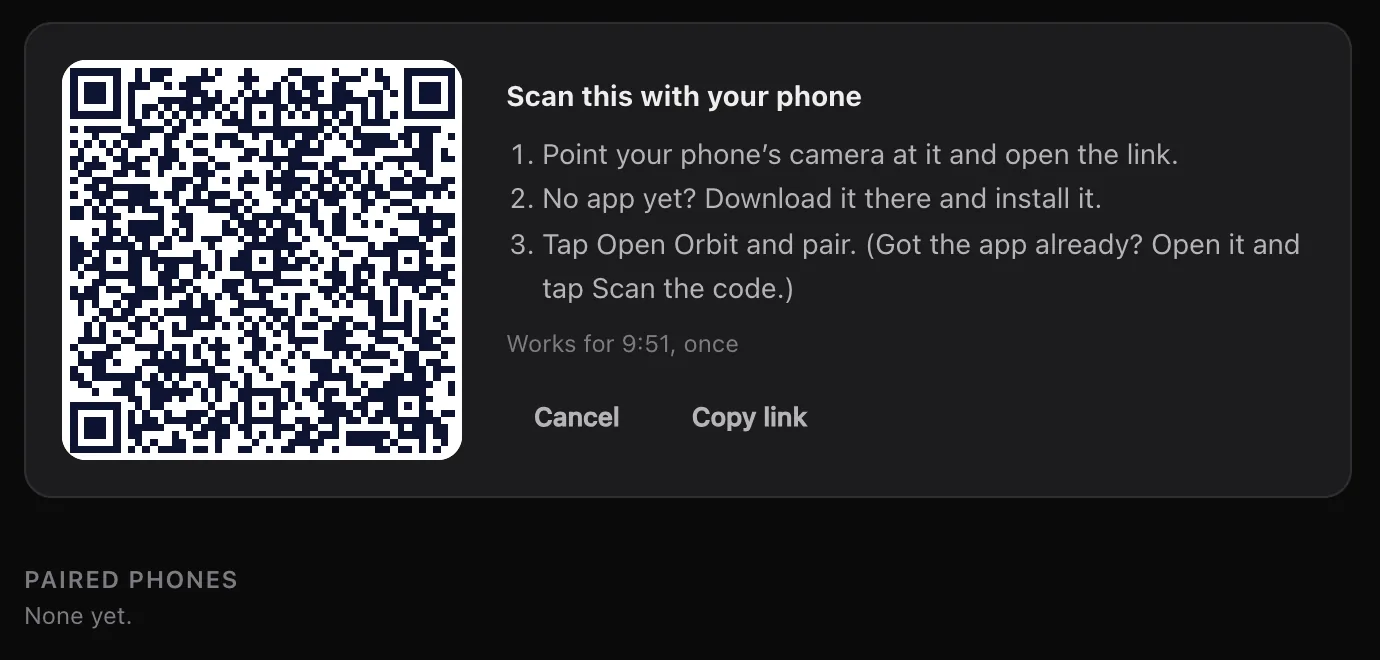
- Click Pair a phone. A QR code appears.
- Point your phone's camera at the code and open the link.
- No app yet? The page that opens comes from Orbit on your computer and has the app: download it and install it. Android asks you to allow installs from your browser the first time.
- Tap Open Orbit and pair. If you already have the app, open it and tap Scan the code instead.
Your computer says Paired with and your phone's name. The code works once, for ten minutes. If you can't scan, Copy link gives you the same link to open on the phone.
You can also download the app first from the download page, then pair with Scan the code.
At home and away
| Setting on your computer | What it does |
|---|---|
| On your Wi‑Fi | Phones on the same network connect to your computer directly. |
| Away from home | Shows Anywhere when your phone can reach your computer from anywhere through Orbit's relay. The relay only passes along encrypted messages it can't read. On the same Wi‑Fi the phone still connects directly. If the relay isn't available, it shows how to use Tailscale instead. |
| Keep this Mac awake | While Orbit is open and the computer is plugged in, it stays awake so your phone can always reach it. The screen can still turn off. |
| Notify my phone only when I'm away | Phone notifications for chats finishing or needing your OK, your Moon's messages and Inbox flags, only while you're away from the computer. Off: always. |
Only phones you pair can connect, and everything between your phone and your computer is encrypted end to end. Paired phones lists each phone, when it was last seen and whether its notifications are on. Remove cuts a phone off at once.
What you can do on the phone
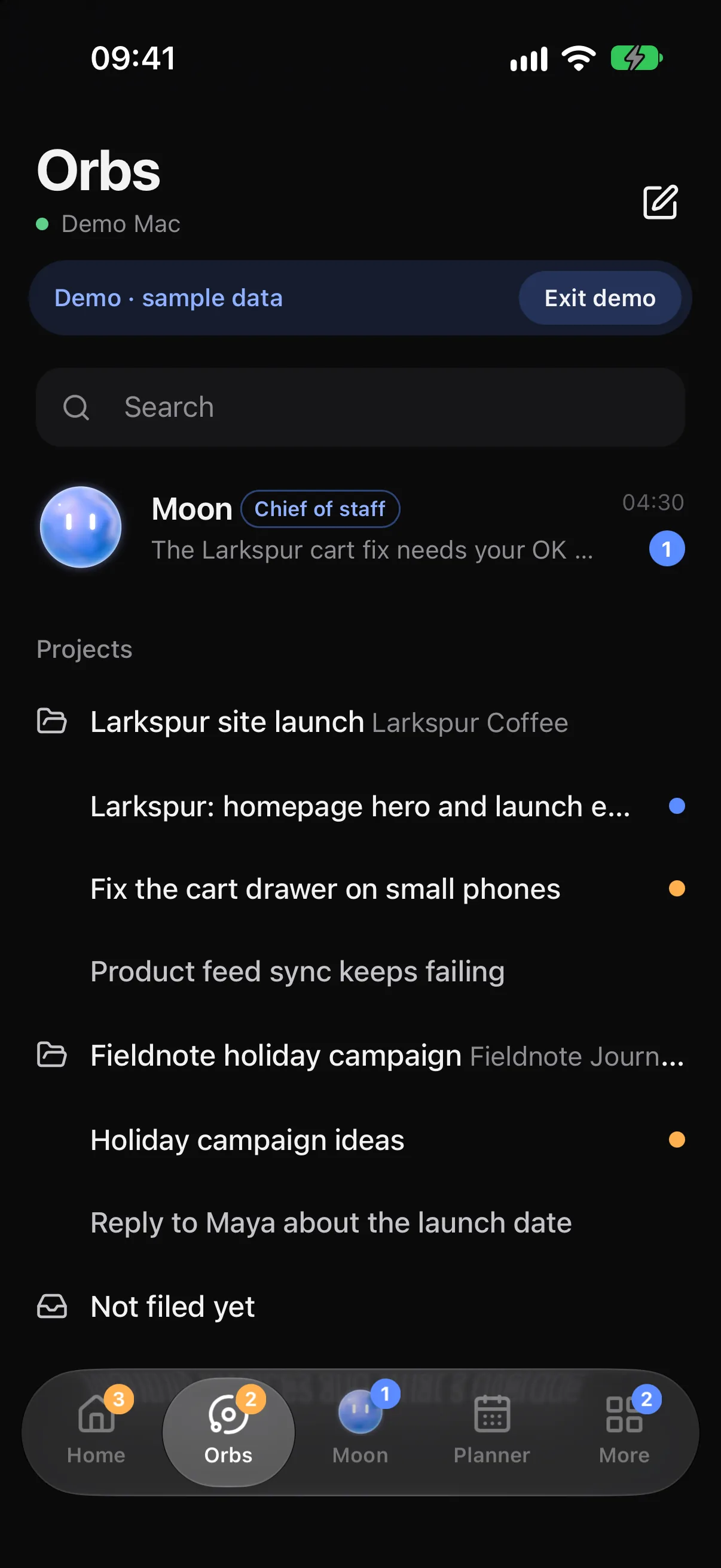
- Your Orbs: read chats live, send a message any time (while an Orb works it says "working… send anytime"), stop a reply, and attach pictures and files. Messages you write while your computer is off say Sends when your Mac's back and go when it is.
- The message bar: a mic for dictation, using your phone's own speech recognition, and a call button for a voice call.
- The dock: a floating dock on every screen, with your Moon in the middle. Hold the dock to choose what goes either side: Home, Orbs, Planner, Board, Inbox, Chat, Waiting, Search, Files, Blocks, Settings or More.
- Your day: Home, the Planner with Day and 3 days views you swipe between, the Board, Inbox, Chat, Files and your blocks.
- Approvals: everything waiting on you. See Approve from your phone.
On a tablet or an unfolded phone, Orbit uses the computer's layout, with the Orb list, the chat and Orbit's browser side by side.
Android extras
These work even with Orbit closed, because the phone keeps them itself:
- Alarms: ask your Moon to wake you, and the phone rings at that time, over the lock screen, with Snooze and Dismiss.
- Urgent ring: your Moon can ring your phone, through Do Not Disturb, when something really can't wait. Tap I'm on it to tell it you've seen it.
- Progress: a working chat shows "3 of 5 done" on your lock screen.
- Widgets: Today (your plan, next meeting and Inbox count) and Add a task. Add them from the app's Settings.
- Share to your Moon: pick Orbit · Send to your Moon in Android's share menu to send it pictures, files or links to file and act on.
- Places: name places like home and work in the app's Settings. Your Moon can remind you when you arrive, and your phone can turn away mode on when you leave. Only the place names reach your computer.
Lock and updates
- Lock: in the phone app's Settings, under Privacy, Orbit can open with your fingerprint or screen lock, and hides its screen in recent apps.
- Updates: the phone updates from Orbit on your computer, not from a website. When there's a new version, the app's Settings shows Update available. The first time, Android asks you to Allow Orbit to install updates.
Common questions
Does the phone work if my computer is off?
Your chats, Moon and approvals need Orbit open on your computer. Alarms, places and widgets keep working on the phone. To keep chats going while your Mac sleeps, see Cloud fallback.
Can I pair more than one phone?
Yes. Pair each one the same way. Each gets its own key, and you can remove any of them in Paired phones.
Does it work with Orbit on Windows?
Yes. Pair from Settings, Phone on your PC the same way. If Windows asks whether Orbit can use your network, allow it on private networks, or phones on Wi‑Fi can't connect.
Related: Approve from your phone, iPhone and iPad (beta), Devices.
Updated 24 October 2026 · Orbit 0.1.15