Help/Blocks
Change a block
A block is never finished. Ask your Moon for a change in plain words, and use the block's header or its right-click menu for everything else.
Ask for a change
- Open the block and click Change it with Juno in its header (the button uses your Moon's name). Or right-click the block in the rail and choose Change It with Juno….
- Your Moon's chat opens with Change my "Gym log" block: already typed. Finish the sentence, like "add a weekly total under the chart", and send it.
The block reloads with the change when your Moon is done. Its saved data stays as it was. You can ask any other chat for a change too, by naming the block.
The block's header
| Button | What it does |
|---|---|
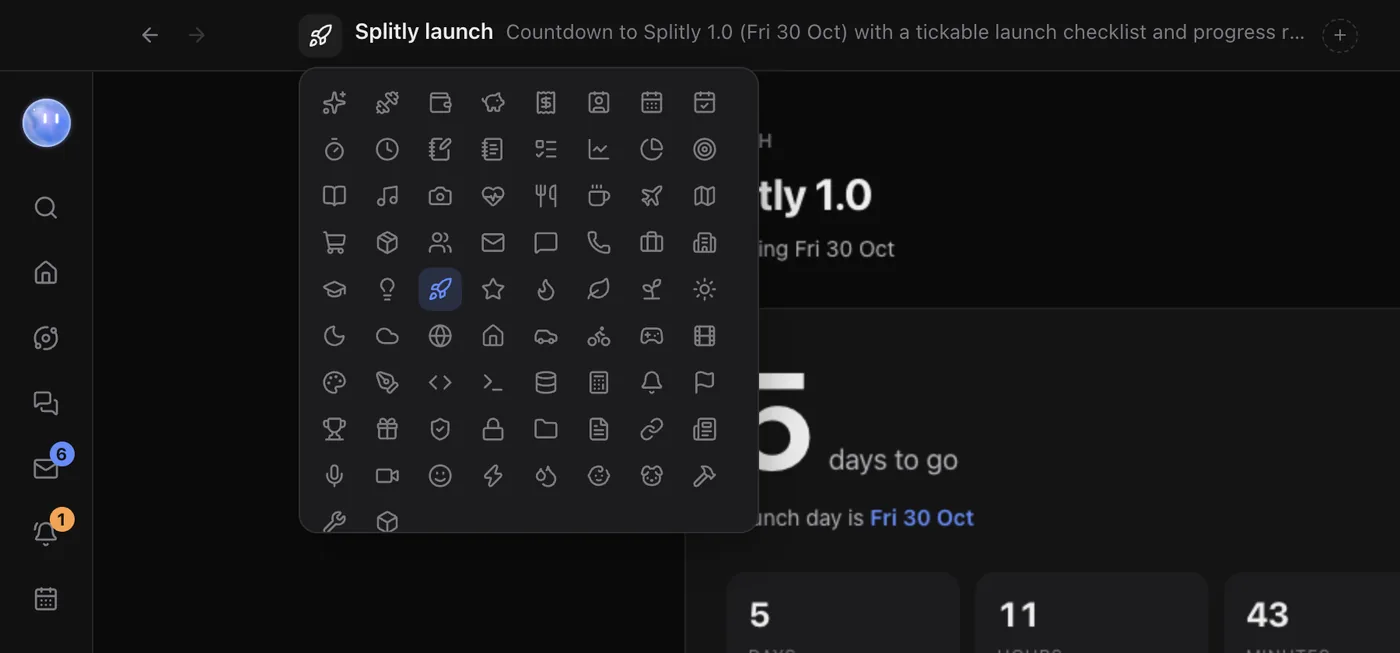
| The icon | Click it (Change the icon) to pick a different one from Orbit's icon set. |
| Change it with Juno | Asks your Moon for a change. |
| Share | Shares it with teammates. See below. |
| Publish | Puts it in the Block Store for anyone to install. See Block Store. |
| Add to Home | Shows it as a widget on Home. It then says On Home; click again to take it off. |
| Reload | Loads the block again. |
| Copy its HTML | Copies the block's page, if you want to look at or keep the code. |
| Delete block | Deletes the block and its data, after asking. |
The right-click menu
Right-click a block's icon in the rail for Open, Rename…, Change Icon…, Pin to Home (or Unpin from Home), Change It with Juno…, Archive Block and Delete Block….
Archive or delete
- Archive hides a block from the rail but keeps its data. Bring it back from Settings, Blocks, with Restore.
- Delete removes the block and everything saved in it. This can't be undone.
Orbit's own blocks, like the Journal, can be archived but not changed or deleted.
Share a block with your team
If you're on a team, click Share in the block's header.
- Under Who gets it, tick the teammates who should have it. Tick Can change it for anyone who may change the block's page too.
- Under Its data, choose:
- Shared data: everyone sees and changes the same data, live. Good for a team tracker, a sign-up sheet or a shared pipeline.
- Own copy: everyone gets the block with their own private data. Good for a habit tracker the whole team uses.
- Click Share. The button in the header now says Shared, with how many people have it.
When you change the block, everyone using it gets the change. On their computer it runs in its sandbox and can't reach their files, keys or connectors. A teammate who isn't an editor can use it but not change it, and can take it off their own rail.
Deleting a block you shared removes it for your teammates too. To invite teammates, see Teams and teammates.
Common questions
I don't like a change. Can I undo it?
Ask your Moon to put it back the way it was, describing what you want. Your block's data isn't touched by changes to its page.
Can I edit the code myself?
Use Copy its HTML to see it. The simplest way to change it is still to ask your Moon, describing exactly what you want.
Related: Make a block, Block Store, Home and widgets.
Updated 24 October 2026 · Orbit 0.1.15