Help/Browser
Devices, recording and notes
Orbit's browser can show a page at the size of a real phone or tablet, record it to a video, and let you click parts of a page to leave notes for an Orb.
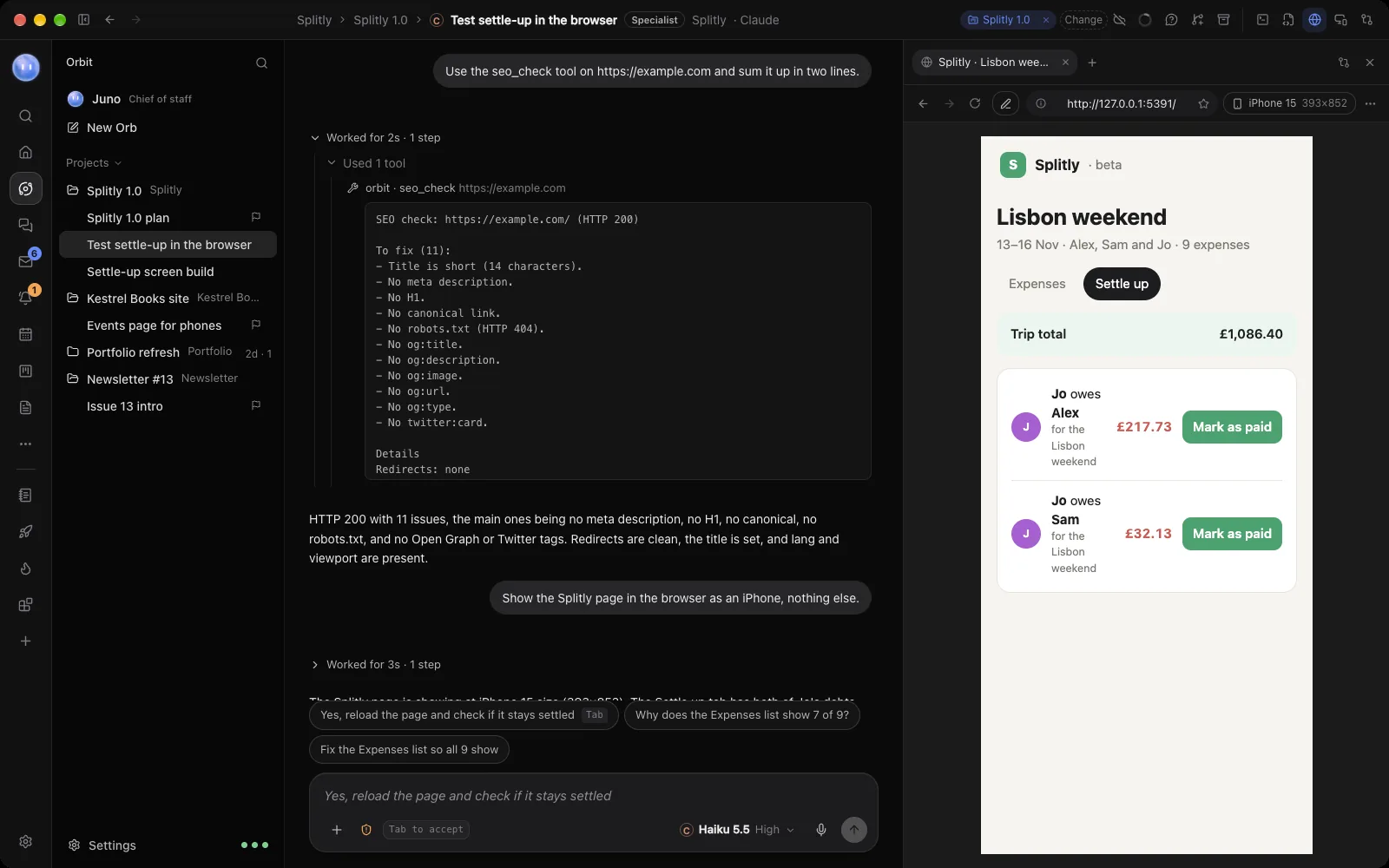
See a page on a phone or tablet
- Open the browser beside a chat (⇧⌘B) and go to the page.
- Click the device button near the end of the toolbar (Device size: see the page on a phone, tablet or desktop width).
- Pick a device. The page reloads at that size, with that device's screen and browser, so sites show their real phone layout.
| Group | Sizes |
|---|---|
| Phones | iPhone SE, iPhone 15, iPhone 16 Pro Max, Galaxy S24, Galaxy Z Fold (folded) |
| Tablets | Galaxy Z Fold (unfolded), iPad, iPad Pro 12.9″ |
| Desktop widths | Laptop 1366, Desktop 1440, Desktop 1920 |
Once a device is on, its name shows in the toolbar: click it to change device or choose Rotate for landscape. Fit to Pane (no device) goes back to normal.
Preview the site a chat is building
When an Orb is building a website, the Live preview button at the top of the chat finds the site's local server. Open here shows it in the browser, and it reloads as the Orb changes it. On your phone gives you a link to open it on your phone too, which works for a day while your computer is on. Phone access needs to be on in Settings, Phone. Stop sharing ends the link.
Record a page
Ask an Orb to record a page and it saves a video for you:
- "Record the Splitly homepage loading and scrolling for 10 seconds as a GIF." The Orb records it in the background, scrolling down the page, for up to 60 seconds.
- "Record yourself going through the sign-up form." The Orb starts recording its tab, does the steps, then stops and saves it.
Recordings are MP4 unless you ask for a GIF. GIFs are kept to 12 frames a second and 900 pixels wide so they stay small. The file appears in the chat as a card and in Files.
Leave notes on a page
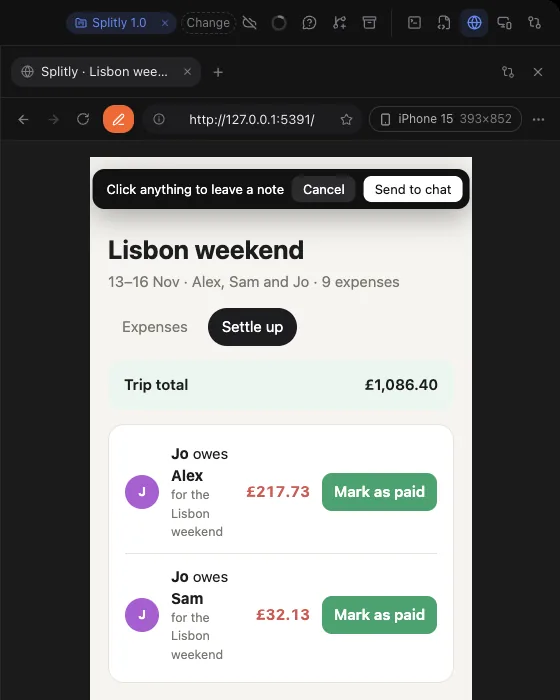
Annotate is the quickest way to show an Orb exactly what to change.
- Open the page in the browser and click Annotate in the toolbar. The page says Click anything to leave a note.
- Click a part of the page. A numbered pin drops there.
- Type what should change, like "Make this button the brand blue", and press Enter.
- Add as many pins as you need, then click Send to chat.
Orbit puts a screenshot with the numbered pins, and a list of your notes with the exact element each one is on, into the chat's message box. Add anything else and send it. To give up, click Cancel or press Esc.
More in the browser
- Find… (⌘F), zoom, Print… and Save as PDF… are in the More menu.
- Developer Tools, also in More, opens Chromium's inspector for the page.
- Right-click a tab to duplicate it, group it or move it to another profile.
Related: Page checks, Orbs in the browser, Orbit on Android.
Updated 24 October 2026 · Orbit 0.1.15