Help/Orbs and projects
Switch models mid-chat
Any Orb can change model part way through. The new model picks up the chat from where it is, with everything said so far.
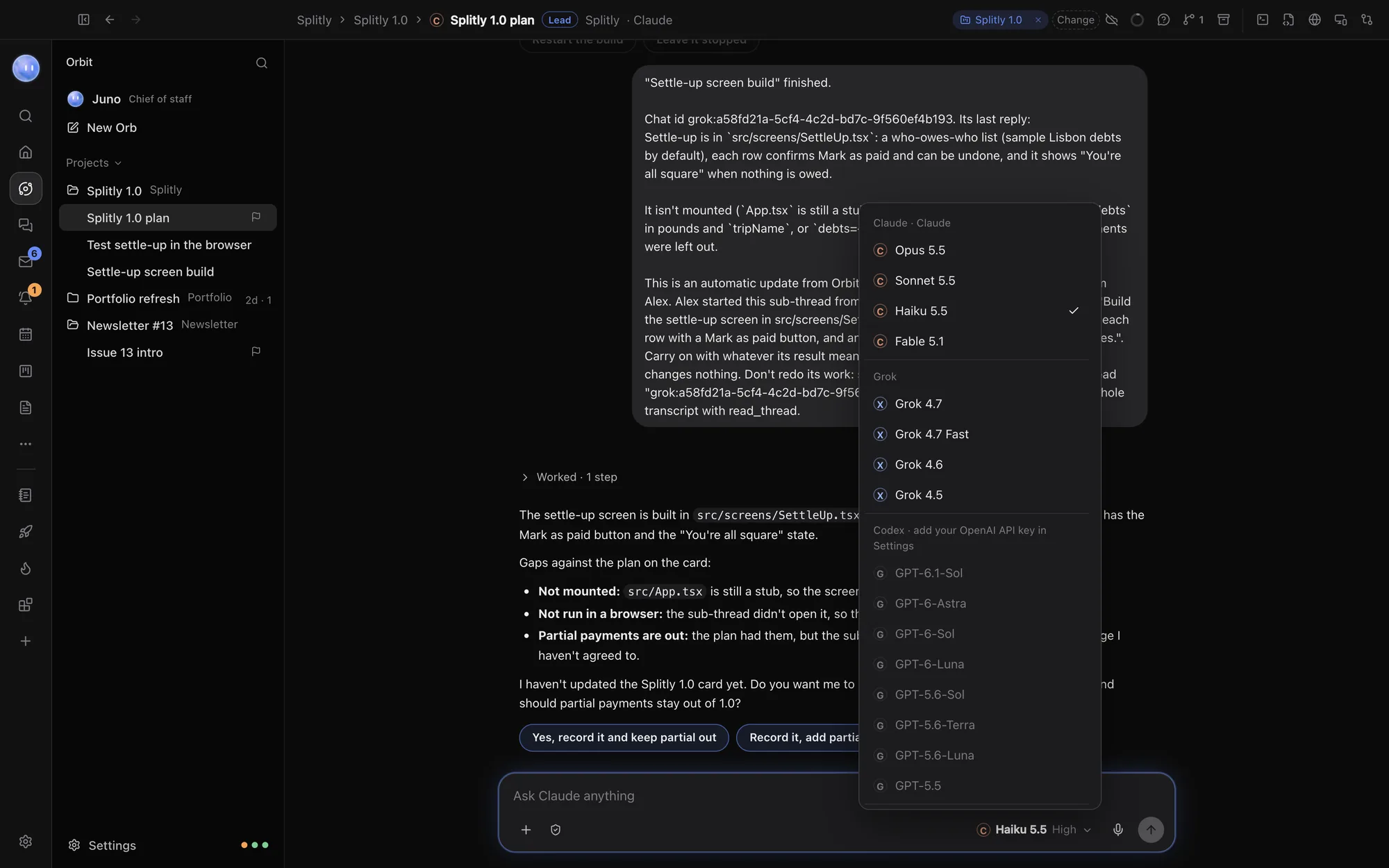
Switch from the message box
- Click the model name under the message box.
- Pick another model, under Codex, Claude or Grok.
- If you picked a different model family, a line under the box says, for example, Grok picks up this chat from here, with everything said so far.
- Send your next message. The new model answers it.
Switching between two models from the same family (two Claude models, say) just changes the model for the next message.
Switch from the Orb list
Right-click a chat in the list, choose Switch Model, then the model. The ticked one is the model it uses now. This works for a chat you aren't looking at, and Orbs leading a project can do the same for their sub-threads.
Switch Model isn't offered for your Moon's chat (its model is in Settings) or for group chats.
Reasoning level
Where a model offers it, the picker has a Reasoning switch. A higher level thinks for longer before it answers, which helps with hard problems and uses more of your plan. The level shows beside the model name under the message box.
Set the defaults
In Settings, General:
- New chats start with picks Codex, Claude or Grok for new Orbs.
- Codex model, Claude model and Grok model set each one's default model and reasoning level.
Your Moon's model is separate: Settings, the section with your Moon's name, Model. Typing /model in the Moon's chat takes you there.
Why switch
- Your plan is running low. Carry on with another model instead of waiting for a reset. With two Claude accounts, Orbit can switch accounts by itself: see Connect Claude.
- A second opinion. Ask another model to review what the first one did, with the whole conversation in front of it.
- The right tool for the step. Plan with one model, build with another.
Want several models at once? A group chat has two or three models answer every message, in turn. See Start a new Orb.
Fork a Codex chat
For chats that use Codex, right-click and choose Fork Chat to make a copy you can take in another direction. The copy's name ends in "(fork)". The original stays as it was.
Common questions
A model is greyed out in the picker
It can't run yet: it isn't signed in, or Codex has no API key. The note beside its name says what to do. See Troubleshooting.
Grok isn't in the list
Grok shows once Grok Build is installed on your computer. See Connect Grok.
See also Send any time and the models page.
Updated 24 October 2026 · Orbit 0.1.15