Help/Your Moon
The Moon's computer
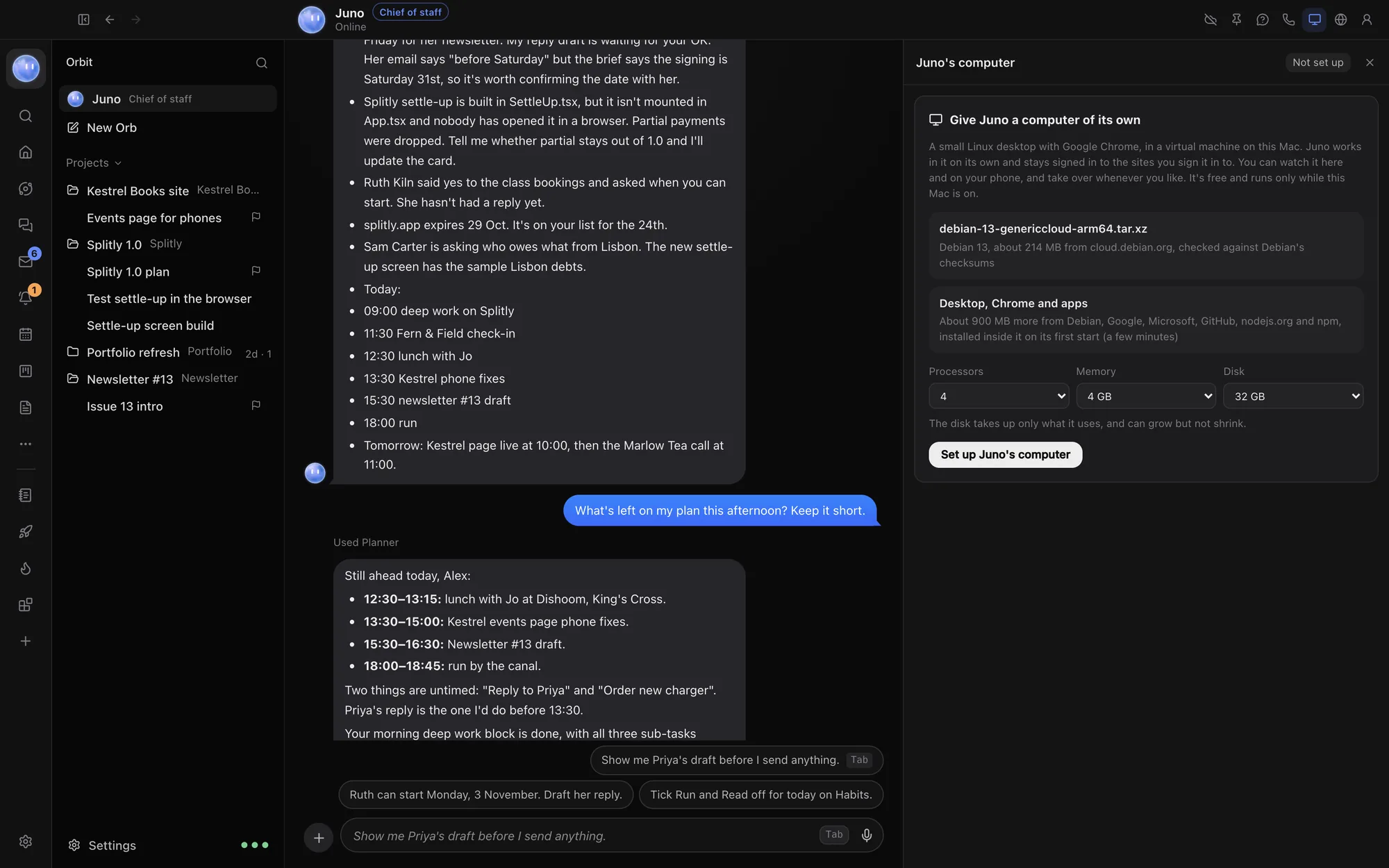
Your Moon can have a small computer of its own: a Linux desktop with Google Chrome, running in a virtual machine on your Mac. It works there by itself, and you can watch or take over any time.
The Moon's computer is on Orbit for Mac, with macOS 13 or later. It runs in a virtual machine through macOS, so it isn't on Windows for now.
What it's for
Some jobs need a real browser and a desktop: signing in to a supplier's site, filling in a long form, checking a dashboard every morning. Your Moon does them on its own computer, so it never takes over yours. It stays signed in to the sites you sign it in to. When it reaches a password or a payment, it hands it to you.
It's free and runs only while your Mac is on.
Set it up
- Open your Moon's chat and click Juno's computer at the top (your Moon's name shows here). Or open its Profile, then Computer, then Set up Juno's computer.
- The pane says what it downloads: Debian 13 (checked against Debian's checksums), then the desktop, Chrome and its apps, installed inside it on its first start. That takes a few minutes, once.
- Choose how many processors, how much memory and how big a disk to give it. The disk only takes up the space it uses.
- Click Set up Juno's computer.
After the first start, it starts in seconds.
Watch it, take over, hand back
- Open the pane any time to watch what your Moon is doing. You can watch from your phone too.
- Click Take over to use the computer yourself: your mouse and keyboard go to it.
- Click Hand back when you're done, and your Moon carries on.
When your Moon needs you, for a password, a payment or a check it can't do, the pane says Your turn with the reason. Do it yourself there, then hand it back.
Turn it off or change it
- Your Moon starts its computer by itself when it needs it. When it's off, the pane shows Off and Start. Its files and sign-ins are kept.
- The settings button in the pane changes processors and memory (from its next start). Turn it off to give it a bigger disk. A disk can grow but not shrink.
- Delete Juno's computer, in the same settings, removes it.
Its own browser
Separate from its computer, your Moon also has its own tabs in Orbit's browser. They share your sign-ins but stay apart from your chats' tabs. Click Juno's browser at the top of its chat to watch it, or take over and browse yourself. It picks up from wherever you leave the page.
Cloud jobs (optional)
The Computer tab also has Cloud jobs: link a Claude Code cloud session on your Claude plan, and your Moon can send long jobs (research, builds) there that keep going while your Mac sleeps. It has no screen, so anything that needs a browser stays on the Moon's computer.
- Click Open claude.ai/code and start a new session in one of your cloud environments, named "Juno's computer".
- Paste its link into the box and click Link.
Watch it opens the session, and Unlink removes it.
Common questions
It says something went wrong starting up
Click Try again. If it still won't start, Open its start-up log shows what happened, which helps if you contact us.
Is my data on the Moon's computer private?
It runs on your Mac, in a virtual machine. What your Moon sees and does there goes to the model it runs on, like anything else in its chat.
See also What the Moon does, Orbs in the browser and Cloud fallback.
Updated 24 October 2026 · Orbit 0.1.15