Help/Messages and calls
Inbox
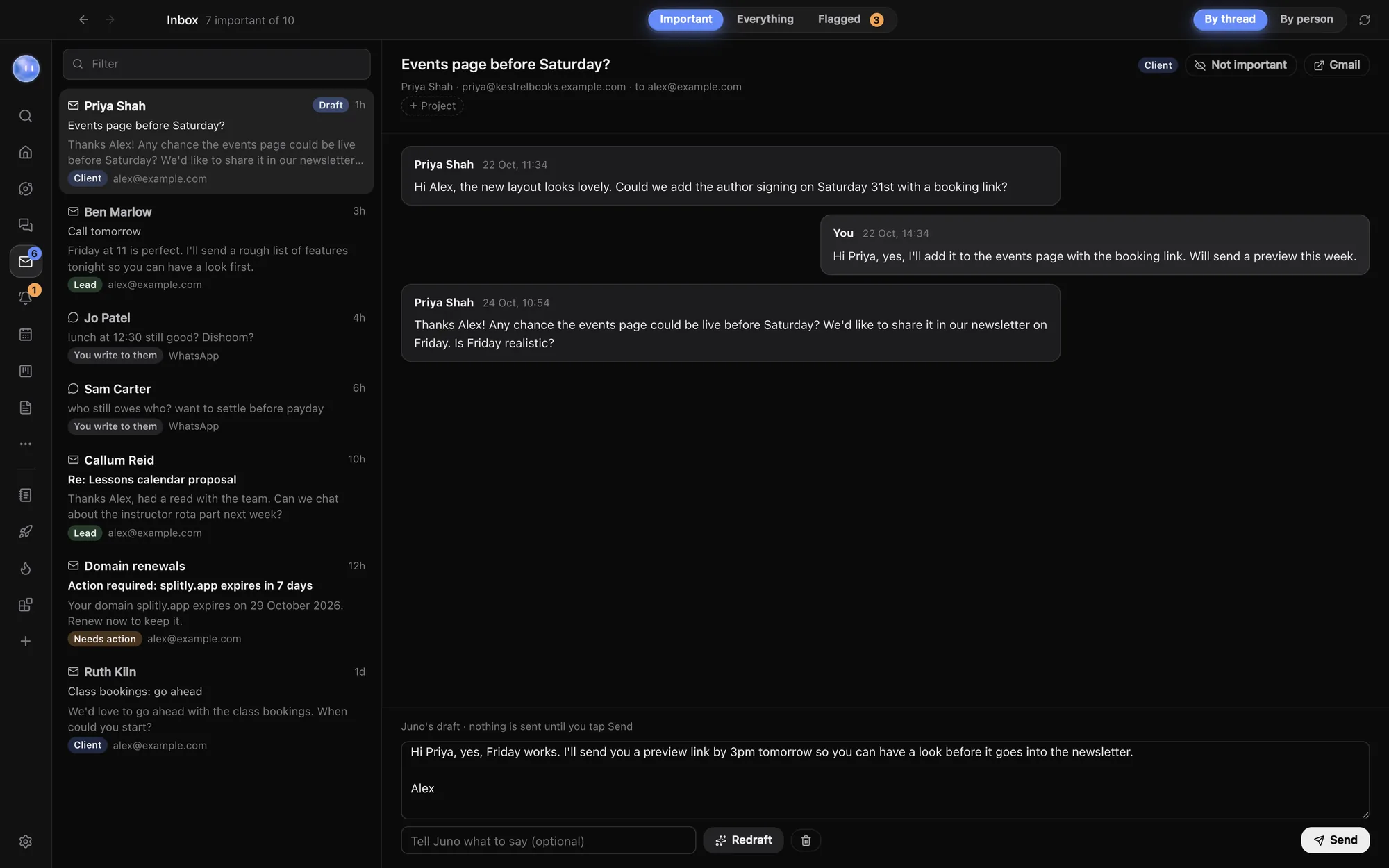
The Inbox puts your email accounts and chat apps in one list, with clients, leads and anything that needs action at the top. Your Moon can draft replies, and nothing is sent until you tap Send.
What you can connect
| Account | How it connects |
|---|---|
| Gmail or Google Workspace, iCloud Mail, Yahoo Mail, AOL Mail, Fastmail, Zoho Mail, BT Mail, GMX, and email on your own domain | Your address and an app password made for Orbit. Orbit reads over IMAP and sends replies over SMTP. |
| WhatsApp, Instagram, Messenger, Telegram, Signal and more | Through Beeper, a free app that puts your chat apps in one place, on a Mac. |
| Outlook, Hotmail and Microsoft 365 | Not yet. Microsoft only lets its own sign-in in, not app passwords. |
Add as many email accounts as you like. Orbit reads them on your computer, and app passwords are kept in your computer's secure storage, never in plain text.
Add an email account
- Open Settings, then Email.
- Under Email accounts, type your address and click Next. Orbit works out your provider from the address.
- Make an app password for Orbit with your provider. Orbit shows the steps and a button to the right page. For Gmail, 2-Step Verification must be on: open App passwords, name it "Orbit" and copy the 16 letters it shows.
- Paste it into App password, check Your name on replies, and click Connect.
For a domain Orbit doesn't recognise, open Server settings to check the IMAP and SMTP servers it found or guessed.
Connect WhatsApp and other chats
- Install Beeper on your Mac and sign in to your chat apps there. Orbit notices when it's installed.
- In Beeper, open Settings, then Integrations, and switch on Beeper Desktop API.
- Back in Orbit's Settings, Email, click Connect Beeper under WhatsApp and other chats.
- Approve Orbit in the page Beeper opens, then come back. The row says Connected.
Keep Beeper open for new messages to come in.
Reading the Inbox
Click Inbox in the left rail. Three tabs sit at the top:
- Important: clients, leads, people you write to, people your Moon thinks could be new clients, and email that asks you to act (an overdue invoice, a security alert, a domain renewal).
- Everything: the rest too, such as newsletters, promotions, notifications and group chats.
- Flagged: what your Moon and Orbs flagged for you, with draft replies. See Drafts and replies.
Group by By thread or By person, filter with Filter, and click Check now to fetch new messages. Each conversation has a chip saying why it's there (Client, Lead, You write to them, New, Needs action). If Orbit gets one wrong, move it with the buttons at the top of the conversation: send it to Everything, or keep it in Important. It stays where you put it.
Clients and leads come from your Board. Add others under Always count as clients in Settings, Email: emails, @domains, phone numbers or names, one per line.
Your Moon and new messages
Turn on Wake Juno when clients write (your Moon's name) in Settings, Email. When a client or lead messages you, your Moon reads it straight away and tells you who, where, what they said and a link, instead of waiting for its next check-in. Other settings there:
- People it doesn't know yet: your Moon decides whether a new sender is a client or lead, and only tells you if so.
- Hold messages between: messages in these hours wait and come together when they end.
- Never wake for: senders and chats to leave to the normal check-in.
Watching is read only. It never sends, marks anything read or changes labels.
Common questions
Does opening a message in Orbit mark it read?
No. Orbit only reads. Your messages stay unread in Gmail, WhatsApp and the rest.
Can I add a Microsoft or Outlook account?
Not at the moment. Microsoft doesn't allow app passwords for its accounts, and Orbit doesn't have Microsoft's own sign-in for the Inbox yet.
Is the Inbox on my phone?
Yes. The phone app shows the Inbox live from your computer, and you can send replies from it.
Related: Drafts and replies, The Board: projects, leads and people, What the Moon does.
Updated 24 October 2026 · Orbit 0.1.15