Help/Your day
Tasks and My Work
Every task in Orbit, whether you added it, an Orb did, or a teammate assigned it, lives in one list. My Work narrows that down to what's yours, plus where people have mentioned you.
Open your tasks
Click Planner in the left rail, then the List tab at the top. Tasks and the Planner's time blocks are the same thing: a task with a time shows on the Planner's grid, and a task without one waits here.
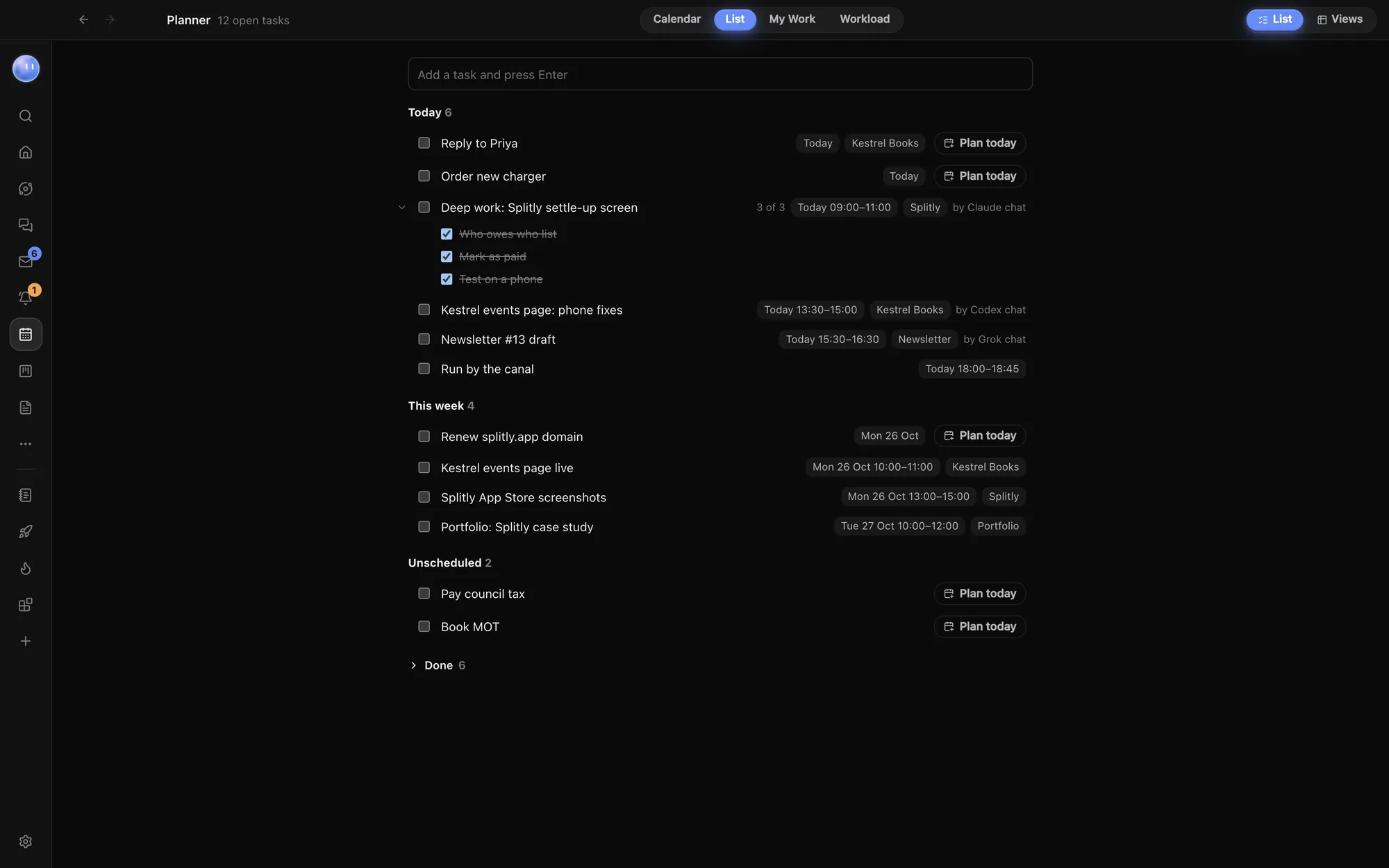
Add a task
- Type in Add a task and press Enter at the top of the list.
- Press Enter. The task is added.
- Click it to open its panel and add a due date, notes, sub-tasks, an estimate, a repeat, a project or a teammate.
You can also add tasks from the Tasks widget on Home, or ask any chat: "Add a task to send Alex Rowe the invoice on Friday."
How the list is grouped
Open tasks are grouped by the day they're on (planned, or else due): Overdue, Today, Tomorrow, This week, Later and Unscheduled. Each row shows its sub-tasks, which you can fold away. To give a task time today, use the button on its row that blocks an hour for it; it appears on the Planner, ready to drag where you want it.
Table, timeline and your own views
The List and Views switch at the top changes the list into a database view. Tasks then get a table, a timeline (from Start to Due) and any views you add, with filters, sorting, grouping and your own fields. See Docs and databases.
My Work
Click the My Work tab. It shows only what's yours:
| Section | What's in it |
|---|---|
| Overdue | Your tasks and projects past their date. |
| Today | What's due or planned for today. |
| Next 7 days | What's coming this week. |
| Later and no date | Everything else that's open. |
| Mentions | Messages in Chat where someone @mentioned you in the last month. |
A task is yours if it's assigned to you, or if you own it and nobody else is on it. Projects and leads count when you're their owner or on their team. Lead follow-up dates count as their date. Each row shows the project and estimate; click it to open it.
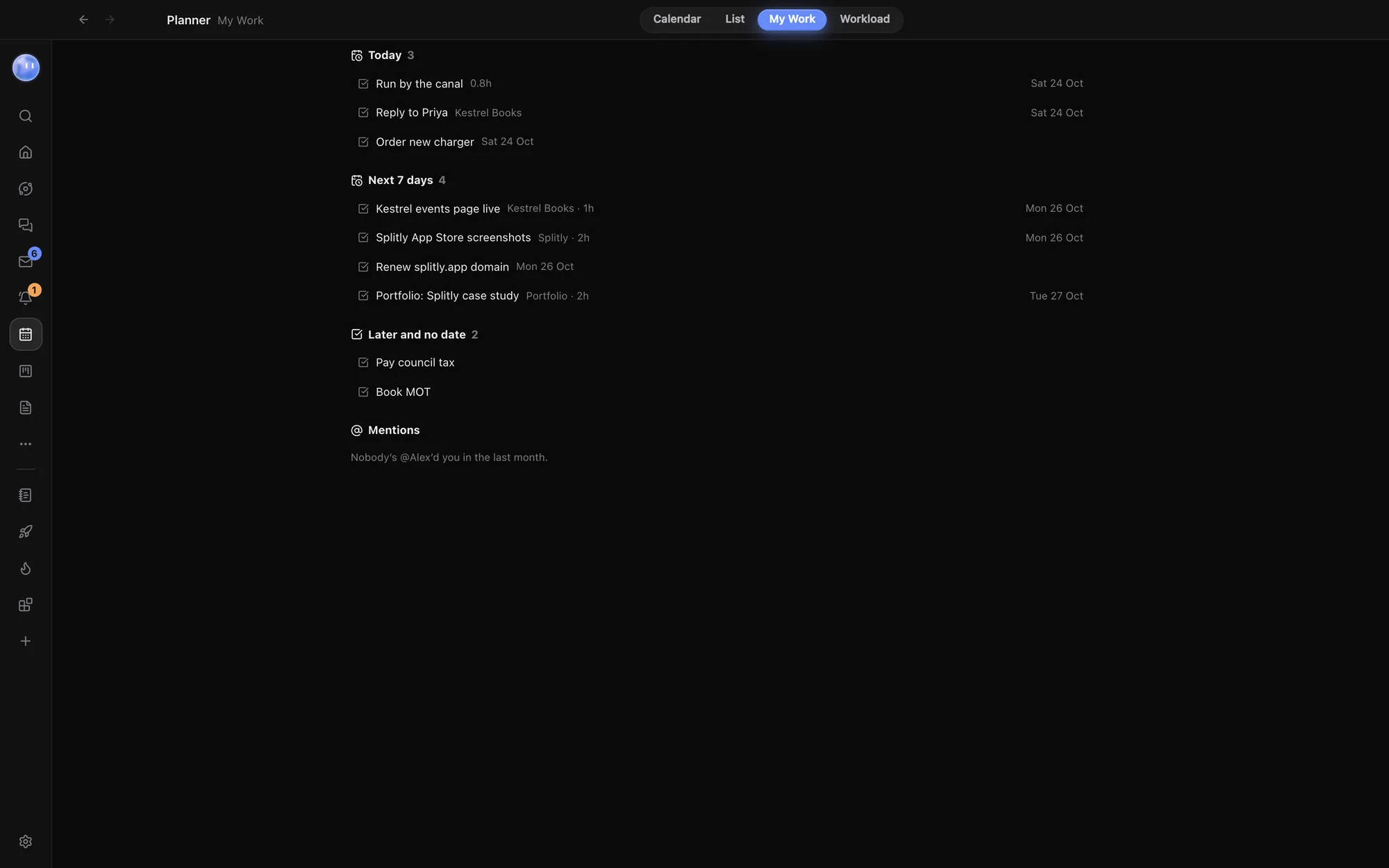
Without a team, My Work goes by the name you set in Settings: tasks with no owner, or owned by that name, are yours. Add your name there to see your @mentions too.
Related: Planner, Workload, The Board: projects, leads and people.
Updated 24 October 2026 · Orbit 0.1.15