Help/Orbs and projects
Projects and folders
A project keeps everything for one piece of work together: its Orbs, its card on the Board, and the folder on your computer the Orbs work in.
Projects and folders, in short
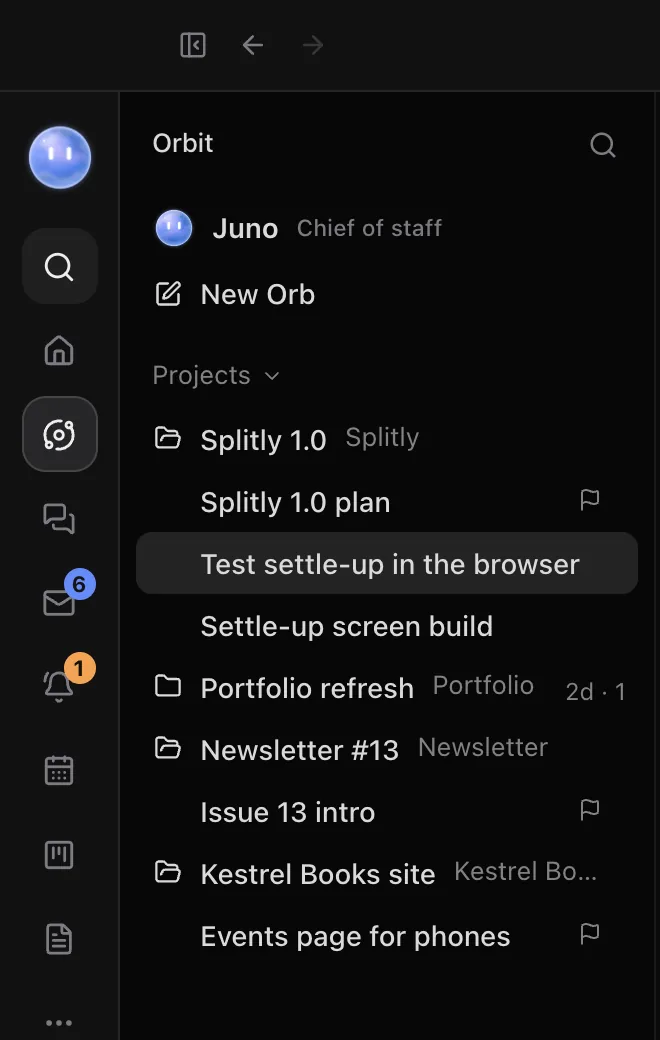
- A project is a card on the Board's Projects view, with a client, a due date, notes, a checklist and its Orbs. In the Orb list, By project groups your chats under these.
- A project folder is a folder on your computer that Orbs work in. Each has its own instructions that every model follows. By folder groups your chats by folder.
Setup links the two for you when your Moon finds your projects. You can also make either one yourself.
Add a project folder
- Open Settings, Projects.
- Click Add project and choose the folder.
Or, in the Orb list, switch to By folder and click Add a project folder beside the label.
Make a new project
Press ⌘K, type the project's name, for example "Kestrel Books site", and choose New project: Kestrel Books site. It goes on the Board, and you can open its card to add a client, due date and folder. More on cards in The Board.
File an Orb under a project
New Orbs start in no project unless you start them from one. To file a chat:
- Right-click it in the Orb list and choose Move to Project.
- Or drag it onto the project in the list.
- Or, when Orbit has a guess, click the suggestion beside a chat under Not filed yet. File under… lets you pick a project, or make the chat into one.
To start a chat already in a project, point at the project in the list and click Start a chat here, or use the same button on its card.
Instructions for a project
Each project folder can have its own instructions, like "Use British English" or "Run npm test before finishing".
- Open Settings, Projects.
- Click Instructions beside the project.
- Write how to work in it and click Save.
Orbit saves them as AGENTS.md in the folder. Codex, Claude and Grok all follow them: Orbit hands the file to Claude and Grok, which don't read it on their own. If the project also has a CLAUDE.md, Orbit gives that to Codex and Grok too.
A project's page
Open a project's card from the Board, or with Open the card in the Orb list. Besides its details and checklist, it lists the project's chats, tasks, docs, blocks, calendar, emails, calls, files, saved links and people. Things link to it by themselves: what an Orb makes in the project's chat, and emails and calls from the people on it.
If several chats are filed under a project, Orbit asks Which chat leads this project?. See Lead Orbs and sub-threads.
Remove a project folder
In Settings, Projects, click the remove button beside it (Remove from Orbit). The folder and its files stay on your computer.
Common questions
Does Orbit move or change my files when it finds projects?
No. Your Moon only reads the folders you pick. Nothing is moved or changed, and nothing is added until you say so.
Where do chats with no project go?
Under Not filed yet at the bottom of the By project view, and under Unfiled in the By folder view.
See also Start a new Orb and Your first project.
Updated 24 October 2026 · Orbit 0.1.15