How to let your AI use a real browser: click, type and test your web app

Give the model browser tools, start your app locally, and ask it to test one specific flow and report what it saw. You can do that today with Playwright MCP or Chrome DevTools MCP in any coding tool, with Claude in Chrome for Claude Code, with the browser built into the Claude and Codex desktop apps, or with Orbit's built-in browser, where each Orb works in its own tab. Use a test account, keep passwords out of the chat, and turn what it finds into real automated tests.
A model that writes a feature and then says "this should work" hasn't checked anything. A model that opens the page, clicks the button, reads the error in the console and fixes it has. The gap between those two is a browser, and in 2026 giving your AI one takes about five minutes.
This guide covers the main ways to do it, a step-by-step in Orbit, the prompts we use to test our own example app, Splitly, and the safety rules that matter once a model can type into real web pages.
Five ways to give an AI model a browser today
We checked each of these on its maker's own documentation on 24 October 2026.
1. Playwright MCP (any tool that speaks MCP)
Microsoft's Playwright MCP server gives a model browser actions through the Model Context Protocol. Instead of working from screenshots, it sends the model "structured accessibility snapshots" of the page, a text view of buttons, links and fields, so it can act without a vision model. In Claude Code it's one command:
claude mcp add playwright npx @playwright/mcp@latestUseful options from the README: --headless hides the window (it's visible by default), --isolated keeps the browser profile in memory instead of saving sign-ins to disk, and --browser picks Chrome, Firefox, WebKit or Edge. By default it uses a persistent profile, so a login survives between sessions.
Good for: any MCP-capable tool, including Codex and Cursor, and cross-browser checks.
2. Chrome DevTools MCP
Google's Chrome DevTools MCP lets an agent "control and inspect a live Chrome browser". Beyond clicking and typing, it records performance traces, reads network requests and console messages with source-mapped stack traces, and takes screenshots. In Claude Code you install it as a plugin with /plugin marketplace add ChromeDevTools/chrome-devtools-mcp, then /plugin install chrome-devtools-mcp@chrome-devtools-plugins.
Two things from its README worth knowing: performance tools may send page addresses to Google's CrUX API (turn that off with --no-performance-crux), and usage statistics are on by default (--no-usage-statistics turns them off).
Good for: debugging slow pages and failing requests, not just clicking through.
3. Claude in Chrome, with Claude Code
Anthropic's Chrome integration connects Claude Code to the Claude in Chrome extension in your own browser. Start Claude Code with claude --chrome, or turn it on by default from /chrome. Claude opens new tabs, shares your browser's sign-ins, and pauses for you at a login page or CAPTCHA. It can read console errors, fill forms, upload files and record a GIF of what it did. It needs a direct Anthropic plan (Pro, Max, Team or Enterprise) and works in Chrome, Edge and other Chromium browsers.
Good for: Claude Code users who want the model in their real, signed-in browser.
4. The browser inside the Claude and Codex desktop apps
Both big desktop apps now ship a browser. In the Claude desktop app's Code tab, Claude can start your dev server and open it in a Browser pane, take screenshots, inspect the page and click elements, and by default it checks its changes after every edit. It uses a clean profile, separate from your personal browser. In the Codex app, OpenAI's built-in browser lets Codex open local pages, click, type and take screenshots, with a developer mode for console and network inspection. OpenAI notes it isn't available in the Codex CLI or IDE extension.
Good for: people who already work in one of those apps and use one model.
5. Orbit's built-in browser
Orbit, the app we make, has a full browser beside every chat. Each chat keeps its own tabs, and an Orb (our name for an AI chat) only reuses tabs it opened itself and never takes over the tab you're looking at. It works the same on Claude, Codex and Grok, so you can have one model build a fix and another re-test it. The rest of this post shows how.
| Option | Where it runs | Uses your sign-ins? | Works with |
|---|---|---|---|
| Playwright MCP | A browser it launches | Its own profile (kept by default) | Any MCP tool |
| Chrome DevTools MCP | Chrome | Depends on how you start it | Any MCP tool |
| Claude in Chrome | Your own Chrome or Edge | Yes | Claude Code |
| Claude / Codex desktop browser | Inside the app | Separate profile | Claude, or Codex |
| Orbit browser | Inside Orbit | Orbit's own, shared by your Orbs | Claude, Codex and Grok |
Step by step: testing a web app in Orbit
- Start your app. Ask the Orb to start the dev server ("start Splitly's dev server"), or run it yourself in the terminal (⌃`). When a chat is building a site, the Live preview button at the top of the chat finds its local server.
- Open the browser. Click the globe at the top right of the chat or press ⇧⌘B (CtrlShiftB on Windows). You don't have to watch, but it's worth it the first time.
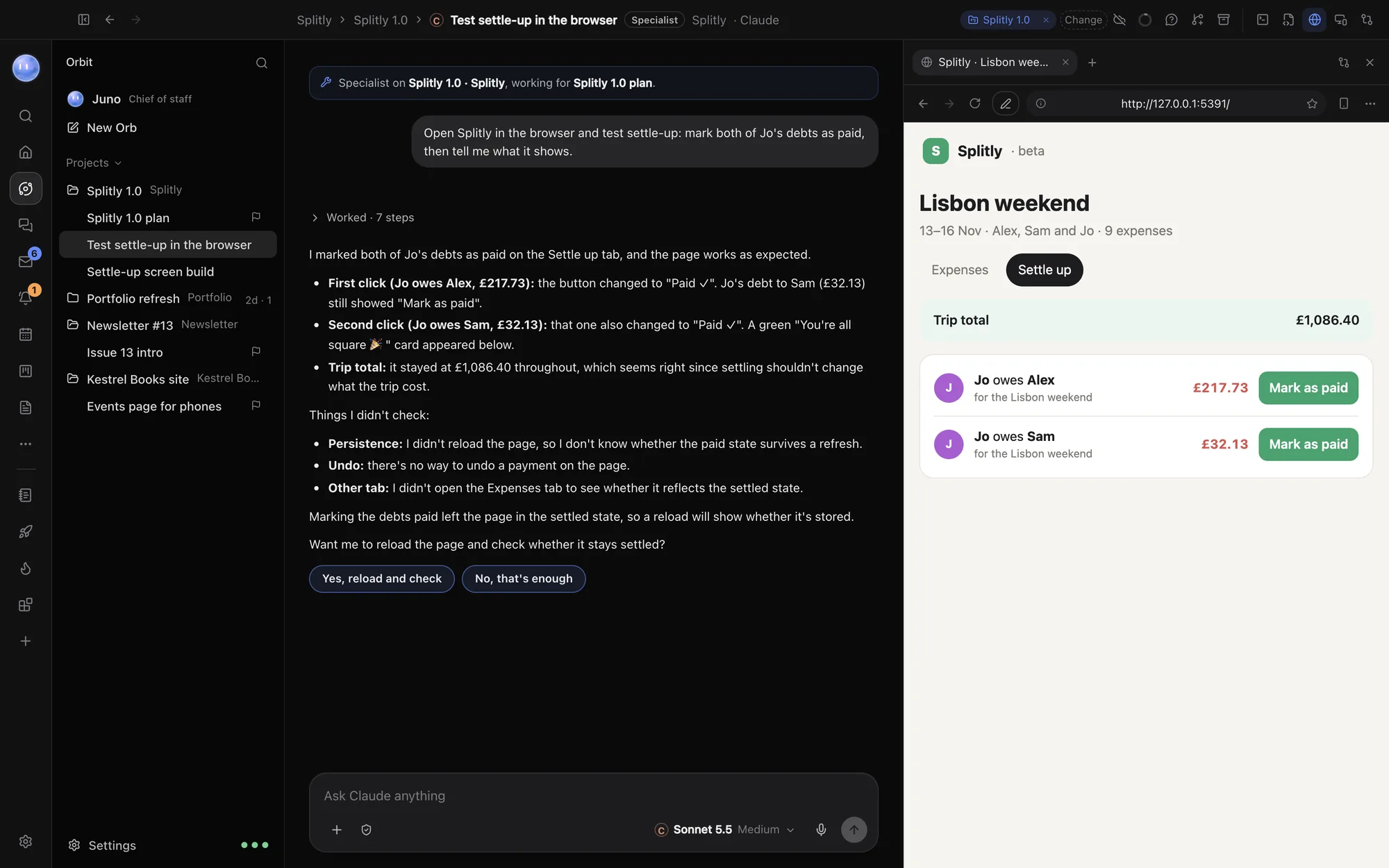
- Ask for one flow, with a clear finish line. For example: "Open Splitly, mark both of Jo's debts as paid on the Settle up tab, and tell me what the page shows after each click." The Orb opens its own tab and reads the page, clicks, types and takes screenshots.
- Do your part when asked. If the Orb reaches a sign-in, a card form or an "are you human" check, a bar appears over the page saying it's your turn. Do it, click Done, and it carries on.
- Read the report, then push further. A good report says what it checked and what it didn't. Ask for the gaps: "Reload and check it stays settled."
- Check other sizes. The device button in the toolbar shows the page as a phone, tablet or desktop width (iPhone 15, Galaxy S24, iPad and others), with the device's real screen and browser.
- Get a second opinion. Switch the chat to another model and say "re-test what was just fixed". It sees the conversation so far and uses the same browser. See how switching works.
Two extras save a lot of typing. Annotate in the browser toolbar lets you click parts of a page and pin notes ("make this button the brand blue"), then sends a screenshot with numbered pins and the exact elements to the chat. And you can ask an Orb to record a flow as an MP4 or GIF to share. Details are in Orbs in the browser and Devices, recording and notes.
Prompts that work for testing a web app
The difference between a useful browser test and a vague one is almost always the prompt. Be specific about the flow, the data and what "done" looks like, and ask for evidence. These work with any of the tools above.
- The smoke test: "Open localhost:5173. Visit every link in the main menu. For each page, tell me if it loaded, list any console errors, and take a screenshot. Don't fix anything yet."
- The form test: "On the sign-up form, try: an empty submit, an invalid email, a password that's too short, and a valid sign-up with alex@example.com. For each, tell me the exact message shown and whether it matched what you'd expect."
- The fix-and-verify loop: "Reproduce the bug where the trip total goes negative after deleting an expense. Show me the steps and the console. Then fix it, reload, and repeat the same steps to prove it's fixed."
- The phone check: "Open the expenses page as an iPhone SE. Tell me about anything that overflows sideways, overlaps, or is too small to tap."
- The network check: "Add an expense and watch the network requests. Tell me which requests fired, their status codes, and anything that failed or took over a second."
- The edge cases: "Try the settle-up screen with no expenses, one person, and 50 expenses. What breaks?"
- The test writer: "You've just tested the settle-up flow by hand. Write a Playwright test that does the same steps and checks the same results, and run it."
That last prompt is the most valuable habit here. Exploratory testing by a model finds problems. An automated test makes sure they stay fixed, runs in seconds, and costs nothing per run.
What to ask for in the report
Ask the model to end every browser test with three lists: what it checked and saw, what failed (with the console or network evidence), and what it didn't check. The third list is the one that stops you shipping on a false "all good". In the screenshot above, the Orb said it hadn't reloaded the page, so it didn't know whether the paid state was saved. That's exactly the kind of honesty you want, and you can ask for it every time.
Safety: passwords, accounts and your own tabs
A model with a browser can do anything you can do in that browser. Set it up so a mistake costs nothing.
- Use a test account and test data. Never point a testing session at a live admin account or real customer data. Seed a local database with example people.
- Never paste a password or API key into the chat. Chat text goes to the model and stays in the history. In Orbit, the Secret box handles this: the Orb writes a placeholder like
{{secret:SPLITLY_API_TOKEN}}, you approve the use, and Orbit puts the real value into that one command or page field. Anything that comes back has the value swapped for the placeholder before the model sees it. - Let the browser fill passwords, not the model. In Orbit, Orbs don't type passwords: at a password or card field the page is handed to you, and your saved logins are filled in by Orbit itself. Claude in Chrome similarly pauses at login pages and CAPTCHAs for you.
- Keep sign-ins apart. Orbit's browser profiles keep each client's or project's sign-ins separate, so a test session can't wander into the wrong account. With Playwright MCP,
--isolatedkeeps nothing on disk. - Block sites you don't want touched. In Orbit, Settings, Browser, Sites Orbs never open stops Orbs opening or reading listed sites. Claude in Chrome uses the extension's site permissions.
- Watch out for instructions in pages. A web page can contain text written to steer an AI. Test your own app, be careful on unknown sites, and keep approvals on for anything that sends, buys or deletes.
- Review recordings before sharing. Anthropic's docs make the point well: a GIF captures everything visible, including account details on signed-in pages.
The limits
- It's slower than a script. A model reading and clicking takes seconds per step. Use it to explore and diagnose, then turn the result into automated tests.
- It can misread what it sees. Text snapshots miss visual problems, and screenshots can be misjudged. Ask for evidence (the console line, the screenshot) and check anything important yourself.
- "Are you human" checks stop it, by design. In Orbit the Orb hands the page to you rather than trying to solve one.
- It uses your plan's limits. Long browser sessions with many screenshots use more of your Claude, SuperGrok or OpenAI allowance than a text chat.
- Local means local. If your laptop sleeps, a local browser session stops. Cloud sessions keep going, but they run on another machine, so they can't open the dev server on your laptop.
Common questions
Can ChatGPT, Claude or Grok control my browser?
Yes, with the right tool. Claude Code can use your Chrome through the Claude in Chrome extension, the Claude and Codex desktop apps have built-in browsers, Playwright MCP and Chrome DevTools MCP work with any MCP-capable tool, and Orbit gives Claude, Codex and Grok the same built-in browser.
What's the difference between Playwright MCP and Chrome DevTools MCP?
Playwright MCP is built for driving pages from text snapshots across several browsers. Chrome DevTools MCP is built around Chrome's developer tools, with performance traces, network and console inspection. Many people install both.
Is it safe to let an AI log in to my app?
Use a test account, and don't give the model the password. Let the browser fill saved logins, or use a secret store that keeps the value out of the chat, like Orbit's Secret box. Keep approvals on for anything irreversible.
Can the AI test my site on a phone?
It can test phone sizes. Orbit's browser can show a page as specific phones and tablets with their real screen and browser, and Playwright can emulate devices. For final checks, still open the site on a real phone.
Does this replace automated tests?
No. It's best for exploring, reproducing bugs and checking a fix. Once a flow works, ask the model to write a Playwright test for it, so the check runs in seconds on every change.
Try it on one flow today
Pick the flow that breaks most often in your app, start it locally, and give a model a browser with one of the options above. Use the fix-and-verify prompt, then ask it to write the test. If you'd like a browser, terminal and every model in one place, with passwords kept out of the chat, download Orbit and try it free for 7 days on your own Claude, SuperGrok or OpenAI accounts. See also page checks for quick SEO, speed and layout checks.