Use cases
Orbit for developers
What it looks like to build a feature in Orbit, from the first message to a reviewed diff. We use our demo workspace: Alex Rowe, a made-up indie developer in London, shipping a bill-splitting app called Splitly.
Orbit gives a developer Claude Code, Codex and Grok in one chat, on your own plans, with the terminal, a browser your Orbs test in, and a Changes pane beside it, so you hand over the long jobs, watch them happen and review every diff before anything is committed.
The setup
Alex has five projects in Orbit, each linked to a folder in ~/Projects: Splitly, the Kestrel Books client site, a newsletter, a portfolio and a habit tracker. Splitly 1.0 is due on 30 October. Its card on the Board has a checklist: Trips and people and Who owes who are ticked; Share link and Store screenshots aren't.
Alex's Splitly chat runs on Claude, on Alex's own Claude plan. The Kestrel Books chat runs on Codex, on an OpenAI API key. The newsletter runs on Grok. None of that is fixed: any chat can switch model at any point.
New to projects? Start with Your first project and Projects and folders.
1. Hand the job to the project's lead Orb
This morning's task in the Planner is "Deep work: Splitly settle-up screen", with three sub-tasks: a who-owes-who list (done), Mark as paid, and Test on a phone. Alex opens the Splitly lead Orb and writes:
Build "Mark as paid" on the settle-up screen. Tapping it should move the debt to a
Settled section and update both people's totals. Add tests, run them, then check
the screen at phone width in the browser. Don't commit.
The lead Orb plans first, and its plan ticks off as it works ("2 of 5 done"), with one line for its current step you can open for detail. If you'd rather approve the plan before anything changes, use plan mode. See Permissions and plan mode.
2. Let it split the work
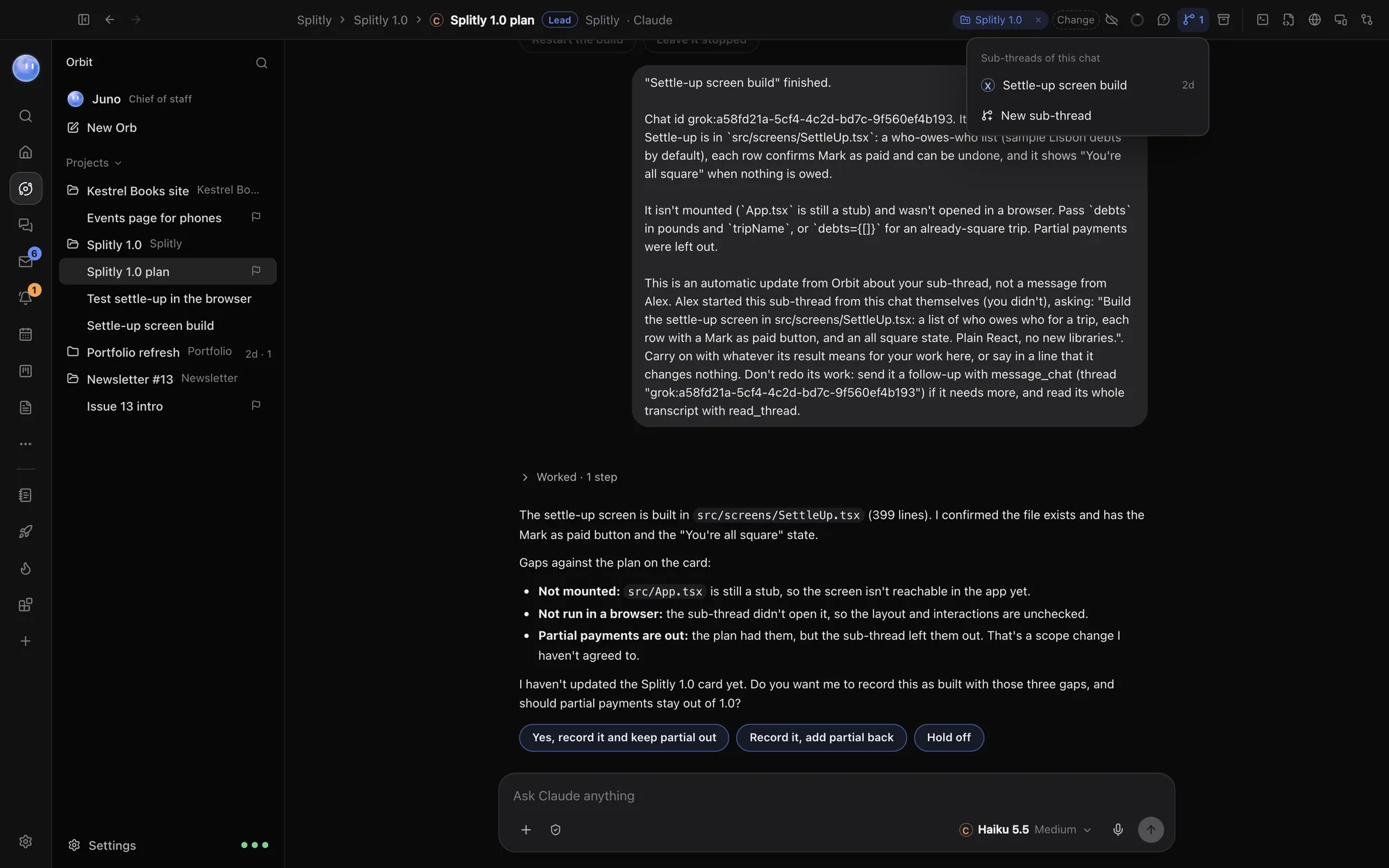
A lead Orb can hand a self-contained piece to a sub-thread, a new chat of its own that sits nested under it in the Orb list and reports back when it's done. Here, the lead keeps the UI work and gives a sub-thread "write the tests for the totals logic". Alex didn't have to set that up; Orbs start sub-threads themselves when a job splits well, and you can start one yourself from the chat's menu. See Lead Orbs and sub-threads.
3. Watch the terminal and the browser
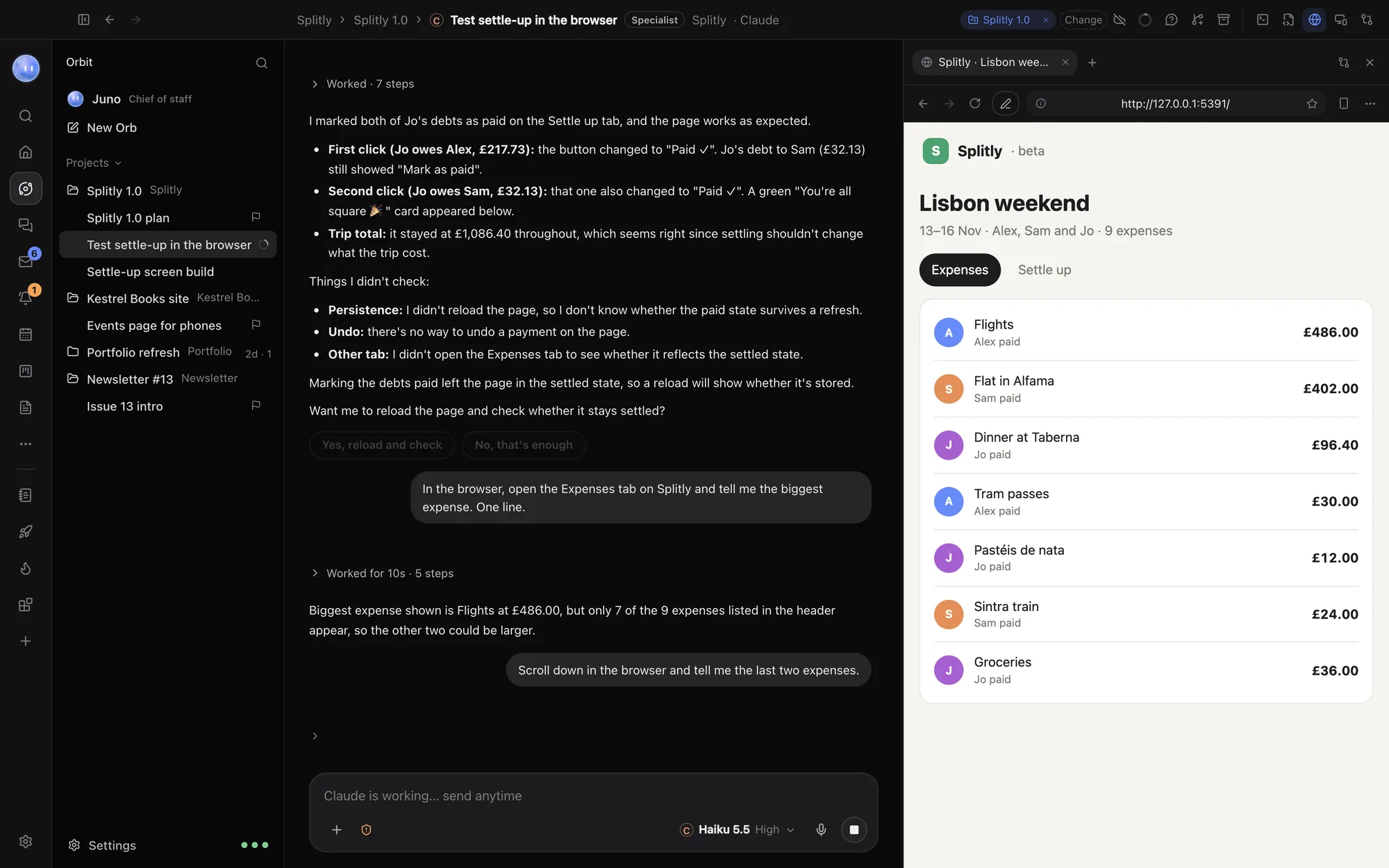
The terminal sits beside the chat, and the Orb uses the same one, so every command it runs is in front of you: the test run, then the dev server starting on localhost. When the Orb wants to run a command, you decide: once, for this chat, or not at all.
Then it opens the app in Orbit's browser, in a tab of its own, so the tab you're reading docs in is never taken over. It switches the tab to a phone size, taps through the settle-up screen and reads the console. Before saying it's done, it can run a phone and desktop check that finds sideways overflow, broken images, failed requests, tiny tap targets and console errors. See Orbs in the browser and Page checks.
4. Keep talking while it works
Halfway through, Alex remembers something. No need to wait or stop the Orb: type it and press Enter.
Settled debts should still show who paid, with the date.The Orb takes the message in at its next step and carries on with both. On a model that can't do that, the message waits in the chat with an Interrupt link under it. See Send any time.
5. Get a second opinion from another model
When Claude reports back, Alex switches the same chat to Grok and asks:
Review what was just built. What isn't tested, and what breaks with three
people and a partial payment?
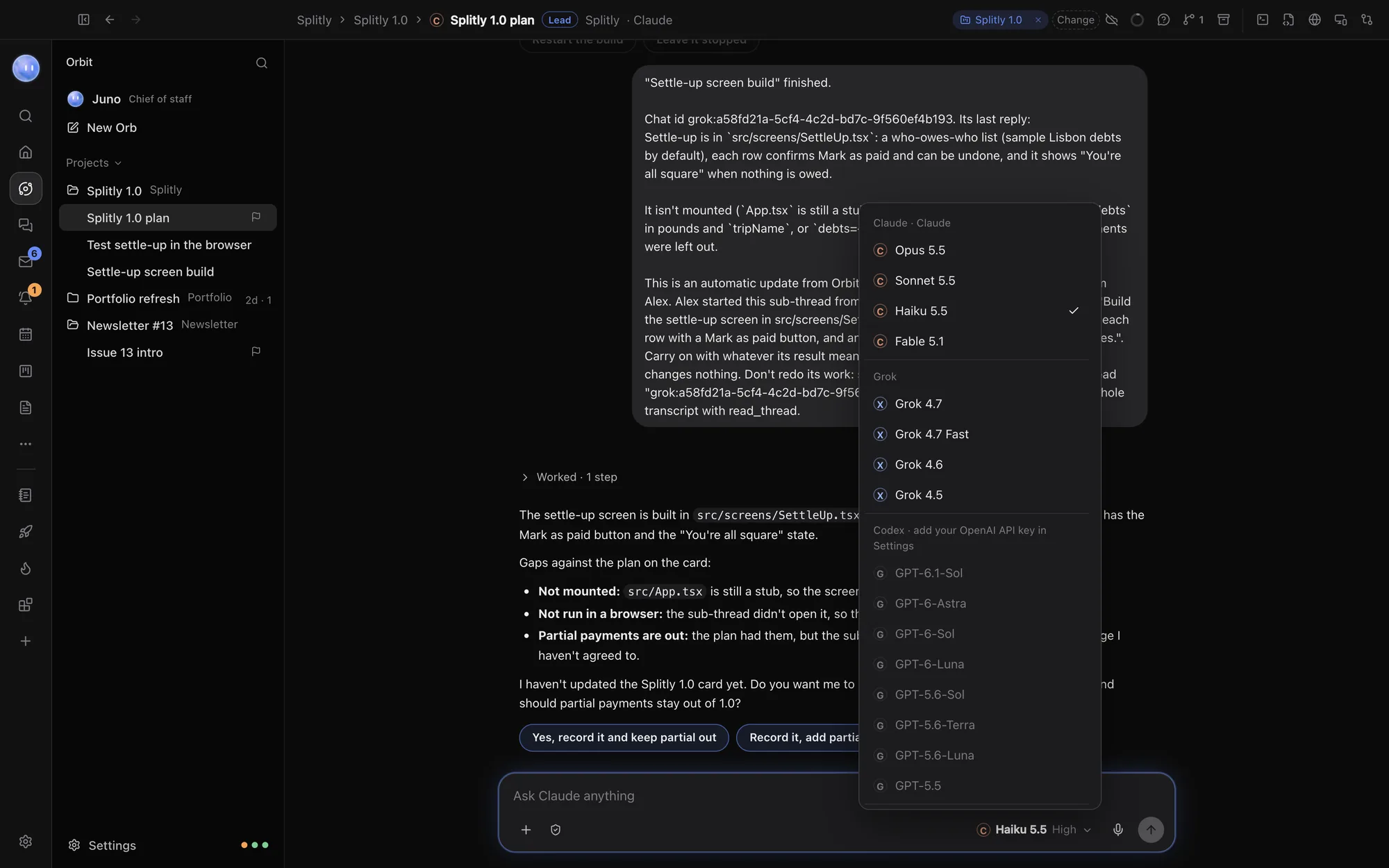
Grok reads the whole chat so far, including what Claude did, and answers from there. Switch back to Claude to fix what it found. You can also start a group chat where two or three models answer every message in turn. See Switch models mid-chat.
6. Review before anything is committed
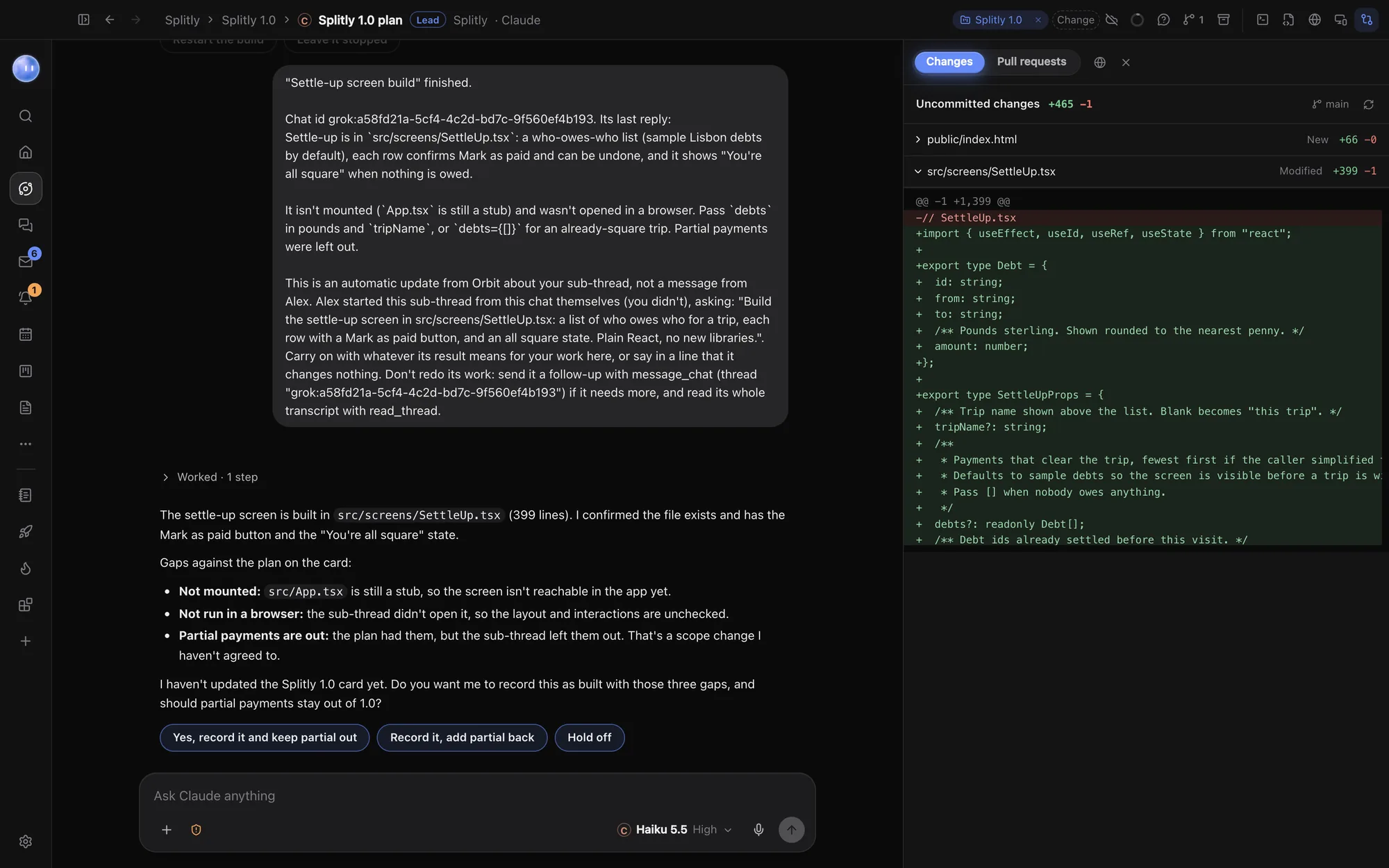
Every file an Orb touches shows in the Changes pane as a diff, so Alex reads the whole change before committing. Prefer your own editor for a closer look? Open the folder there; it's the same files. The Pull requests tab next to it lists the project's open pull requests from GitHub, and you can ask Codex or Claude to review one. See Changes and pull requests.
The parts developers tend to like
- Secrets your models never see. Put API keys and tokens in the Secret box. The Orb writes a placeholder; Orbit puts the real value in at the last moment and keeps it out of the transcript. Orbit asks before a chat uses a secret. See Secret box.
- Codex three ways. On your OpenAI API key as a normal Orb, OpenAI's own
codexprogram in Orbit's terminal, or a Codex cloud task on a GitHub pull request. See Add Codex. - Connectors. Linear, Jira, Notion, Stripe and more, connected once and usable by every Orb, whatever its model. Read-only lookups run; changes ask first. See Connectors.
- Skills for every model. One library of skills and slash commands. Type / to see them. See Slash commands and skills.
- Cloud fallback. Chats you choose carry on in the cloud while your computer is asleep or away. See Cloud fallback.
- The rest of the day stays in view. While the Orbs work, the Moon flags that Priya at Kestrel Books wants the events page live before Saturday and drafts a reply for Alex to check. Nothing sends without Alex's OK.
What Orbit isn't, for developers
Orbit isn't an IDE. Its editor is for quick looks and small edits, with no AI autocomplete, so if you type a lot of code yourself, keep your editor and run Orbit beside it. Orbs in a project share its folder rather than getting a Git worktree each. And it runs on Mac and Windows, not Linux. The comparisons are honest about this: Orbit vs Cursor, Orbit vs Conductor.
Common questions
Which AI plans do I need?
At least one: a Claude plan for Claude Code, a SuperGrok plan for Grok, or an OpenAI API key for Codex. Orbit uses them as they are and never charges for the models.
Can Orbs commit and push?
Orbs work in your project folder with the permissions you give them. Every edit shows in Changes first, and you choose how much they ask before acting, from every change to full access.
Does it work with my existing repos?
Yes. A project is any folder on your computer, so point Orbit at the repo you already have.
Can I use it with Cursor or VS Code?
Yes. Open the same folder in your editor. Orbit and the editor see the same files.
Try Orbit free for 7 days · The workspace · Every model in one chat
Updated 24 October 2026