Help/Account and billing
Billing and cancelling
Orbit is a monthly subscription with no minimum term. This page covers cancelling, resuming, your card and invoices, and when you can get a refund.
Cancel your subscription
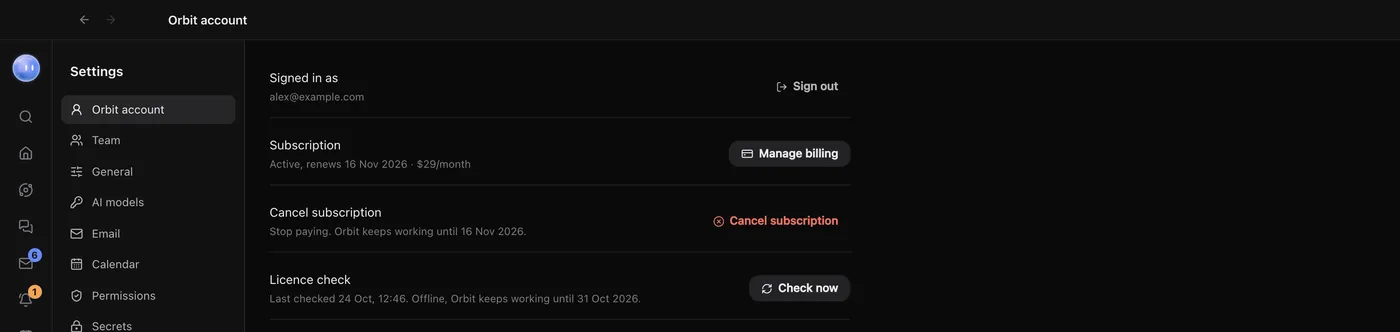
- In Orbit, open Settings, then Orbit account.
- Click Cancel subscription.
- If you like, choose a reason and tell us what we could do better. Both are optional.
- Click Cancel subscription again to confirm, or Keep my subscription to back out.
You can also cancel from Manage billing on the same screen, or from your account page at superorbit.app/account.
- Orbit keeps working until the end of the month you've paid for.
- You won't be charged again.
- Changed your mind? Resume before your paid month runs out and nothing changes, including your founding price.
- Cancel during your free week and you're never charged.
When the paid month ends, Orbit locks. Your chats, projects and settings stay on your computer.
Deleting the app doesn't cancel your subscription. Cancel first, in Settings, Orbit account.
Resume
After cancelling, Settings, Orbit account shows Changed your mind? with the date your subscription ends. Click Resume subscription to keep Orbit; you won't be charged until then.
Your card and invoices
- Update your card: click Manage billing in Settings, Orbit account. It opens Stripe's billing page in your browser. Your account page also has Update payment method.
- Invoices: sign in at superorbit.app/account. Invoices are listed with a PDF of each. Your first one appears when your free trial ends.
- If a payment fails, the subscription line in Settings says so. Stripe will try again, and Orbit stays open meanwhile. Update your card to fix it.
Stripe handles payment. Orbit never sees your card details.
Refunds
We don't refund part months or unused time when you cancel. We do give refunds when:
- You cancel within your 14-day right to cancel (below).
- Orbit doesn't work as described and we can't fix it.
- We've charged you by mistake.
- We stop offering Orbit before your paid month is up.
If something's gone wrong that isn't on this list, email us anyway. We'll look at it.
Your 14-day right to cancel
If you're a consumer in the UK or EU, the law normally lets you cancel something you buy online within 14 days, for a full refund. Orbit is digital content that starts as soon as you subscribe, so the right works like this:
- Haven't started using it yet? If you subscribed in the last 14 days and haven't yet used Orbit with your subscription, cancel and we'll refund you in full.
- Already using it? If you agreed when you subscribed that Orbit could start straight away, and that you'd lose the right to cancel once it did, the 14-day right ends once Orbit has unlocked on your computer and you've started using it. If you didn't agree to that, you can still cancel within the 14 days for a full refund.
Either way, you can cancel any time so you're not charged again. This applies to your first payment. Monthly renewals don't start a new 14-day period.
How to ask for a refund
Email declan@superorbit.app from the email address you use for Orbit, and tell us what happened. We refund to the card or account you paid with, within 14 days of agreeing the refund.
Delete your account
Cancelling keeps your account so you can come back. To remove it altogether:
- Sign in at superorbit.app/account.
- Scroll to Delete account and click Delete my account.
- Type your email address and click Delete forever.
Your account, devices and sign-ins are deleted straight away, and a subscription paid through Stripe stops with no further charges. Your chats and files are on your own computer, so they stay there. Payment records are kept for as long as UK tax law requires.
If you lead a team with other people in it, remove them in Settings, Team first, so their shared work isn't deleted with your account.
Your AI plans
Your Claude and SuperGrok plans are separate subscriptions with Anthropic and xAI. Cancelling Orbit doesn't cancel them, and we can't refund them. Cancel or ask for refunds on those plans with the company you pay. The same goes for an OpenAI API key you use with Codex.
Common questions
How do I cancel?
In Orbit, open Settings, then Orbit account, then Manage billing. You can cancel there in a couple of clicks. Orbit keeps working until the end of the month you've paid for.
Do I keep my founding price if I cancel and come back?
Resume before your paid month runs out and nothing changes, including your founding price. The founding price stays yours for as long as you stay subscribed.
The full wording is on the Refunds & Cancellation page and in the Terms of Service. Related: Your plan and price, Devices.
Updated 24 October 2026 · Orbit 0.1.15