Help/Blocks
Block Store
The Block Store is where Orbit users share blocks. Anyone can browse and install them; publishing your own puts its code on GitHub under your name.
Browse and install
- Open Block Store: it's under More in the left rail, and at the bottom of the All blocks list as Browse the Block Store.
- Choose Popular, Most installed or Newest, or type in Search blocks and press Enter.
- Click Install on a card. The block opens straight away and joins your rail.
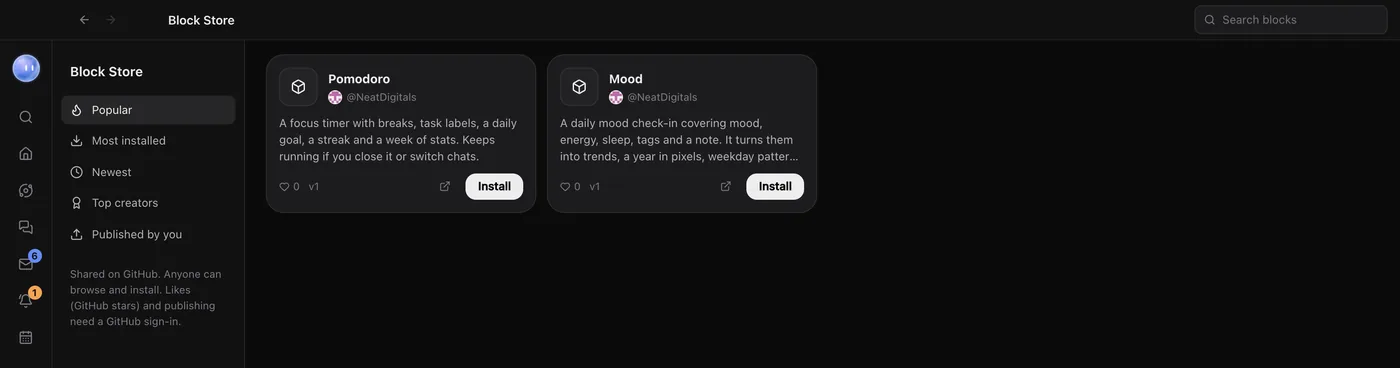
Each card shows the block's name, icon and description, who made it, its likes, installs and version. When the author publishes a new version, the card's button changes to Update. Top creators lists the people who publish blocks, with their likes and installs.
Is it safe to install a block?
An installed block runs in the same sandbox as your own blocks. It keeps its own data and can't reach your files, secrets, connectors or the rest of Orbit. Its data stays on your computer.
A block someone else made can't message your Moon without asking you. If it tries, Orbit shows you the exact message, who made the block, and asks whether to send it. Even then, your Moon treats it as a request to check with you, not an instruction.
Every block's code is public on GitHub. Click the GitHub button on its card (View on GitHub) to read it before you install.
Like a block
Likes are GitHub stars, so liking needs a GitHub sign-in. Install GitHub's gh command and run gh auth login in Orbit's terminal. Then click the heart on any card. Browsing and installing work without a GitHub account.
Publish your own block
You'll need a GitHub account, signed in with gh auth login in Orbit's terminal.
- Open your block and click Publish in its header.
- Orbit tells you what happens: the block becomes a public GitHub repository under your account, and anyone can see its code and install it. Confirm to carry on.
- The button says Checking it's safe… while Orbit checks the block.
- If it passes, it's published, and you'll see it under Published by you. GitHub search can take a few minutes to list a new block for everyone else.
To publish a new version later, change the block and click Update in store.
The safety check
Because anyone can read a published block's code, Orbit checks it first, in two passes:
- A scan for keys, tokens and your own details. Any of these stops publishing outright.
- A review by your own Claude or ChatGPT, for personal or sensitive information (like a client list or someone's email) and anything unsafe the code does.
If anything is found, you'll see Not published and a list of what to fix and where. Click Fix it with Juno and your Moon takes those things out, so anything the block needs comes from its saved data or is typed in when it runs. Then publish again.
Only the block's page, its Home widget, its name, icon and description go up. Its saved data never leaves your computer.
Common questions
Can I publish a block a teammate shared with me, or one I installed?
No. Only blocks you made yourself have Publish. Orbit's own blocks, like the Journal, can't be published either.
How do I take a block down?
A published block is a public repository on your GitHub account. Delete that repository on GitHub to take it out of the store.
Related: Make a block, Change a block, Terminal and editor.
Updated 24 October 2026 · Orbit 0.1.15