Help/Blocks
Make a block
Blocks are little apps that live in your left rail: trackers, dashboards, tools, anything. Describe one in a sentence and your Moon builds it. Every Orb can read and update what's in it.
Make one
- Click New block (the + in the left rail).
- Under Make Orbit your own, type what it should do in What should your block do?, like "A gym log: sessions, sets and a chart of my progress".
- Click Build it with Juno (your Moon's name), or press Enter.
Your Moon's chat opens so you can watch it work. It picks a name and an icon, builds the page, gives it a small version for Home, and tells you when it's in the rail. It usually takes a minute or two.
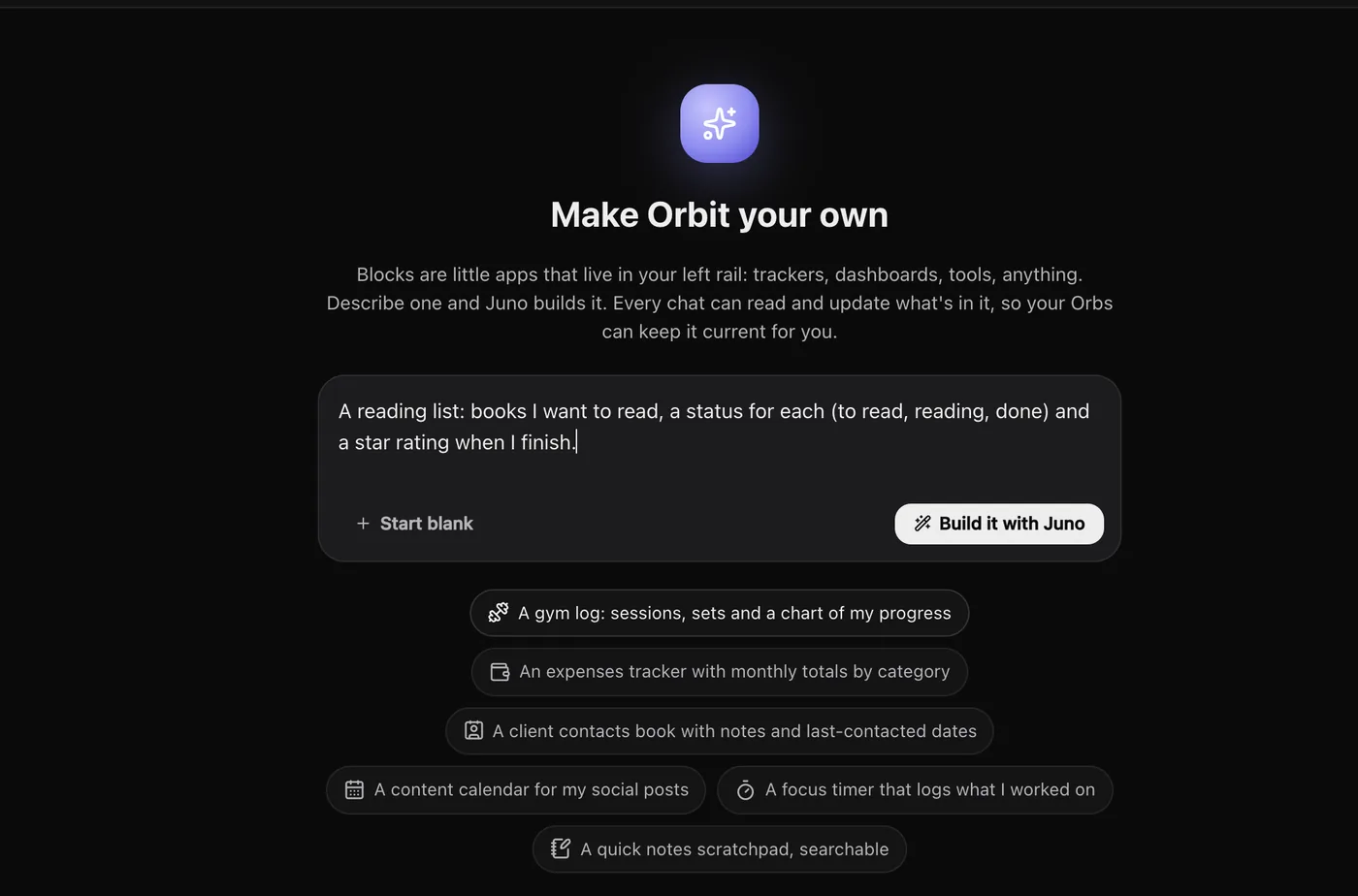
Not sure where to start? Click one of the ideas under the box: a gym log, an expenses tracker, a client contacts book, a content calendar, a focus timer or a quick notes scratchpad. You can also ask for a block in any chat, like "make me a block that tracks Splitly invoices by month".
Start blank makes an empty block for you, or an Orb, to fill in later.
Where blocks live
Each block gets its own icon in the left rail, below a divider. Click it to open the block full size.
- Got a lot of blocks? Click the blocks button under them (All blocks) to see every one. Use the pin next to each to keep it on the rail or tuck it away in that list.
- To show a block on Home, click Add to Home in its header, or right-click it in the rail and choose Pin to Home. See Home and widgets.
- Blocks are on your phone too, under Blocks.
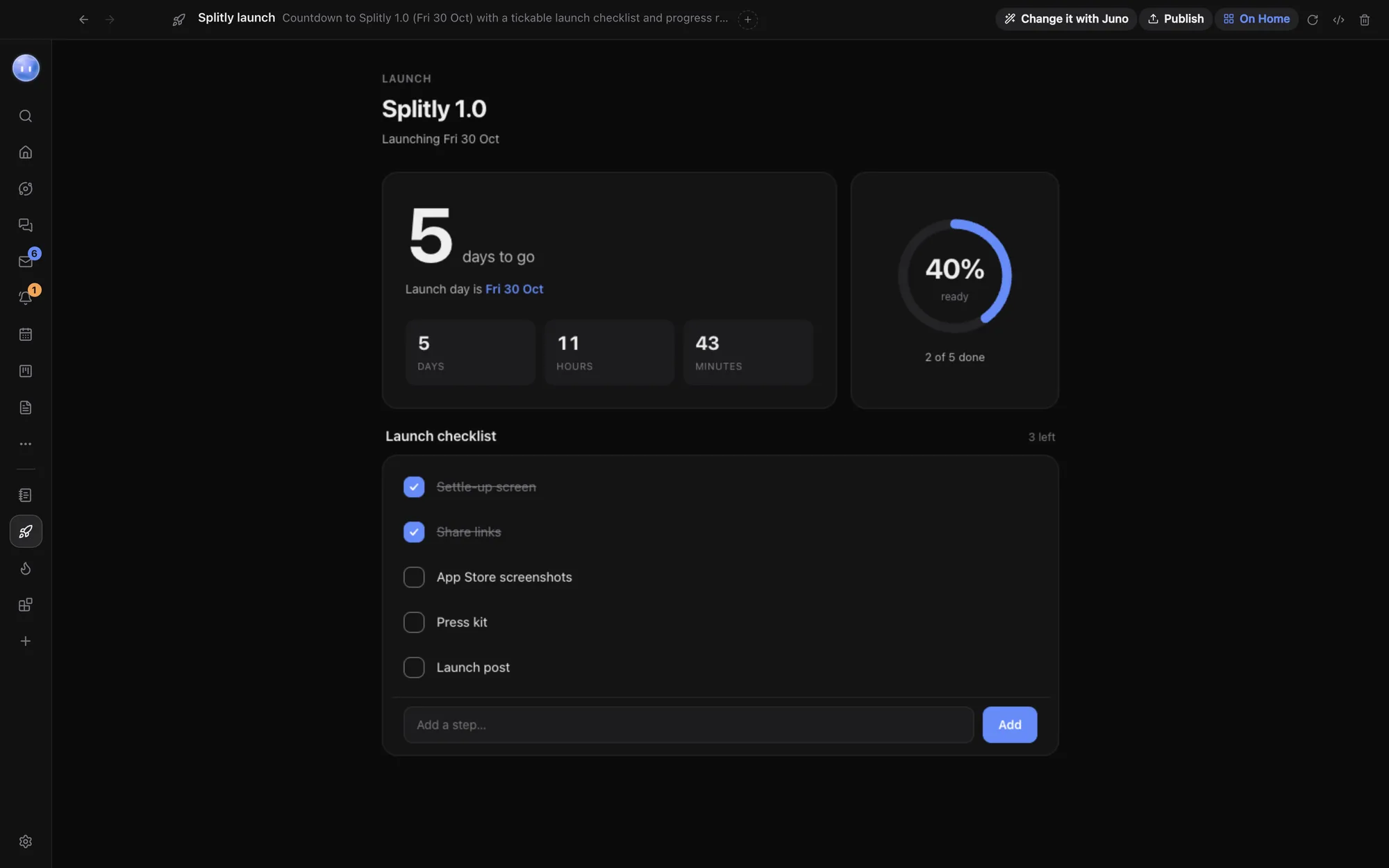
Your Orbs and your block share its data
A block keeps its own saved data, and every chat can read and change it. That makes a block shared ground between you and your Orbs:
- "Log today's run in my gym block: 5 km in 27 minutes."
- "Add the three new leads from this morning's emails to my client contacts block."
The block updates on screen as soon as an Orb changes its data. A block can also send a message to your Moon, for example a button that says "plan my week from this".
What a block can and can't do
A block is one web page that runs in a sandbox inside Orbit.
- It can save and read its own data, show charts and forms, load common libraries from the big public code CDNs, and call web services over https.
- It can't reach your files, your other blocks' data, your secrets, your connectors or the rest of Orbit. It talks to Orbit only to read and save its own data, show a message, or message your Moon.
Each block is a folder in Orbit's data folder on your computer, holding its page, its Home widget and its data. Block data is kept as a plain file there, so don't keep passwords or keys in a block. Orbit's own Journal block is the exception: its entries are encrypted, and it shows Encrypted · only you can read it.
Common questions
Do blocks cost anything to run?
No. A block runs inside Orbit on your computer. Building or changing one uses a little of your AI plan, like any chat.
Can my team use my block?
Yes. Click Share in its header and choose who gets it, and whether they share one set of data or each get their own. See Change a block.
Can I get blocks other people made?
Yes, from the Block Store.
Related: Change a block, Block Store, Home and widgets.
Updated 24 October 2026 · Orbit 0.1.15