Help/Browser
Passwords and profiles
Orbit's browser has its own password manager and profiles. Saved passwords are filled in by Orbit itself, so no model ever sees them, and profiles keep one client's logins away from another's.
Save and fill passwords
When you sign in to a site in Orbit's browser, Orbit asks whether to save the password (you can correct the username first, or choose Never for this site). Next time, the key button in the address bar shows how many logins are saved for the site: click it to fill one in, or pick Use a Strong Password on a sign-up form.
Orbs don't type passwords. When an Orb reaches a password or card field, it hands the page to you, and you fill it in from your saved logins. The password never appears in the chat. See Orbs in the browser.
The password manager
- In the browser, open More, then Passwords, or pick Manage Passwords… from the key button.
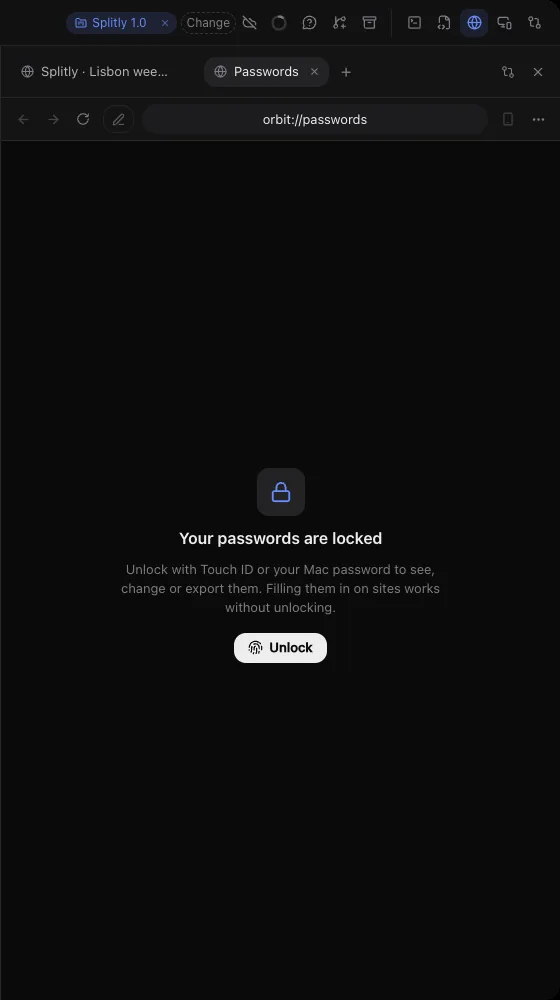
- Unlock with Touch ID or your Mac password. Filling passwords in on sites works without unlocking; seeing, changing or exporting them needs it.
Search your logins, open one to see, copy, change or delete it, or add a new one with its Website, Username, Password and Note. A copied password is cleared from the clipboard after a minute. Click Lock when you're done.
Bring your passwords in
- Import from Chrome reads them from Chrome on this computer. If you have several Chrome profiles, it asks Which Chrome profile?
- Import a CSV file takes an export from Chrome, Safari, 1Password, Bitwarden or similar.
- Export… saves every login as a CSV file in Chrome's format. That file is plain text, so keep it somewhere safe and delete it when you're done.
Where passwords are kept
All your logins are in one file on your computer, encrypted with a key kept in your Mac's Keychain. They're never written in plain text, except an export you ask for. They aren't sent to Orbit's server.
On Windows, Orbit fills in your saved passwords, but seeing, changing, importing or exporting them needs Touch ID, so that part is on Orbit for Mac for now.
Profiles: keep logins apart
Each profile keeps its own sign-ins, cookies and site data. Make one per client and you can be signed in to two Shopify stores, or two Google accounts, side by side without them mixing.
- Click the profile chip in the browser's toolbar (it shows Personal to start with) and pick Manage Profiles….
- Type a name in New profile, e.g. a client's name, like "Kestrel Books", and add it.
- Use the profile chip's New Tab in Profile to open a tab in it, or This Tab's Profile to move the tab you're on.
You can also right-click any tab and choose Move Tab to Profile. Hover over a tab to see its profile.
Site permissions and saved addresses
The browser's own settings page (More, then Browser Settings) also has:
- Site settings: camera, microphone, location and notifications ask the first time a site wants them. Pop-ups are allowed unless you block them. Change a site here, or from the button at the left of the address bar.
- Addresses: saved postal addresses, filled in from the address bar on forms.
- Extensions: add Chrome extensions, which load into every profile as far as the browser supports them. Password manager extensions like 1Password can't reach their desktop app here, so import your logins into Orbit instead.
Common questions
Can an Orb read my saved passwords?
No. Orbit fills them into the page itself, and no model ever sees them. For API keys and tokens a chat needs to use, see Secret box.
How do I sign out of everything in Orbit's browser?
Open Settings, Browser, and clear Sign-ins and site data. That signs you out of every site in Orbit's browser.
Related: Orbs in the browser, Secret box, Devices.
Updated 24 October 2026 · Orbit 0.1.15