Help/Getting started
Connect Claude
Orbit runs Claude Code, Anthropic's official coding tool, on your own Claude plan. You sign in once, with Claude's own sign-in, and every Orb and your Moon can use it.
What you need
A Claude plan with Claude Code included. Orbit uses that plan and its limits, so there's nothing extra to pay for the model. Your sign-in stays on your computer: Orbit only checks whether you're signed in and never sees your tokens.
Connect Claude during setup
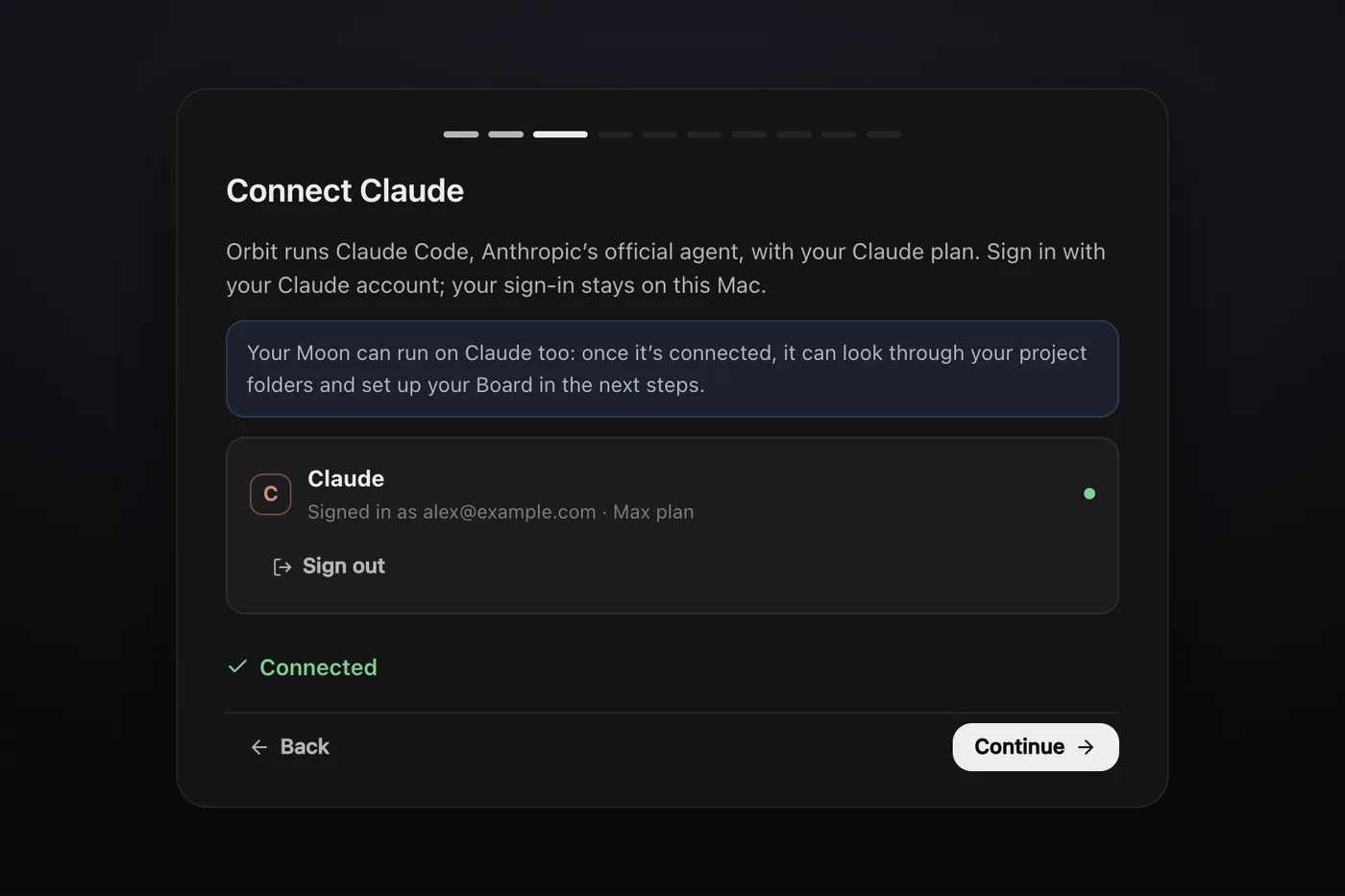
Setup has a Connect Claude step after your Orbit account.
- If the card says Not installed, click Install Claude Code. Orbit runs Anthropic's official installer for you. It takes about a minute.
- Click Sign in with Claude. Claude Code's own sign-in opens in a small terminal inside Orbit, and Claude opens in your browser.
- Approve the sign-in in your browser. If it shows a code, paste it into the terminal in Orbit and press Return.
- Orbit notices you're signed in and shows Connected. Click Continue.
Connect Claude later
Skipped it in setup? Open Settings, AI models. The Claude card has the same Install Claude Code and Sign in with Claude buttons. Once you're signed in, the card shows the account and plan, for example Signed in as alex@example.com · Max plan.
More than one Claude account
If you have a personal and a business plan, you can use both.
- In Settings, AI models, under the Claude card, click Add another Claude account.
- Name it, for example Business Claude, and click Add and sign in.
- Sign in with that account. Click Use on whichever account you want in use.
With two or more accounts, turn on Switch accounts when one runs low. When the account in use is nearly out of its allowance, Orbit moves to your next signed-in account and says so in the chat.
Keep Claude chats warm
In Settings, General, Keep Claude chats warm for sets how long a chat's Claude process stays running between messages (5 minutes to an hour), so a follow-up answers straight away. Your Moon's stays three times as long.
If Claude stops working
- The card says Claude Code is older than Orbit needs. Click Update Claude Code. Orbit installs Anthropic's current version, which keeps itself up to date.
- Chats say you're not signed in. Sign in again from the Claude card, then click Reconnect all at the bottom of AI models.
More fixes are in Troubleshooting.
Common questions
Does Orbit charge for Claude?
No. Orbit uses your own Claude plan as it is. Your plan and its limits are between you and Anthropic, and cancelling Orbit doesn't cancel it.
Can I sign Claude out?
Yes, with Sign out on the Claude card. This signs Claude Code out everywhere on your computer, not just in Orbit.
Next: Connect Grok or Add Codex. See also Switch models mid-chat and the models page.
Updated 24 October 2026 · Orbit 0.1.15