Help/Getting started
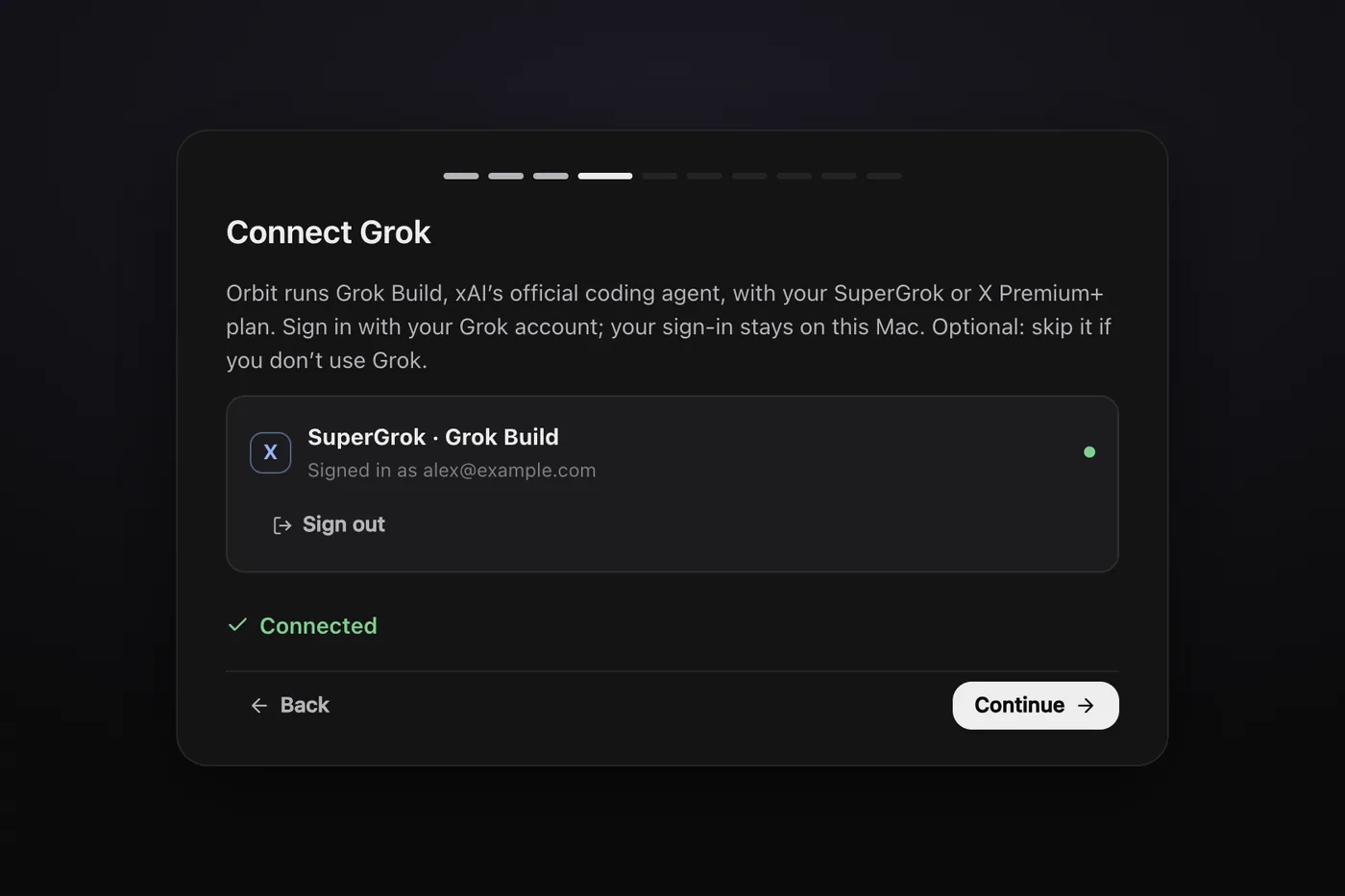
Connect Grok
Orbit runs Grok Build, xAI's official coding tool, on your own SuperGrok or X Premium+ plan. Grok is optional: skip it if you don't use it.
What you need
A SuperGrok or X Premium+ plan. Orbit signs in with your plan and uses its limits, so there's nothing extra to pay for the model. Your sign-in stays on your computer.
Connect Grok during setup
Setup has a Connect Grok step after Claude.
- If the card says Not installed, click Install Grok Build. Orbit installs it for you in about a minute.
- Click Sign in with Grok. Grok Build's own sign-in opens in a small terminal inside Orbit and shows a link and a code.
- Open the link and confirm the code with your SuperGrok or X Premium+ account.
- Orbit notices you're signed in and shows Connected. Click Continue.
Don't use Grok? Click Skip for now.
Connect Grok later
Open Settings, AI models and use the SuperGrok · Grok Build card. Once Grok Build is on your computer, Grok shows in the model picker under every message box, and in Settings, General you can pick its default model.
How Grok differs from Claude and Codex
- Messages while it works. Claude and Codex take a message in at their next step. Grok can't take one mid-reply, so your message waits in the chat with an Interrupt link under it. See Send any time.
- Your Moon. Your Moon can run on any model you've connected, Grok included. Pick it in Settings, in the section with your Moon's name, under Model. Opus 5.5 on Claude and GPT-6.1 on Codex are the suggested ones.
Common questions
Can I use Grok and Claude in the same chat?
Yes. Switch a chat's model any time from the picker under the message box, and the new model picks up with everything said so far. You can also make a group chat where each model answers in turn. See Switch models mid-chat.
Does cancelling Orbit cancel my SuperGrok plan?
No. Your SuperGrok plan is a separate subscription with xAI. Cancel or ask for refunds on it with xAI.
Next: Add Codex. See also Connect Claude.
Updated 24 October 2026 · Orbit 0.1.15