Help/Getting started
A tour of the window
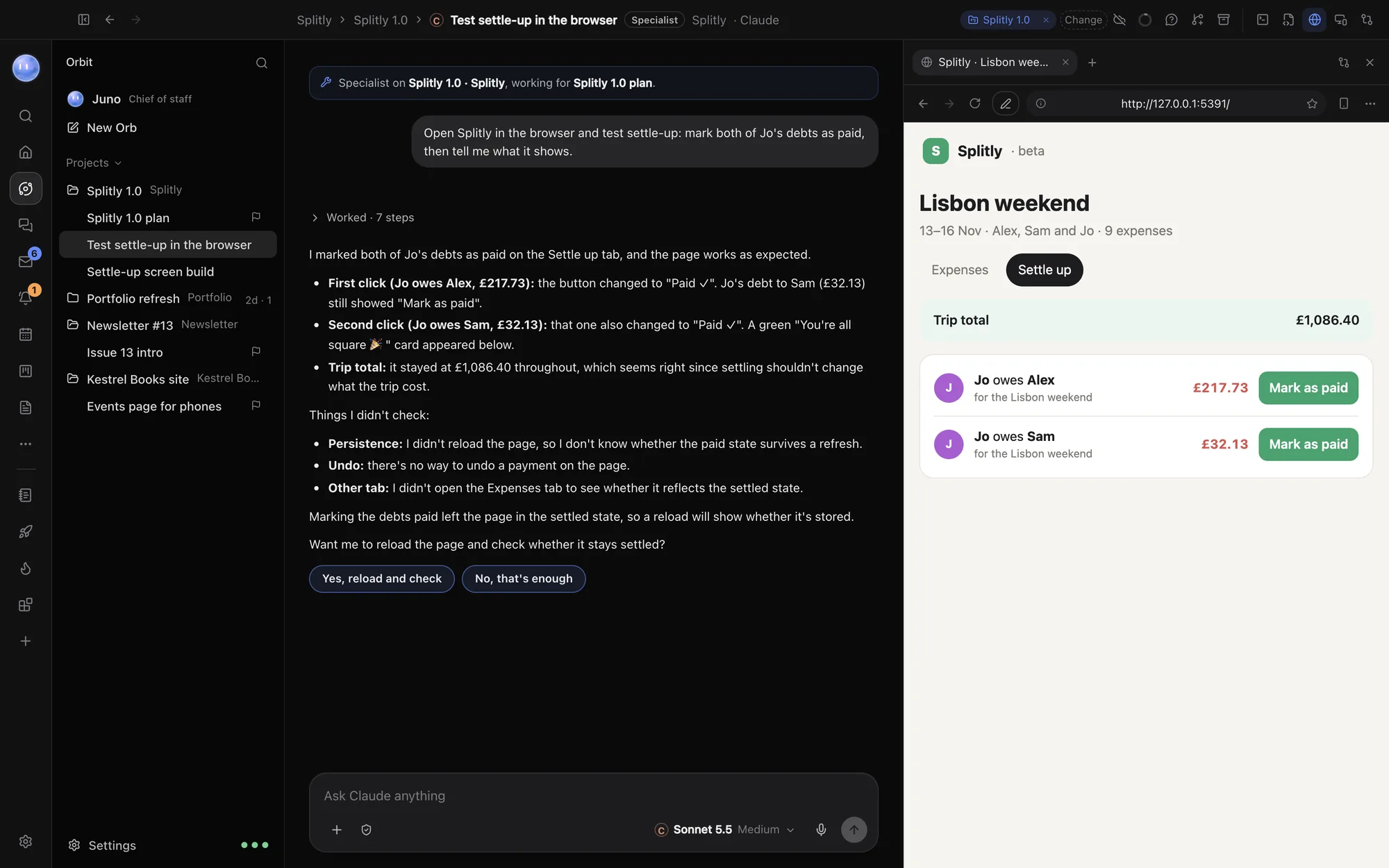
Orbit's window has four parts: the rail down the left, the Orb list, the chat you're in, and a side pane for the browser, editor and changes.
The rail
The narrow strip on the far left takes you to each part of Orbit. Point at a button to see its name. At the top, the search button opens Search everything (⌘K).
| Button | What it opens |
|---|---|
| Home | Your dashboard of widgets and blocks |
| Orbs | Your AI chats, grouped by project |
| Chat | Chat with people: spaces, channels and direct messages |
| Inbox | Email and messages, sorted by what needs you |
| Waiting on you | Every approval and question your Orbs have for you |
| Planner | Your calendar: Day, 3 days, Week and Month |
| Board | Projects, Leads and People |
| Docs | Pages and databases |
| New block | Ask an Orb to make a block |
Those are pinned to start with. Transcripts, Files, Skills & plugins, Scheduled and Block Store sit under More, where you can pin any of them. Your blocks appear in the rail too. Settings is at the bottom.
The Orb list
Click Orbs and the list of your chats opens beside the rail.
- Your Moon sits at the top. Click it to open its chat.
- New Orb starts a new chat.
- The search button at the top, Search Orbs, filters the list.
- Chats are grouped By project. Click the group label to switch to By folder or Recent. Chats not in a project yet sit under Not filed yet.
- A project's lead Orb has a flag, and sub-threads sit nested under the chat that started them.
- A dot beside a chat shows it's working, has a new reply or needs your OK.
Drag the list's edge to make it wider or narrower, and double-click the edge to reset it. ⇧⌘S hides and shows it. Right-click any chat for its menu: pin, rename, start a sub-thread, switch model, move it to a project, archive and more.
The top bar
Every page has the same bar across the top: back and forward on the left (⌘[ and ⌘]), the page's name, and its buttons on the right. In a chat, the title shows the project it belongs to. Double-click the title to rename the chat.
A chat's buttons open things beside it:
- Side question (⌘;): ask about the chat without interrupting it.
- Terminal (⌃`): a terminal in the chat's folder.
- Editor: the project's files.
- Browser (⇧⌘B): Orbit's own browser.
- Changes (⇧⌘D): what the Orb has changed, to review.
- Sub-threads: the chats this one has started, or start a new one.
The message box
At the bottom of every chat. From left to right:
- + attaches pictures, PDFs, documents and videos. You can also paste or drag them in.
- The shield sets permissions for every chat.
- The model picker shows the model the chat runs on. Click it to switch.
- The microphone starts a voice call about the chat (Mac).
- Send, or press Enter. ⇧Enter starts a new line.
When a reply finishes, Orbit may suggest what you might send next. Press Tab to take the first suggestion.
The side pane
The browser, editor, changes, your Moon's profile and its computer open in a pane on the right of the chat. Close it with the × in its corner, or press the same shortcut again.
Next: Start a new Orb. See also Keyboard shortcuts and What the Moon does.
Updated 24 October 2026 · Orbit 0.1.15