Help/Your Moon
Scheduled jobs and nudges
Your Moon can run jobs for you on a timer, remind you of things, and nudge you when something needs you. Ask it in plain words, or set them up yourself.
Ask your Moon
The quickest way is to tell your Moon in its chat:
- "Every weekday at 4, review the leads pipeline."
- "Remind me at 11:15 to call Alex."
- "In 20 minutes, nudge me to leave."
It sets the job up and it shows on the Scheduled page.
The Scheduled page
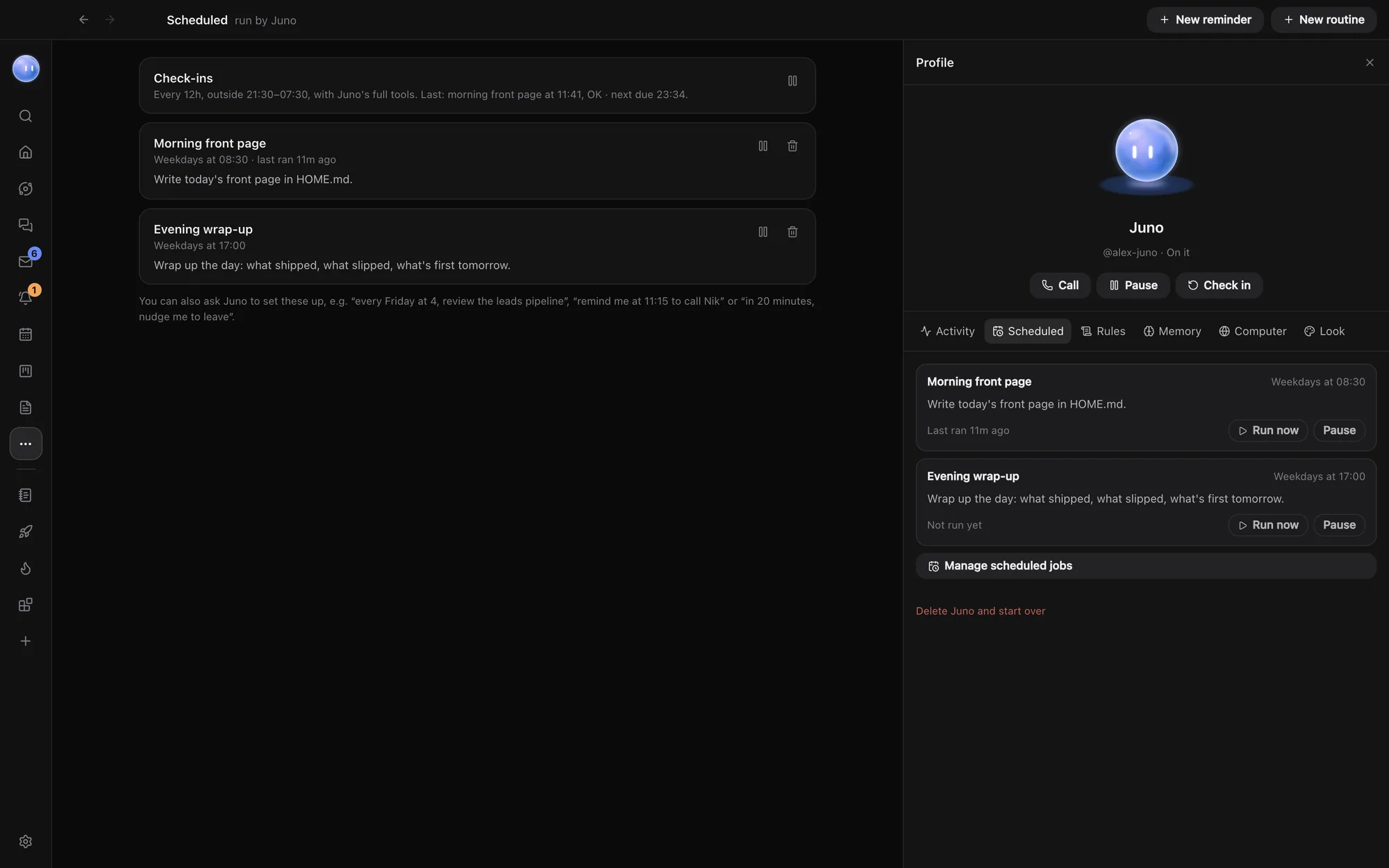
Open Scheduled from the rail (under More if it isn't pinned), or Manage scheduled jobs in your Moon's Scheduled tab. It lists everything that runs on a timer, run by your Moon:
- Check-ins come first, with how often and the quiet hours.
- Then each routine and reminder, with when it runs and when it last ran.
Click one to edit it. Use the pause button to stop it for now, and the bin to delete it. In your Moon's Scheduled tab, Run now runs a job straight away.
Make a routine
A routine is a job your Moon does and reports back on.
- On the Scheduled page, click New routine.
- Give it a Name, for example "Monday pipeline review".
- Under When, choose Weekdays, Every day or Once (with a date), and a time.
- Leave What on Run a routine (reported back to you).
- Under What to do, write the job as you'd tell your Moon. Click Save.
Make a reminder
- Click New reminder. It starts 10 minutes from now, once.
- Change the name, day and time if you need to.
- What is set to Send me a message (also to your phone). Write the message and click Save.
A job set to Once runs at that time on that day, in your local time, then comes off the list.
Check-ins
A check-in is your Moon looking over everything with its full tools and acting on what it finds. Set how often in Settings, the section with your Moon's name, Check in every: 15 minutes to 4 hours. Click Check in in its profile to make it check in now.
To save your plan, it takes a quick look before each check-in and skips the full one when nothing has changed.
Nudges
When something needs you (a client message, an approval, something due) your Moon nudges you once per thing, on your computer and your phone. Nudges and check-ins wait during Quiet hours, which you set in the same Settings section.
Your morning and evening briefings are set there too. See Briefings.
Common questions
Do scheduled jobs run when my computer is asleep?
They run on your computer, while Orbit is open. Turn on Open Orbit when you log in in Settings, General so your Moon is running from start-up.
Can I pause everything?
Pause your Moon from its profile, or switch off Juno is on in its settings. Paused, it stops checking in and running scheduled jobs. You can still chat with it.
See also What the Moon does and Planner.
Updated 24 October 2026 · Orbit 0.1.15