Help/Your Moon
What the Moon does
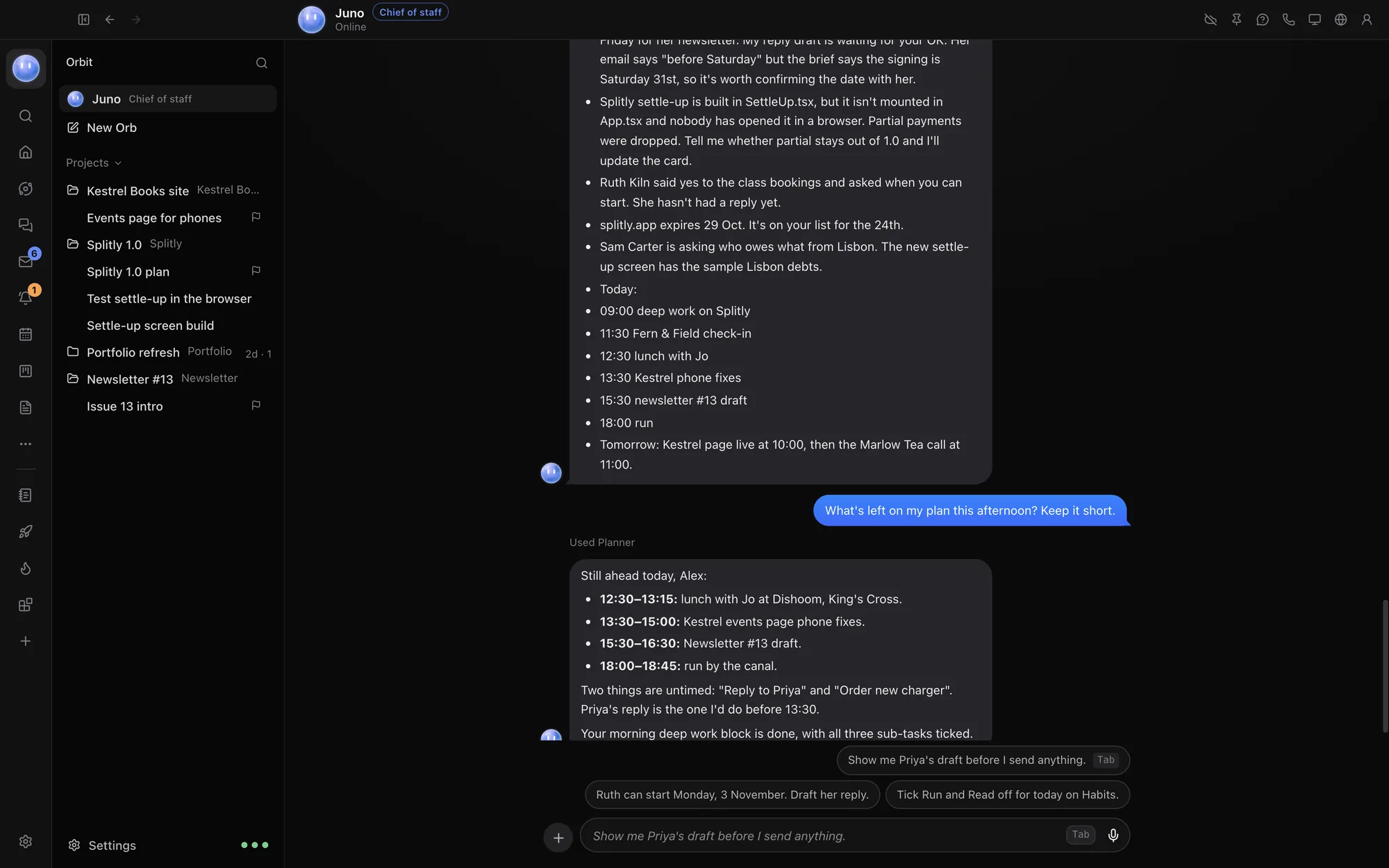
Your Moon is your lead Orb and chief of staff. It stays on in the background, keeps an eye on your work and your messages, and tells you when something needs you.
What it does for you
- Checks in. On a timer you choose in setup (a few times a day, every hour, or only when you ask) it looks over your chats, Board, calendar and messages and works out what needs doing.
- Nudges you. When something needs you, a reply, an approval, something overdue, it tells you once per thing, on your computer and your phone. Not in quiet hours.
- Briefs you. A morning briefing with today's meetings, time blocks and due items, what's waiting on you, new client messages and what it did overnight, and an evening one with what got done, what slipped and what's on tomorrow.
- Watches for clients. When a client or lead messages you, it reads it and tells you who, where and what they said, without waiting for the next check-in.
- Hands out work. It passes instructions to project chats or starts new ones, and reports back when they finish.
- Runs jobs on a timer. Routines like "every weekday at 4, review the leads pipeline", and reminders like "remind me at 11:15 to call Alex". See Scheduled jobs and nudges.
- Keeps things tidy. If you turn it on, it names messy threads and nests them where they belong, with an Undo on every change. See Tidy-up and Undo.
- Drafts replies. It drafts replies to people, and nothing is sent until you tap Send.
It never sends, publishes or pays without your OK: its default rules hand those back to you. See Name, colour and rules.
Talk to your Moon
Your Moon sits at the top of the Orb list. Click it to open its chat, and write to it like anyone else: "What's on today?", "Chase the Kestrel Books invoice draft", "What did the Splitly chat get done?".
Other ways to reach it:
- Start a message in any chat with
@and its name, for example@juno. - Press ⌘K, type your question and choose Ask Juno.
- Click the floating Moon on your desktop. See The Moon on your desktop.
- Call it from its chat (Mac).
Reactions
Reactions work both ways in your Moon's chat. Your Moon can answer a quick "thanks" with a 👍 instead of a reply. You can react to its messages with 👍, ❤️, 😮 or 😂: hover over a message on the Mac, or hold it on your phone. On the phone, holding a message gives a light tick and shows the reactions by the bubble, with Reply, Copy and Select text along the bottom. While one of your Moon's messages is held, a small Report button sits in the corner.
Its profile
In the Moon's chat, click Profile at the top. The panel shows its status and has:
- Call (Mac), Pause or Resume, and Check in to make it check in now.
- Activity: its check-ins, scheduled jobs and the work it handed to other chats, with Stop on anything running.
- Scheduled, Rules, Memory, Computer and Look.
Its status reads On it, Checking in…, Working…, Quiet hours, Paused or Needs a model.
Its memory
The Memory tab holds your Moon's own notes about you, your clients and what's in flight. You can read and edit them, then click Save. Open its folder shows where they're kept on your computer.
Its model and your plan
Your Moon runs on any model you've connected. Pick it in Settings, the section with your Moon's name, Model. Opus 5.5 on Claude and GPT-6.1 on Codex are suggested. If its model isn't signed in on this computer, it moves to one that is and tells you.
It's careful with your plan: it wakes once per finished job, takes a quick look before each check-in and skips the full one when nothing has changed, and only hears about the threads that changed.
Pause it
Turn off Juno is on in its settings, or click Pause in its profile. Paused, it stops checking in and running scheduled jobs. You can still chat with it.
Common questions
Does my Moon run when Orbit is closed?
It runs while Orbit is open. Turn on Open Orbit when you log in (Settings, General) to keep it checking in from the moment your computer starts. Cloud fallback can carry chats on while your computer is asleep: see Cloud fallback.
Can I have more than one Moon?
You have one Moon, your lead Orb. Your other chats are Orbs it coordinates.
How do I start my Moon over?
At the bottom of its profile, Delete Juno and start over removes its chats, notes, nudges, jobs and activity, and starts it fresh.
See also Briefings and the Moon page.
Updated 24 October 2026 · Orbit 0.1.15