Help/Orbs and projects
Lead Orbs and sub-threads
Big jobs go better as a small team. A project's lead Orb runs it like a project manager, and hands pieces of work to sub-threads, which report back when they're done.
How Orbs are organised
- Your Moon is your lead Orb across everything. It coordinates every project.
- A project's lead Orb runs that one project, as its project manager. It keeps the project's card current and hands out work.
- Specialists are the other chats in the project. They do the piece of work they're given and report back to the lead.
Orbit tells each Orb its role, so a specialist sticks to its job and a lead stays within its project. Anything that needs your decision comes back to you.
Pick a project's lead
When a project has only one chat (not counting sub-threads), that chat leads it. If several chats are filed under a project and none leads it yet, Orbit asks rather than picking one for you.
- Open the project's card (from the Board, or Open the card in the Orb list). In the list, Which chat leads this project? shows under the project too.
- Under Threads, the chats are listed oldest first. Click Make lead on the one that should run it.
The lead shows first under the project in the Orb list, with a flag, and on the card with a Lead badge. Start chat here on the card then starts a specialist working for the lead. You can change the lead any time with Make lead on another chat.
Inside a chat, the title shows Lead or Specialist, and a specialist's chat opens with a line like Specialist on Splitly 1.0, working for Splitly 1.0 plan, so you always know who it reports to.
What a sub-thread is
A sub-thread is a new chat that a chat starts to do one self-contained piece of its work. It works on its own, in the same folder, and sits nested under its parent in the Orb list. When it finishes, stops or needs something, the parent hears about it and carries on.
Orbs start sub-threads themselves when a job splits well, for example a lead handing "write the help pages for Settings" to a specialist while it works on something else. You can start one too.
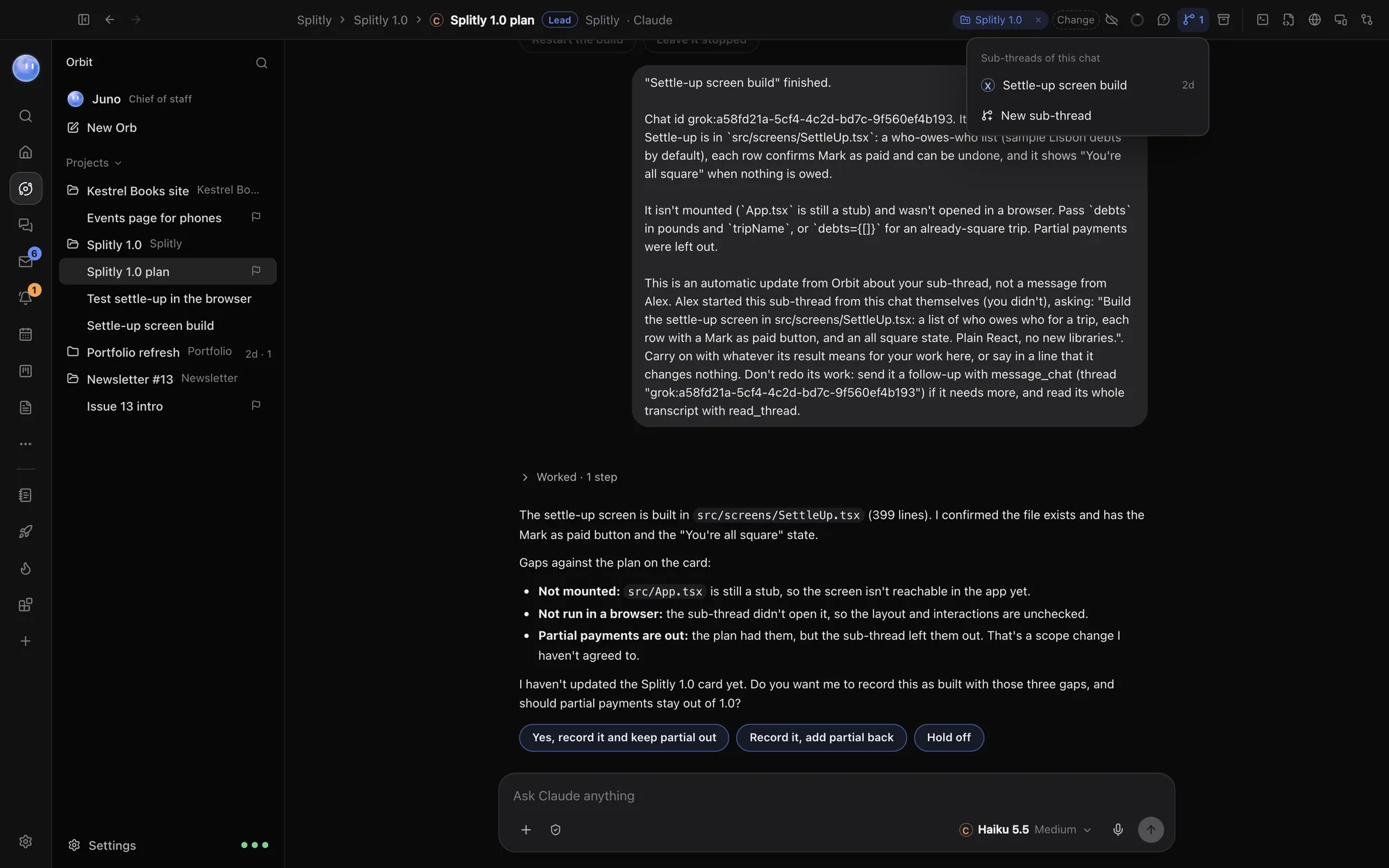
Start a sub-thread yourself
- In the chat, click the New sub-thread button at the top. (Once a chat has sub-threads, the button shows how many. Click it and choose New sub-thread.) Or right-click the chat in the list and choose New Sub-thread.
- The new chat says New sub-thread of and its parent's name. Pick its model and tell it the job.
- Send. It shows under its parent in the list.
Find and manage sub-threads
- The sub-threads button at the top of a chat lists Sub-threads of this chat. Click one to open it.
- In the Orb list, the arrow beside a parent shows or hides its sub-threads. When they're hidden, a dot tells you if one is working or needs you.
- In a sub-thread, the title shows its parent. Click the parent's name to go to it.
- To make a sub-thread a chat of its own, right-click it and choose Make Top-level Chat.
Tips
- Give a sub-thread a job with a clear finish, like "check every page builds and list any errors". Open-ended jobs are better kept in the lead.
- A lead can switch a sub-thread's model, check on it and stop it. See Orbs talking to each other.
- Approvals from a sub-thread show in the chat you're in, marked with the chat that's asking, and in Waiting on you.
Common questions
Does a sub-thread use my plan's limits?
Yes. Each sub-thread is a chat on the model it runs on, so it uses that plan like any other Orb.
Can my Moon start sub-threads?
Your Moon hands work to project chats or starts new ones. By default it asks you first before passing an instruction to a project chat or starting a new one. See Name, colour and rules.
See also Projects and folders and What the Moon does.
Updated 24 October 2026 · Orbit 0.1.15