Help/Orbs and projects
Start a new Orb
An Orb is one AI chat working on one job. Start one from the Orb list, a project or ⌘K, pick its model, and tell it what to do.
Start an Orb
- Click Orbs in the rail, then New Orb at the top of the list.
- Check the model in the picker under the message box, and change it if you want to.
- Type what you want done and press Enter.
The chat appears in the list straight away, and Orbit gives it a short name from what you asked. Double-click the title at the top to rename it.
Start one in a project
An Orb started with New Orb isn't filed under a project. To start one in a project, so it works in that project's folder and shows under it:
- Point at the project in the Orb list and click Start a chat here.
- Or open the project's card and click Start chat here.
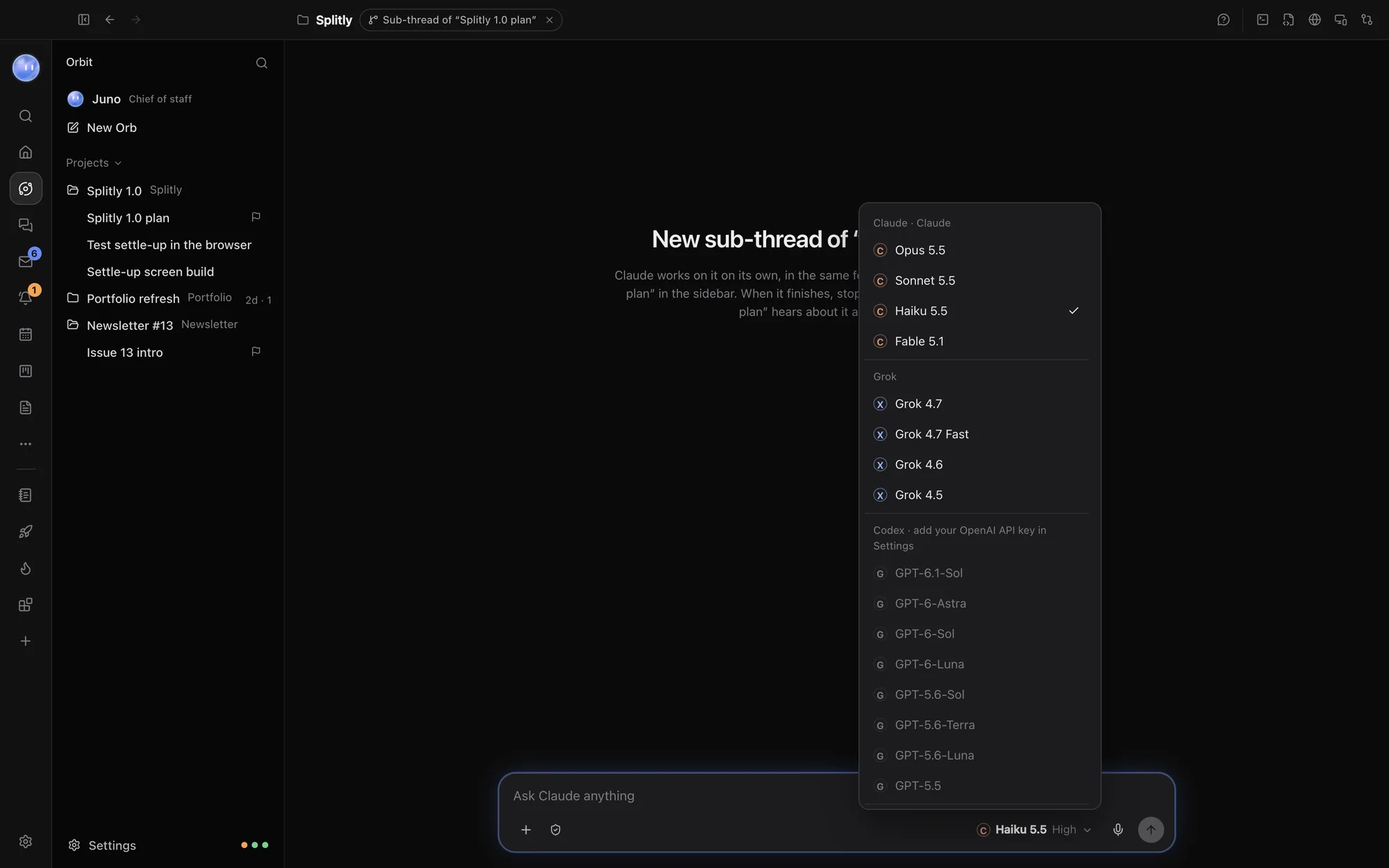
Before you send, the title shows which project the chat will be filed under. Click the × beside it to keep the chat out of the project.
From anywhere, you can also press ⌘K and choose New Orb.
Choose the model
Click the model name under the message box. The menu lists each model you've connected, under Codex, Claude and Grok. Pick one, and choose its Reasoning level where the model offers it. A model that can't run yet (not signed in, or no API key) is greyed out with a note on what to do.
Which model new chats start with is set in Settings, General, New chats start with, along with each model's default.
Make a group chat
With two or three models connected, the same menu has Group chat. Tick two or three models and each one answers every message, in turn. To ask just one of them, start your message with its name, for example @Claude what do you make of Grok's plan?
Write a good first message
- Say the job, not just the topic. "Add a contact form to the Splitly site that emails hello@example.com" beats "contact form".
- Say when it's done. "Stop when it builds and the form sends a test message."
- Attach what helps. Paste a screenshot, or drag in a PDF brief. See Pictures and files.
- Use a skill. Type / to see the skills you have. See Slash commands and skills.
While it works
You see the Orb's plan ticking off ("3 of 5 done") and one line for its steps, which you can open. Its reply comes at the end. You can keep typing: press Enter and it takes your message in at its next step. Press Esc, or the stop button, to stop it. See Send any time.
If it needs your OK to run something, an approval card shows above the message box with Decline, Allow for this chat and Allow. It's also listed in Waiting on you.
Edit a message you sent
Point at one of your messages and click its edit button (Edit and re-run from here). Its words come back to the message box. Change them and send, and the chat runs again from there. The version you had stays, a switch away on that message. You can't edit while the chat is working.
Common questions
How many Orbs can run at once?
As many as you like. Each works on its own, and the list shows which are working, which have a new reply and which need you. Your AI plan's limits still apply.
How do I archive an Orb?
Right-click it in the list and choose Archive Chat, or use the archive button at the top of the chat.
See also Projects and folders and Switch models mid-chat.
Updated 24 October 2026 · Orbit 0.1.15