Help/Orbs and projects
Permissions and plan mode
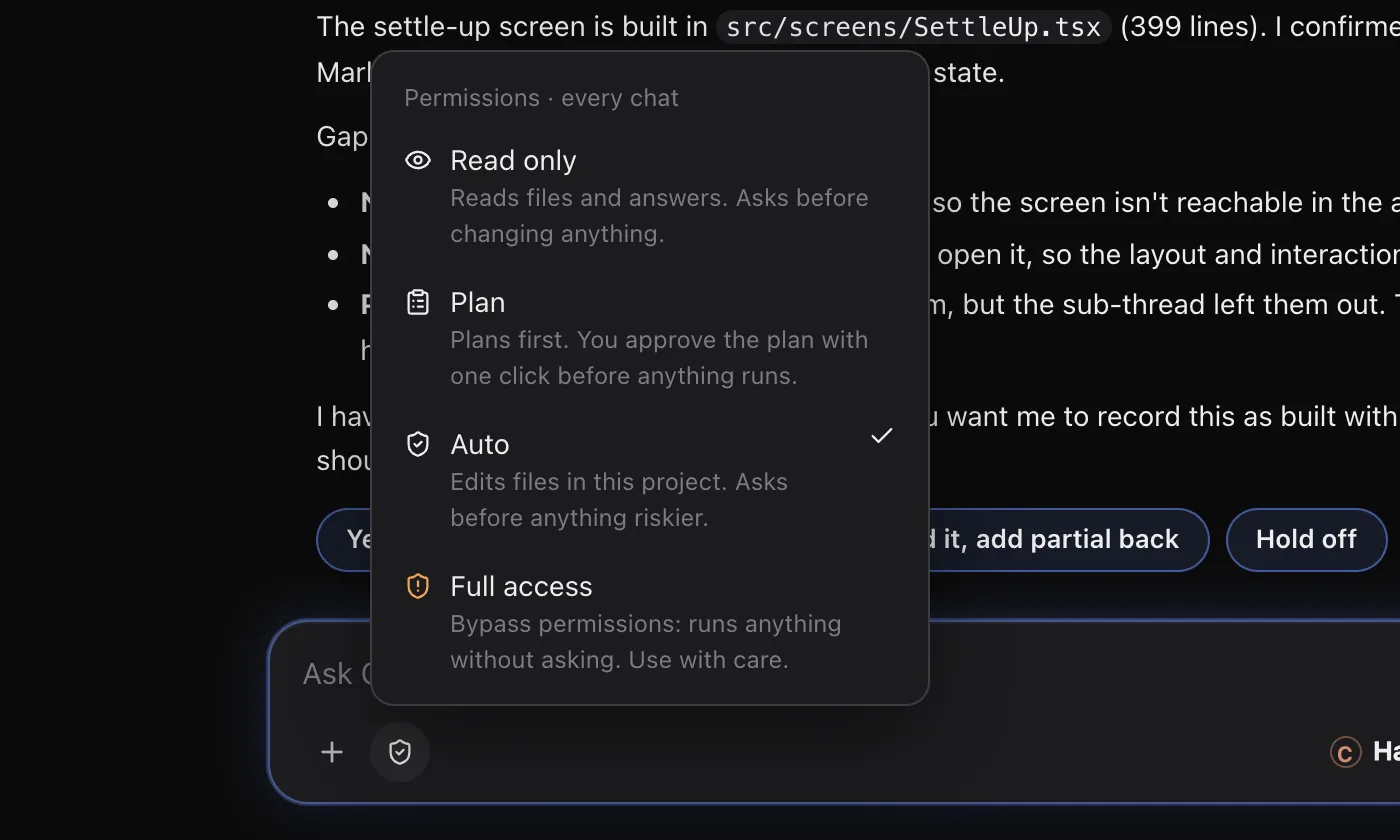
One setting decides how much your Orbs ask before they act. Pick it from the shield in the message box, and change it whenever you like.
The four permission levels
| Level | What Orbs do |
|---|---|
| Read only | Read files and answer. Ask before changing anything. |
| Plan | Plan first. You approve the plan with one click before anything runs. |
| Auto | Edit files in this project. Ask before anything riskier. |
| Full access | Run anything without asking. Use with care. |
Auto is where Orbit starts. The level applies to every chat, on Codex, Claude and Grok, and it stays set between launches.
Full access runs Claude Code and Grok with bypass permissions and Codex with full access, and Orbit stops asking before tools run. Keep it for projects where you're happy for an Orb to run any command.
Change the level
- Click the shield button in the message box. It shows Permissions · every chat.
- Pick a level. The shield's icon changes to match.
The same choice is in Settings, Permissions.
When an Orb asks
When an Orb wants to run a command, change a file or use a tool that needs your OK, a card shows above the message box. It says what the Orb wants to do and why, with the command or the change to the file.
- Allow lets it do this one thing.
- Allow for this chat (where offered) lets it do this kind of thing for the rest of the chat.
- Decline says no. The Orb carries on another way or asks you what to do.
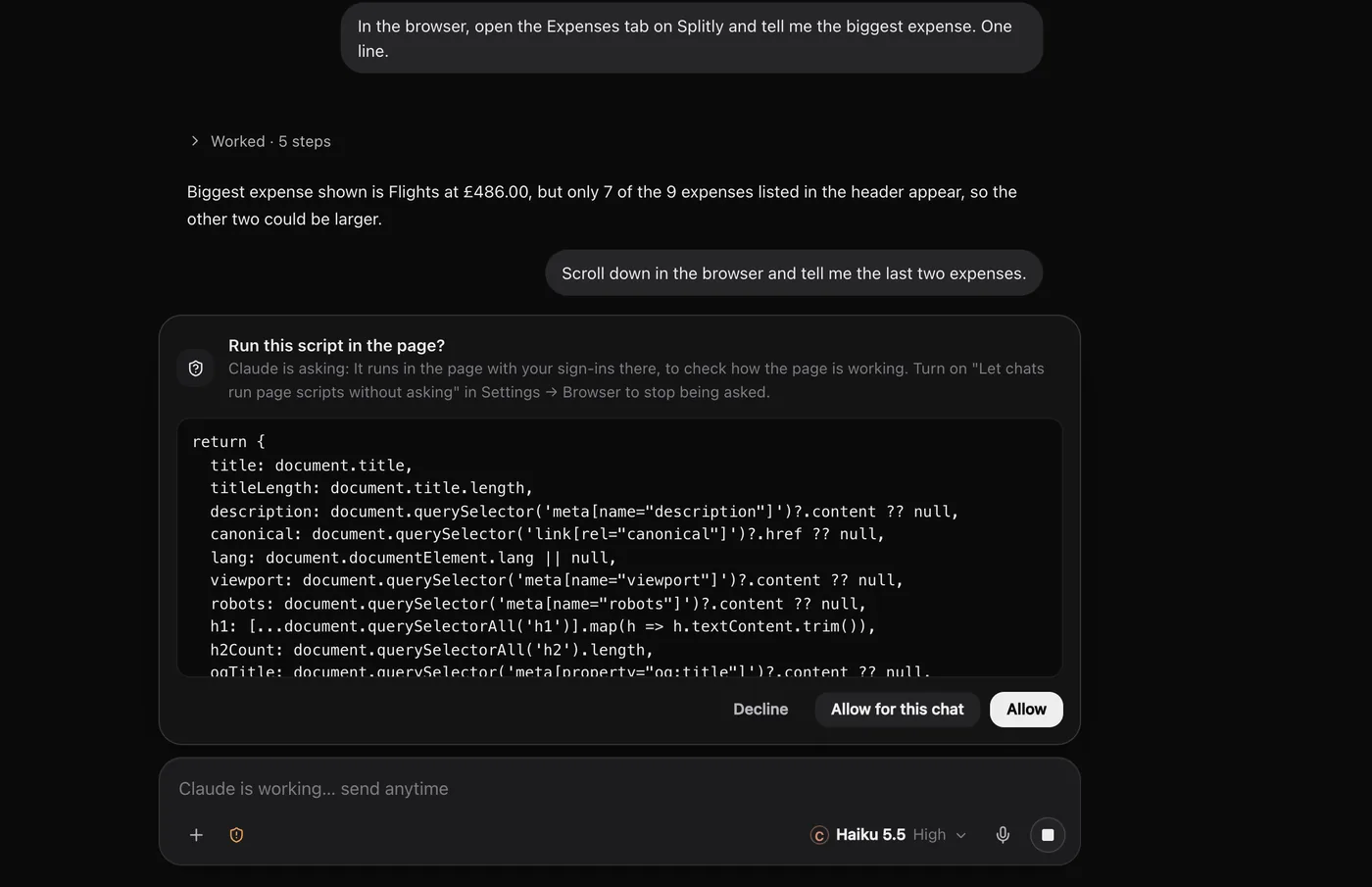
Every card is also in Waiting on you, and on your phone if you've paired one. A card from another chat says which chat is asking: click its name to open it.
Plan mode
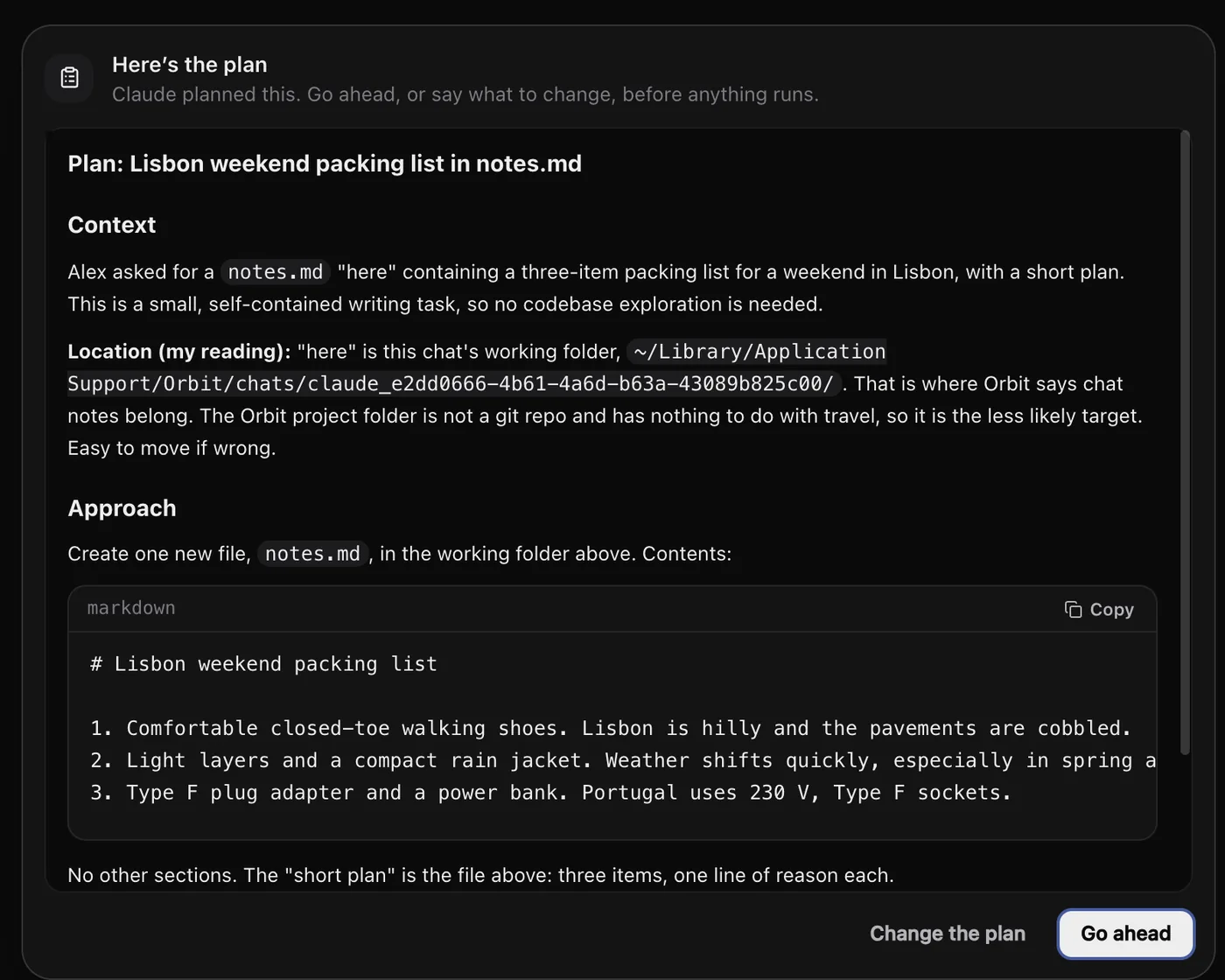
With Plan on, an Orb works out a plan before it touches anything. The card says, for example, Claude planned this. Go ahead, or say what to change, before anything runs.
- Read the plan on the card.
- Click Go ahead to run it.
- Or click Change the plan, write what should change, and click Send changes. The Orb plans again.
Quick read-only with /plan
Type /plan in the message box to switch to Read only: the Orb plans and answers without changing anything. Switch back from the shield.
In your Moon's chat, /plan is its own switch: your Moon plans and answers without changing anything until you type /plan again.
Your Moon's permissions
Your Moon always works with bypass permissions in its own chat, and its background check-ins stay read-only. What it does on your behalf is governed by its rules, which by default hand sending, publishing, deleting and payments back to you. See Name, colour and rules.
Folder access on a Mac
macOS asks about Documents, Desktop and Downloads each time a model touches them. One Full Disk Access grant covers every folder and stays granted through updates. Setup and Settings, Permissions show a Give Orbit full access card:
- Click Open System Settings (Privacy & Security, Full Disk Access).
- Click +, choose Orbit, and switch it on. If Orbit is already listed, remove it and add it again.
This is macOS's own permission, separate from the four levels above.
Common questions
Can I set different levels for different projects?
No. The level applies to every chat. Use Read only or Plan when you want to be careful, and switch back after.
Do Orbs ask before using connectors?
Read-only lookups in a connector just run. Anything that changes something asks first.
See also Waiting on you, Secret box and Approve from your phone.
Updated 24 October 2026 · Orbit 0.1.15