Help/Orbs and projects
Pictures and files
Show an Orb what you mean. Paste a screenshot, drop in a brief or a video, and see what Orbs send back right in the chat.
Add a picture or file to a message
Any of these works, in any message box:
- Paste. Take a screenshot or copy a picture, click in the message box and press ⌘V (CtrlV on Windows).
- Drag. Drop files from Finder (or File Explorer) onto the message box.
- Attach. Click + at the left of the message box and choose files: pictures, PDFs, documents and videos.
Each one shows as a thumbnail above your message. Files that aren't pictures show their kind, like PDF, Video or Audio. Click the × on one to take it off. Orbit gets each file ready for the model when you send.
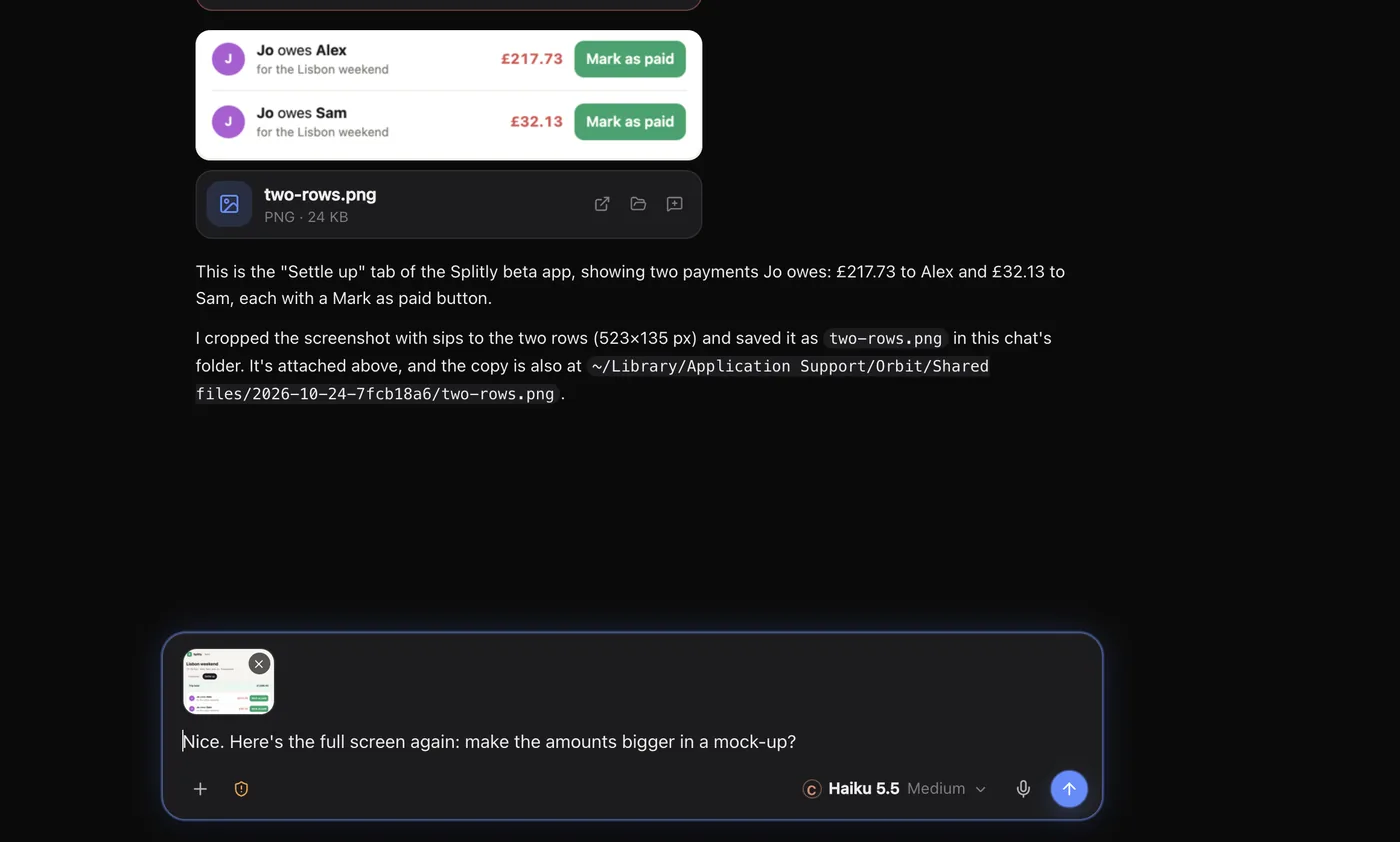
Pictures and files in replies
- Pictures fit the chat. Click one to open it full size.
- Videos play right in the chat.
- Other files show a preview, like a PDF's first page.
- Files an Orb sends you, such as a report or an export, arrive as cards you can open. They show on your phone too.
The full-size view
Click a picture to open it full size. The bar under it has:
| Button | What it does |
|---|---|
| Open | Opens the file in its usual app |
| Copy | Copies the picture, to paste anywhere |
| Show in Finder | Shows where the file is (Show in File Explorer on Windows) |
| Use in message | Attaches it to your next message |
Press Esc or click outside the picture to close it.
Good uses
- "Make it look like this." Paste a screenshot of a design you like.
- "This is broken." Paste a screenshot of the error or the odd layout, so the Orb sees exactly what you see.
- "Here's the brief." Drop in the client's PDF and ask for a plan from it.
- Notes on a web page. Orbit's browser can mark up a page and send your notes and a screenshot to the message box. See Devices, recording and notes.
Your Moon on the desktop
You can paste up to four pictures into the floating Moon's message box too. See The Moon on your desktop.
Common questions
Do my files get uploaded to Orbit?
No. Files stay on your computer. When you send one, it goes from your computer to the AI company whose model the chat uses, like the rest of your message.
Can I send pictures while an Orb is working?
Yes. Add them and press Enter. They go with your message. See Send any time.
See also Files and Start a new Orb.
Updated 24 October 2026 · Orbit 0.1.15