Help/Orbs and projects
Slash commands and skills
Type / in the message box to see Orbit's own commands and every skill your Orb can use, then run one with Enter.
Use the slash menu
- In the message box, type /. The menu opens.
- Keep typing to filter it, for example
/comp. - Use ↑ and ↓ to move through it.
- Press Enter to run the highlighted one, or Tab to put it in the box so you can add what it should do.
Press Esc to hide the menu.
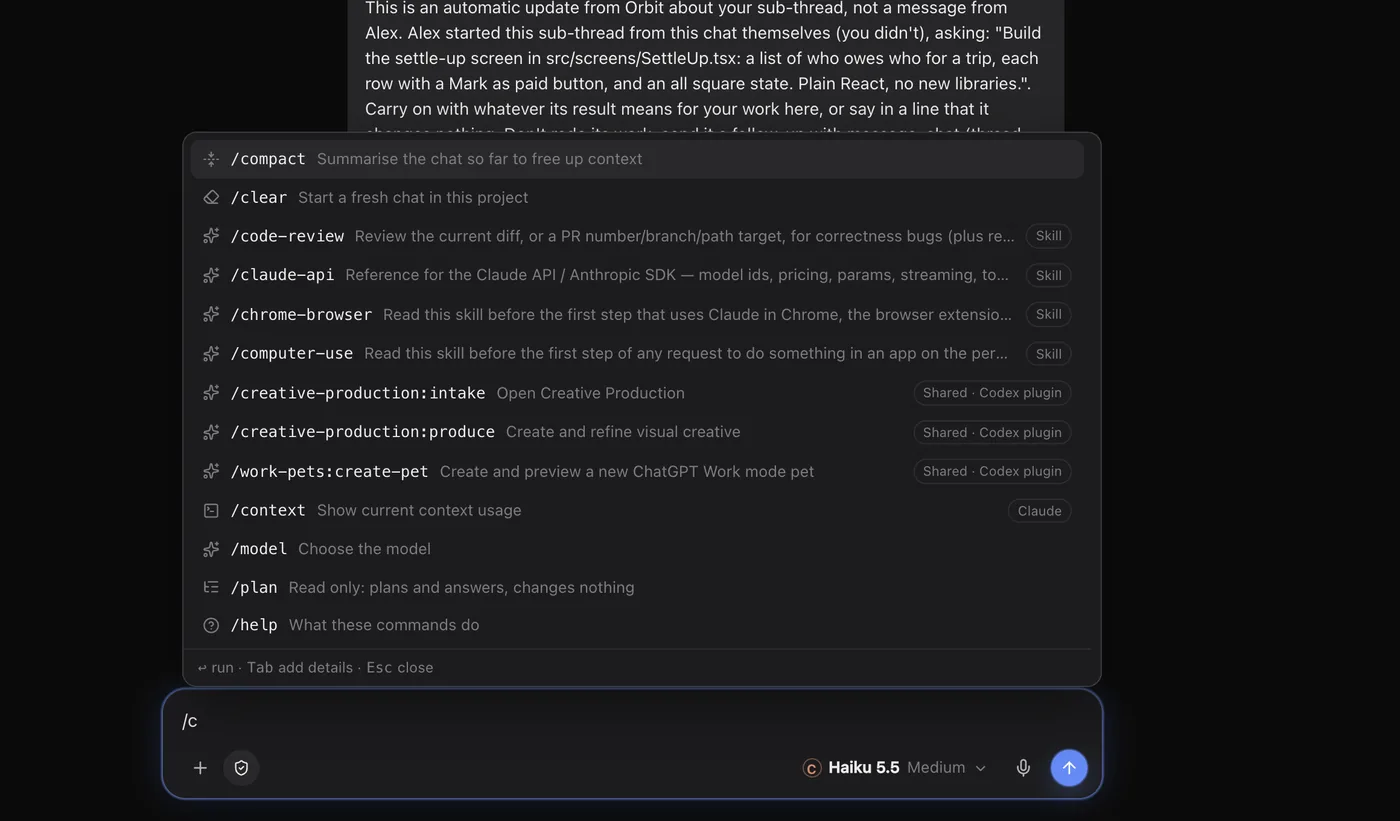
Orbit's own commands
| Command | What it does |
|---|---|
/compact | Summarise the chat so far to free up context |
/model | Open the model picker |
/clear | Start a fresh chat in this project |
/plan | Switch to Read only: the Orb plans and answers, and changes nothing |
/help | What these commands do |
In your Moon's chat they work a little differently: /model goes to its settings, /clear wipes its chat and starts over (it asks first), and /plan switches its own plan mode on and off.
Skills
A skill is a set of instructions a model loads when it's relevant, like your house style for proposals or the checklist you run before shipping. After Orbit's commands, the slash menu lists:
- Every skill the chat's model has: your own, your plugins', the project's and the built-in ones.
- Skills from Orbit's shared library that belong to your other models. Orbit hands one over when you run it.
- Claude's other commands that work in a chat.
Running a skill puts its name in your message: /name on Claude, $name on Codex. Models also load a skill by themselves when your message matches what it's for.
Make a skill
- Open Skills & plugins (under More in the rail, if it isn't pinned).
- Click New skill.
- Fill in Name (for example
proposal-style), When to use it and Instructions. Where Codex is on, tick which models it's for. - Click Save skill.
Not sure how to write it? Fill in the name or when to use it, then click Have Juno write it (your Moon's name shows here).
Find and sort your skills
The left side of Skills & plugins filters the list: All skills, Starred, each model's skills, Where they live (the folders they come from) and your Collections.
- Star a skill you use a lot.
- Click New collection to make a group, for example "Client work", then add skills to it from any skill card.
- Each card can show its file in Finder or move it to the Bin.
The same page holds Orbit plugins (connectors) and Claude plugins. See Skills and plugins and Connectors.
Context and /compact
Long chats fill up a model's context. The context meter at the top of the chat shows how full it is. Click it and choose Compact, or type /compact, to summarise the conversation so far and carry on from it. Wait for the chat to finish first.
Common questions
Do Claude skills work on Codex and Grok?
Orbit keeps one library for every model. A skill from another model shows in the slash menu, and Orbit hands it over when you run it.
A skill I added isn't in the list
The menu asks the model for its skills each time it opens, in the background. Close it and type / again.
See also Permissions and plan mode and Start a new Orb.
Updated 24 October 2026 · Orbit 0.1.15