Help/Phone
Approve from your phone
You don't need to be at your desk to keep your Orbs moving. Everything waiting on your yes reaches your phone, and draft replies can be approved straight from the notification.
Before you start
Pair your phone with Orbit on your computer and allow notifications. See Orbit on Android or iPhone and iPad (beta).
Answer from the Waiting list
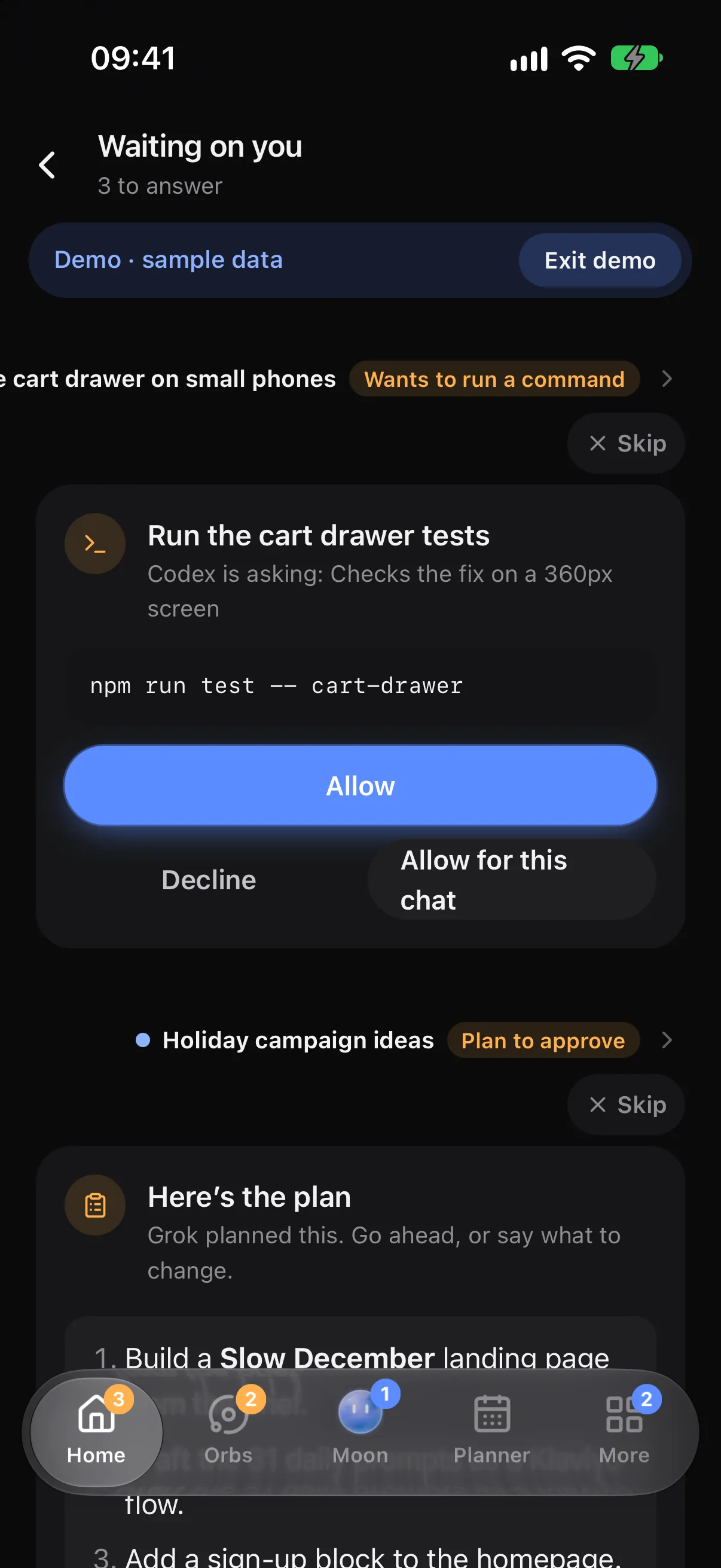
- Tap Waiting in the dock, or tap the notification that something needs you. (If Waiting isn't on your dock, hold the dock to add it, or find it under More.)
- Waiting on you lists everything from every chat and from your Inbox, each with the chat it came from.
- Answer each one right there. Tap where it came from to open the chat for more context.
| What's waiting | Your answers on the phone |
|---|---|
| A command, file change or tool | Allow, Allow for this chat, Decline |
| A plan | Go ahead, or Change the plan and say what to change |
| A question | Tap a choice, or type in Type an answer and tap Answer; or Skip |
| A draft reply | Approve, Edit or Later |
| A secret request | See it and decline it. Secrets are typed only on your computer, so they never travel to your phone. See Secret box. |
Answer on the phone and it's answered on your computer too, and the chat carries on straight away.
Approve a draft reply from the notification
When your Moon drafts a reply to an email or message that needs you, the notification shows the draft in full, with three buttons:
- Approve: your Moon sends exactly that text.
- Edit: type what should change, or the reply itself, right in the notification. Your Moon redrafts and notifies you again.
- Later: the notification comes back in two hours.
Approve and Edit need your phone unlocked, so nobody can send from your lock screen. If your computer can't be reached at that moment, your answer waits on the phone and goes as soon as they reconnect.
Your Moon never sends, publishes or pays for anything without your OK. Tapping Approve on the exact text is that OK.
Choose when your phone buzzes
- On your computer, Settings, Phone, Notify my phone only when I'm away sends notifications only while you're away from the computer. Turn it off to get them always.
- In the phone app's Settings, Notifications turns them on or off for that phone, and Quiet hours keeps them silent, not hidden, between the times you pick.
- Notifications only show while Orbit isn't on screen.
Common questions
Can I approve things with my computer off?
Approvals come from chats running on your computer, so it needs to be on with Orbit open for a chat to carry on. A draft reply you approve while it's off waits on the phone and is sent when your computer is back.
Can I reply to Chat messages from the notification?
Yes. Chat notifications have a Reply button.
Related: Waiting on you, Drafts and replies, Orbit on Android.
Updated 24 October 2026 · Orbit 0.1.15