Help/Skills, plugins and connectors
Add your own connector
If a company has an MCP server that isn't in Orbit's list, or you've built your own, paste its address and Orbit connects it for every Orb.
Before you start
You need the connector's address: the web address of the company's MCP server, like https://mcp.example.com/mcp. Companies list theirs in their help pages, often under "MCP" or "AI connectors". If it's already in Orbit's list, connect it there instead. See Connectors.
Add it
- Open Skills & plugins (under More in the left rail) and click Add your own under Orbit plugins.
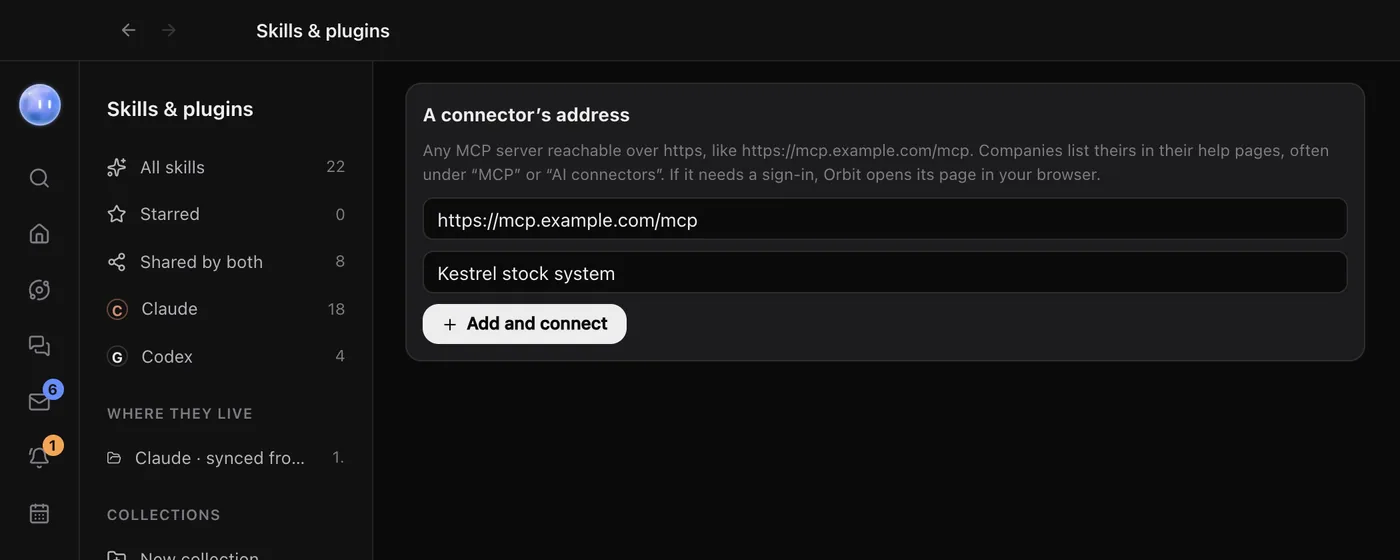
- Paste the address into the box under A connector's address.
- Give it a name if you like. Leave Name (optional) empty and Orbit names it after the address.
- Click Add and connect, or press Enter.
- If it needs a sign-in, its page opens in your web browser and the button says Connecting… finish any sign-in in your browser. Sign in and approve Orbit there.
When it's done you'll see Connected: every Orb can use it now. Its card appears under the box, marked Added by you, and it's listed under Connected too.
What Orbit does with the address
- It checks the address is a secure one, starting
https://. - It asks the server for its tools. If the server answers, it needs no sign-in and it's connected straight away.
- If the server says you need to sign in, Orbit finds the server's sign-in page, registers itself there as "Orbit", and opens that page in your browser. This is the standard sign-in for MCP servers (OAuth).
- The sign-in is kept encrypted with your Mac's Keychain (on Windows, Windows' encryption for your account), the same as built-in connectors. Orbs only see the tools.
Building your own server
While you build an MCP server on your own computer, Orbit also accepts a plain http:// address on localhost or 127.0.0.1, such as http://localhost:8787/mcp. Anywhere else needs https://.
Once it's connected, ask an Orb to try one of its tools. The card shows how many tools Orbit found.
If it doesn't connect
| Message | What to do |
|---|---|
| That isn't a web address. | Paste the full address, starting https://. |
| Connectors need a secure address, starting https:// | Use the https:// version. Plain http:// only works for a server on your own computer. |
| That one is already in the list: connect it there. | It's one of Orbit's built-in connectors. Find it under Connectors. |
| "… didn't answer as a connector" | The address isn't an MCP server, or the server is down. Check the address in the company's help pages. |
| "… doesn't let apps sign in by themselves yet" | The server doesn't let new apps register for sign-in. Ask the company, or check whether they offer a different address for AI apps. |
Orbit signs in to connectors with the standard MCP sign-in, or with none. A server that only takes an API key pasted into a request header can't be added this way.
Switch off or remove it
The switch on its card turns it off for every Orb. Remove disconnects it, forgets the sign-in and takes it off the list. To use it again, add the address again.
Related: Connectors, Skills and plugins, Secret box.
Updated 24 October 2026 · Orbit 0.1.15