Help/Teams
Chat
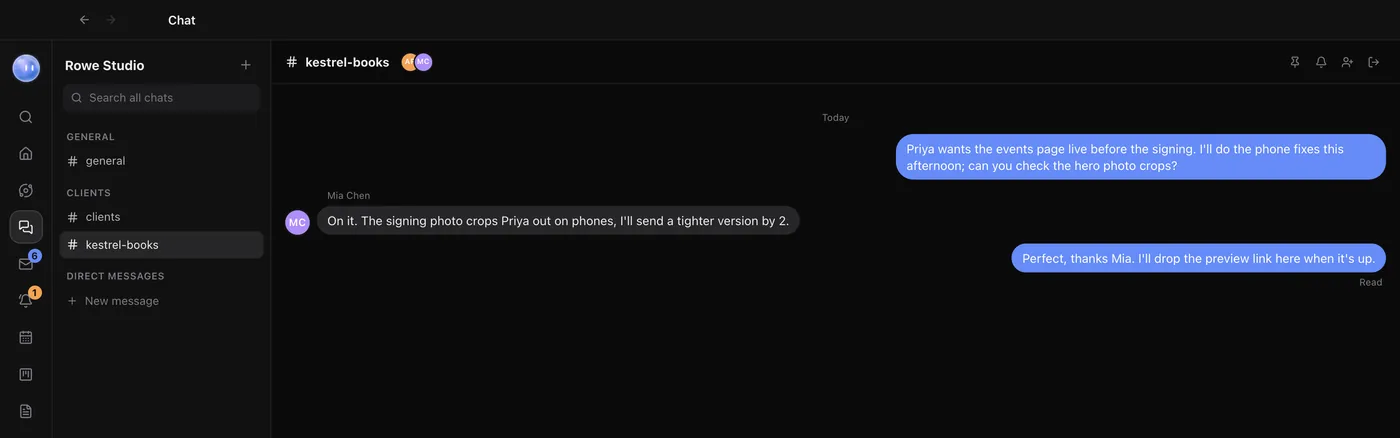
Chat is where the people on your team talk to each other: spaces, channels and direct messages, in clean message bubbles. Your Orbs can post updates there, and @moon brings your Moon in.
Chat is for people. Your conversations with AI are Orbs, in the Orbs list. See Start a new Orb.
Before you start
Chat needs a team. Click Chat in the left rail: if you're not on a team yet, it points you to Settings, Team to start or join one. See Teams and teammates.
Spaces, channels and direct messages
- Spaces group channels by theme, for example General, Clients or Ideas.
- Channels sit inside a space. Only the people added to a channel see it.
- Direct messages are with one person or a small group, listed under Direct messages.
To make one, click the + beside your team's name and choose New message, New channel in a space, or New space. Give it a name and pick who's in it.
Sending messages
Type in the box at the bottom and press Enter to send (ShiftEnter for a new line). Beside the box:
- Add a file or picture attaches files. Pictures show in the message.
- Record a voice note records from your microphone. Click the square to stop and send.
Links show a preview. You see when people are typing, and under your last message whether it's Delivered, Read or Read by everyone.
Reactions, threads and pins
Hover over a message for its actions:
- React adds an emoji reaction.
- Reply in thread opens a thread beside the channel, so side conversations don't crowd it.
- Pin to the channel keeps a message handy. The pin button in the channel's header shows everything pinned.
- Edit and Delete work on your own messages. Deleting removes it for everyone.
Commands
Type / in the message box:
| Command | What it does |
|---|---|
/moon | Ask your Moon here: it answers in the channel |
/pins | Show pinned messages |
/mute | Mute this channel |
/unmute | Unmute this channel |
You can also write @moon or @orbs in a message. Your own Moon answers in the channel, on your plan. It's told to use only what everyone in the channel can already see, and nothing private from your own chats, memory or inbox unless someone asks for it.
Orbs in Chat
Orbs can post short updates into a channel, such as "The Splitly onboarding page is ready to review". These show as small grey lines with the Orb's name, not as bubbles, so the channel doubles as an activity feed.
Search, mute and leave
Search all chats at the top of the list searches every channel and message you're in. In a channel's header you can mute it (no notifications), see and change People in this channel, or leave it. Searching for your own name? My Work lists every @mention of you from the last month. See Tasks and My Work.
On your phone
Chat is in the phone app too, with notifications you can reply to straight from the notification. See Orbit on Android.
Where messages are kept
Chat's spaces, channels, messages and files are stored on Orbit's server, encrypted at rest, so your teammates can see them on their own computers and phones.
Common questions
Can people outside my team see a channel?
No. Only people on your team can be in a channel, and only the ones added to it see it.
Whose AI plan does @moon use?
The plan of whoever mentioned it. Each person's Moon runs on their own sign-in.
Related: Teams and teammates, Docs and databases, Orbs talking to each other.
Updated 24 October 2026 · Orbit 0.1.15