Help/Teams
Import from ClickUp, Asana and more
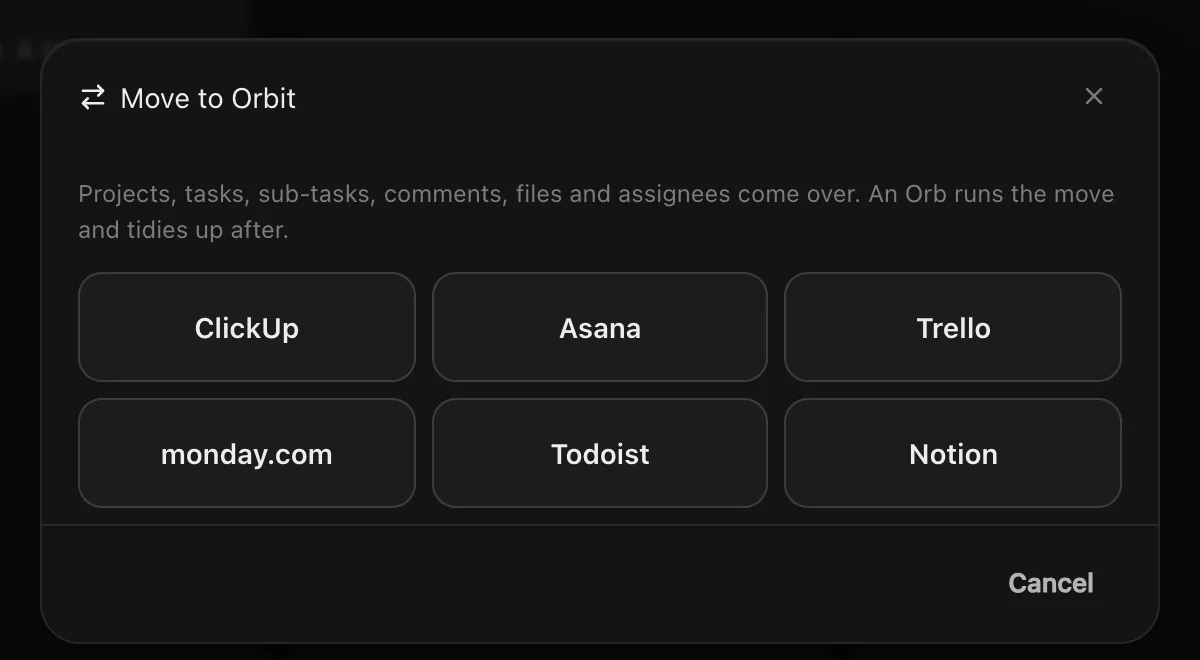
Bring your work across from ClickUp, Asana, Trello, monday.com, Todoist or Notion. Projects land on your Board, tasks in your Planner, assignees in People, and your Moon tidies up after.
Open the importer
- Click Board in the left rail.
- Click Import in the header (it's on Projects, Leads and People).
- Pick the app you're moving from.
Two ways to move
| Way | Works for | What you need |
|---|---|---|
| Straight from your account: Orbit reads every project, task, sub-task, comment, file, assignee and date itself | All six | A key you make in the other app. Orbit opens the page where you make it and shows you the steps. |
| From the app's export file | All six | The file the app exports (below). No key needed. |
Move straight from your account
- In the import window, pick the app and click its button, for example Open ClickUp's API page. The page opens in Orbit's browser.
- Follow the short steps Orbit shows to make or copy your key. (For Trello you click Allow, which gives Orbit read-only access to your boards. For Notion you make an integration called Orbit and share your pages with it; Orbit only sees the pages you share. For monday.com, type your account name and Orbit opens your own API token page; copy your token rather than regenerating it.)
- Paste the key into the box and click Start the move.
Your key is saved in Orbit's Secret box on your computer, encrypted, under a name like CLICKUP_API_TOKEN. Orbs can use it but never see it. A big workspace takes a few minutes, because each app only answers so many requests a minute. Run it again later and only what's new comes over.
Move from an export file
- Export from the other app (steps in the table below).
- In Orbit's import window, leave Juno tidies up after ticked if you'd like your Moon to tidy up (it uses your Moon's name).
- Click Choose the file and pick the file, or several at once.
Orbit reads the file on your computer, then shows what came over, for example "Moved: 4 projects, 62 tasks, 18 sub-tasks, 3 people".
| App | How to export | File |
|---|---|---|
| ClickUp | Export your tasks as a CSV from Settings, Imports / Exports, choosing the Spaces, Folders or Lists to include. A List or Table view can also be exported on its own. See ClickUp's help. | .csv |
| Asana | Export the project as a CSV from the project's menu. One file per project. See Asana's guide. | .csv |
| Trello | Open the board menu, choose Print, export and share, then export the board as JSON. One file per board. See Trello's help. | .json |
| monday.com | The board's three-dot menu, More actions, Export board to Excel, then Export. One file per board. See monday.com's help. | .xlsx or .csv |
| Todoist | Open the project, click the three-dot menu at the top right, then Manage data, Export as CSV. One file per project. Completed tasks aren't included. See Todoist's help. | .csv |
| Notion | For everything: Settings, General, Export all workspace content, as Markdown & CSV (Notion emails you a download link). For one page: its ••• menu, Export, Markdown & CSV. See Notion's help. | .zip or .csv |
What comes across
| App | Becomes a project | What each task brings |
|---|---|---|
| ClickUp | Each List | Name, status, start and due dates, description, tags, assignees, time estimate, sub-tasks, comments and attachments |
| Asana | Each project | Name, section as status, start and due dates, notes, tags, assignee, sub-tasks, dependencies, done or not |
| Trello | The board | Card name, list as status, start and due dates, description, labels as tags, members, attachments, comments, and checklist items as sub-tasks |
| monday.com | The board | Item name, status (or group), timeline or due date, people, notes, estimate, file links, updates, and sub-items as sub-tasks |
| Todoist | The project | Task, section as status, due date, description, responsible person, @labels as tags, duration, repeats, notes as comments, and indented tasks as sub-tasks |
| Notion | (see below) | Pages become Docs, nested as they were. Each database becomes a database of its own in Orbit, with field types worked out from what's in each column. |
Across all of them: assignees become records in People, one per person. Attachments come over as links in the task's notes. Statuses go into a Status field on Tasks, and tags into a Tags field. New projects start in the Board's Active column (or Completed if they were finished).
Tidying up
With tidying on, your Moon gets a short brief straight after the move. It merges duplicate people (the same person spelt two ways), fills in what it can about them, puts each new project in the right Board column, files any loose tasks under the right project, and leaves anything it's unsure of alone. It then gives you a short list of what came over and anything that looks wrong.
Run it again any time. Things already brought over are skipped, so a second import only adds what's new.
Common questions
Do I need an API key or token?
Only to move straight from your account: Orbit opens the page where you make it and shows you the steps, then keeps it in the Secret box. The export-file route needs only the file.
Does importing change anything in ClickUp or the other app?
No. Orbit only reads the export file, or reads your account with your key, and copies into Orbit. Trello's key is read-only.
Can I import without exporting a file?
Yes, from any of the six apps: use the key route above.
Related: The Board: projects, leads and people, Docs and databases, Connectors.
Updated 25 October 2026 · Orbit 0.1.15