Help/Teams
Teams and teammates
Teams let you work with other people in Orbit. Sharing works by assignment: put a teammate on something and it shows up for them. Everything else stays private, with no settings to manage.
How sharing works
There's no separate team space. You share one thing at a time by assigning someone to it:
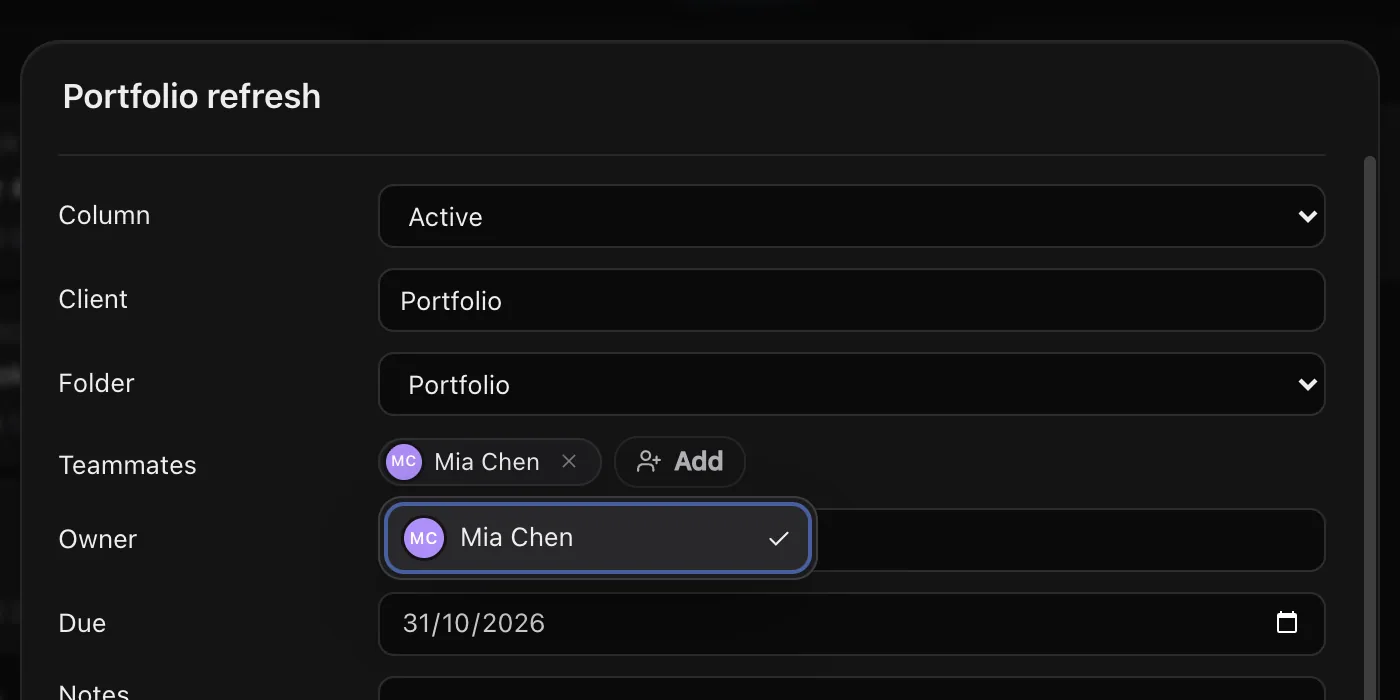
- Assign a teammate to a project, lead, task or calendar event and it shows on their Board, Planner or calendar, and they get a notification.
- Anything you haven't assigned to someone stays invisible to them. Your own projects stay private without you doing anything.
- Someone on a project sees the project, its tasks, the docs linked to it and any chats shared to it.
- Someone on just one task sees that task, plus the project read only for context, and nothing else in it.
- The owner (whoever made it) and the people assigned can all edit. Only the owner can delete it. Anyone assigned can take themselves off, and the owner is told.
Each person keeps their own Orbs, their own Moon and their own AI plans. Nobody's work runs on someone else's subscription.
Start a team
- Sign in to your Orbit account first (Settings, Orbit account).
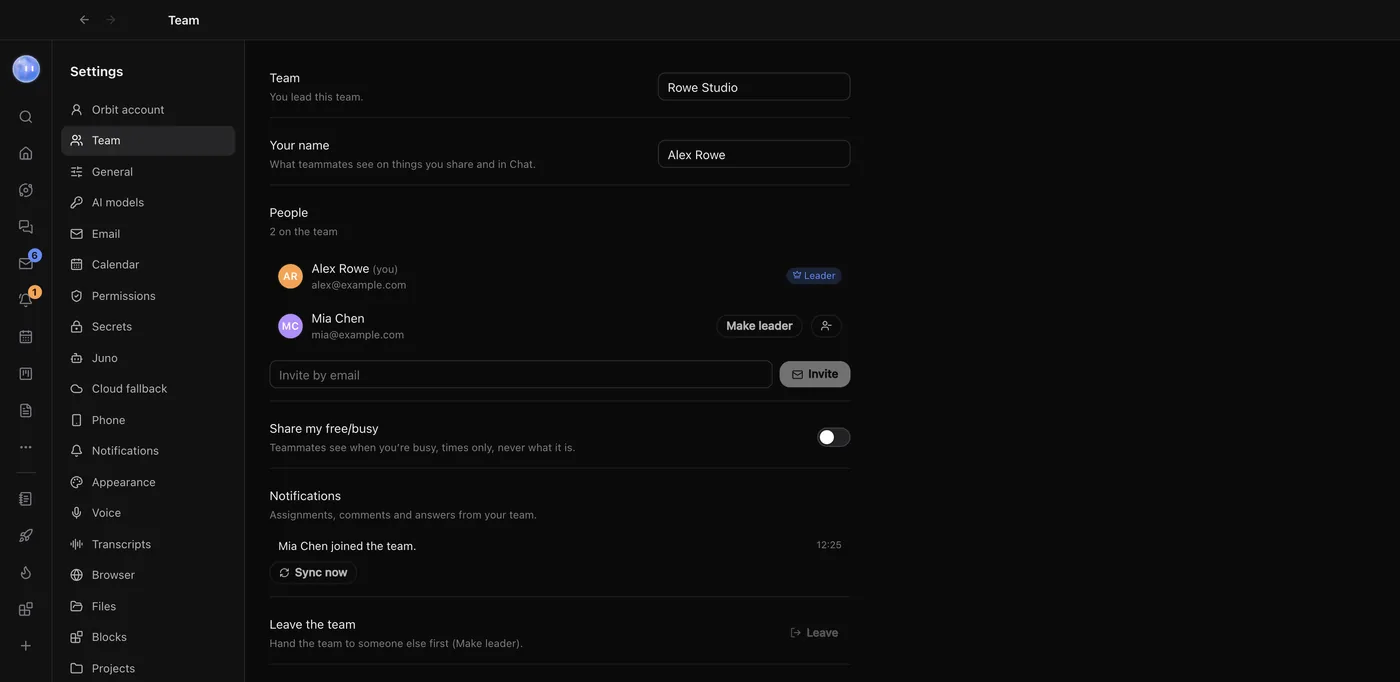
- Open Settings, then Team.
- Check Your name: it's what teammates see on things you share and in Chat.
- Type a team name, for example "Splitly", and click Start team. You lead the team.
- Under People, type an address in Invite by email and press Enter.
Join a team
Your invitation arrives by email and lasts 14 days. Open Orbit, sign in to your Orbit account with the address it was sent to, then go to Settings, Team. The invite is under Invitations: click Join or Decline.
Assign a teammate
- Open the project card, lead, task or event.
- In its Teammates or Team row, click Assign (or Add if someone's already on it).
- Pick the people. The owner shows first; only they can take other people off.
Shared project cards get a comment thread that the owner and everyone assigned can see. A teammate added to an event gets it like an invite and can Accept, say Maybe or Decline; you see their answers on the event.
Share docs, blocks and chats
- Docs: click Share at the top of a page and pick who edits it with you. You edit together live and see each other's cursors. See Docs and databases.
- Blocks: click Share on a block and choose Shared data (everyone sees and changes the same data, like a team tracker) or Own copy (everyone gets the block with their own private data). You can let people change the block's page too. It runs in its sandbox on their computer and can't reach their files, keys or connectors.
- Chats with Orbs are private. On a shared project, you can share a chat so everyone on the project can read it. If one of them carries it on, it continues in their own Orbit, on their own plan, with the history handed over.
Free and busy times
Turn on Share my free/busy in Settings, Team and teammates see when you're busy, times only, never what it is. Teammates' busy times shows the next few days for those who share theirs.
Running the team
- Notifications for assignments, comments and answers are listed in Settings, Team.
- The leader invites people, withdraws invitations, renames the team, takes people off and can hand the team on with Make leader.
- Leave the team from the same page. Things you own go with you; you come off everything else and its owners are told. A leader hands the team to someone else first.
Where shared work is kept
Anything you share, and Chat, is stored on Orbit's server, encrypted at rest, so your teammates can see it. That covers shared projects, leads, tasks, events, docs and their live edits, blocks, shared chats, comments, notifications, and Chat's spaces, channels, messages and files. Only items with someone assigned go to the server; everything else stays on your computer. Orbit checks for teammates' changes about every 30 seconds and sends yours a moment after you make them.
Common questions
Can my teammates see all my projects?
No. They only see what you've assigned them to, and the project read only if you've assigned them one of its tasks.
Do my teammates' Orbs use my AI plan?
No. Each person's Orbs run on their own Claude, Grok or Codex sign-in.
Related: Chat, Workload, The Board: projects, leads and people.
Updated 24 October 2026 · Orbit 0.1.15