Help/Workspace
Secret box
Orbs can use your API keys, tokens and logins without ever seeing them. You type a secret once into a hidden box, Orbit keeps it encrypted on your computer, and it's put in only at the moment it's used.
How it works
An Orb never asks you to paste a key into the chat. Instead it writes a placeholder, like {{secret:STRIPE_KEY}}, where the value goes. Then:
- Orbit shows you an approval card naming the secret and exactly what it's for: the command it will run, or the form field and website it will fill.
- You allow it (or Orbit already has your standing permission for that chat).
- Orbit puts the real value in for that one command or field, and nowhere else.
- Anything that comes back, like the command's output, has the value swapped back to the placeholder before the model sees it. It's also hidden in the chat, logs and screenshots.
Secrets work in two places: a terminal command or its environment variables, and a field on a page in Orbit's browser.
The Secret box
If an Orb needs a secret that isn't in Orbit yet, its approval card asks Add STRIPE_KEY so this chat can run this command? and has a hidden box for it (two boxes if it needs a username too).
- Paste or type the value into the box. Click the eye to check what you typed.
- Click Save and allow to use it this once, or Save and allow for this chat to let this chat use it from now on without asking.
The value goes straight from that box into Orbit's encrypted store. It never enters the chat, the transcript or anything the model sees. Decline saves nothing, and the Orb is told not to try again unless you ask it to.
The box is on your computer only. On the phone you can see the request and decline it, but secrets are typed on the computer, so they never travel to your phone.
Add a secret ahead of time
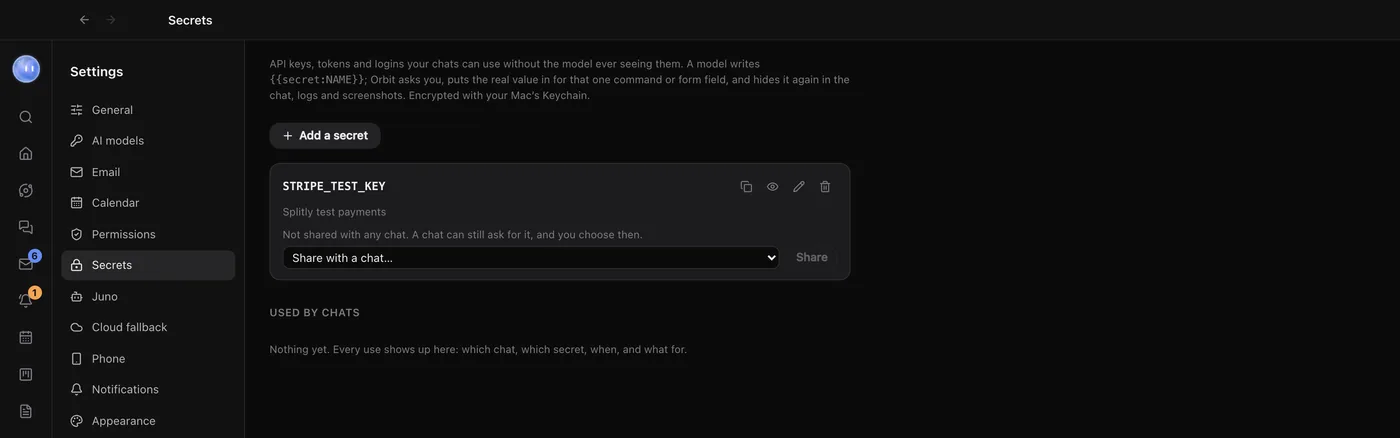
- Open Settings, then Secrets, and click Add a secret.
- Give it a Name in capitals, like
SPLITLY_API_TOKEN. - Paste the Value. For a login, add the Username too.
- Fill in What it's for (the model sees this note), like "Splitly admin API". This helps the Orb pick the right one.
- Click Save.
The copy button on its card copies the placeholder, {{secret:SPLITLY_API_TOKEN}}, so you can tell an Orb exactly which one to use.
Which chats can use it
Each secret's card lists the chats it's shared with. For each one, choose Ask each time or Use without asking, or click Revoke. Use Share with a chat… to add one; Orbit still asks before each use until you change it. A chat a secret isn't shared with can still ask for it, and you decide then.
Used by chats, below the list, logs every use: which chat, which secret, when, the command or field it went into, and whether it was allowed, declined or failed.
What's stored where
| What | Where |
|---|---|
| Secret values, usernames and notes | One file in Orbit's data folder on your computer, encrypted with a key kept in your Mac's Keychain (on Windows, Windows' encryption for your account). If that encryption isn't available, Orbit doesn't save the secret at all rather than save it in plain text. |
| Which chats may use each secret, and the log of uses | In the same encrypted file. |
| What the model sees | The secret's name, your note, and the placeholder. Never the value. |
| Orbit's server and your phone | Nothing. Secrets aren't sent to either. |
To see a saved value, click the eye on its card and confirm with Touch ID or your Mac password. Orbit stays unlocked for five minutes. On Windows, values stay hidden in Settings: showing one needs Touch ID, on Orbit for Mac.
A value shorter than six characters can't be reliably hidden if a command prints it, because it could match ordinary text. Orbit warns you on the secret's card.
Common questions
Is a secret the same as a saved password?
No. Saved passwords are for you signing in to websites in Orbit's browser. Secrets are for an Orb to use in a command or form field. See Passwords and profiles.
Can I delete a secret?
Yes. Click the bin on its card. Chats using it stop working until you add it again.
Do secrets work when a chat moves to the cloud?
No. Secrets stay on your computer. See Cloud fallback.
Related: Waiting on you, Passwords and profiles, Connectors.
Updated 24 October 2026 · Orbit 0.1.15