Help/Workspace
Terminal and editor
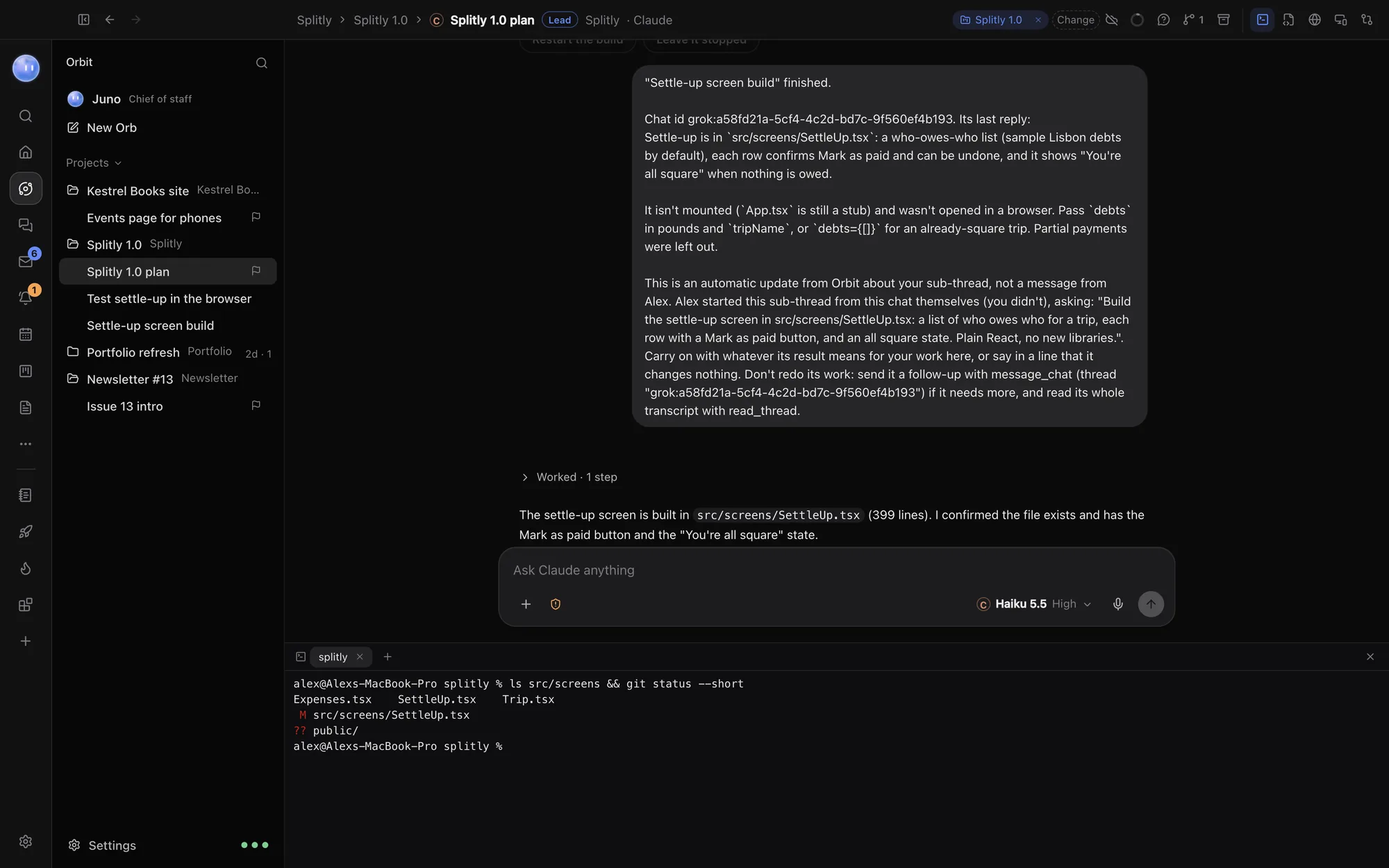
Every chat has a terminal and a code editor a click away, both in the chat's project folder. Run a command yourself or make a quick edit without leaving Orbit.
The terminal
Click the terminal button at the top right of a chat, or press ⌃` (Ctrl` on Windows). The terminal opens under the chat, in the chat's project folder.
- It's a real shell: your own login shell on a Mac (usually zsh), and PowerShell on Windows. Your usual commands, paths and settings all work.
- Click New terminal (the + button) for another one. Each shows as a tab; close one with its x.
- Hiding the terminal (Hide, or the same keys) doesn't stop anything. Shells keep running, and keep their scrollback, until you close them or quit Orbit.
Carry on a Codex chat in the terminal
In a chat running on Codex, the Continue in terminal (codex resume) button opens a terminal and picks up the same Codex conversation there.
The terminal and your Orbs
Orbs run their own commands in the background; they don't type into your terminal. You see each command they run in the chat, and by default they ask before running one. See Permissions and plan mode. A few sign-ins, like GitHub's gh auth login, are easiest run here by you.
The editor
Click the editor button at the top right of a chat. The editor opens on the right with the project's files.
- Open a file from the tree, or with the + button (Open a file…). The Files button shows or hides the tree.
- Make your change. Open files show as tabs along the top, with a dot when they have unsaved changes.
- Press ⌘S (CtrlS on Windows), or click Save.
The editor colours code for HTML, CSS, JavaScript and TypeScript, JSON, Liquid (Shopify themes), Markdown and Python, with line numbers, bracket matching, code folding and search. Other files open as plain text.
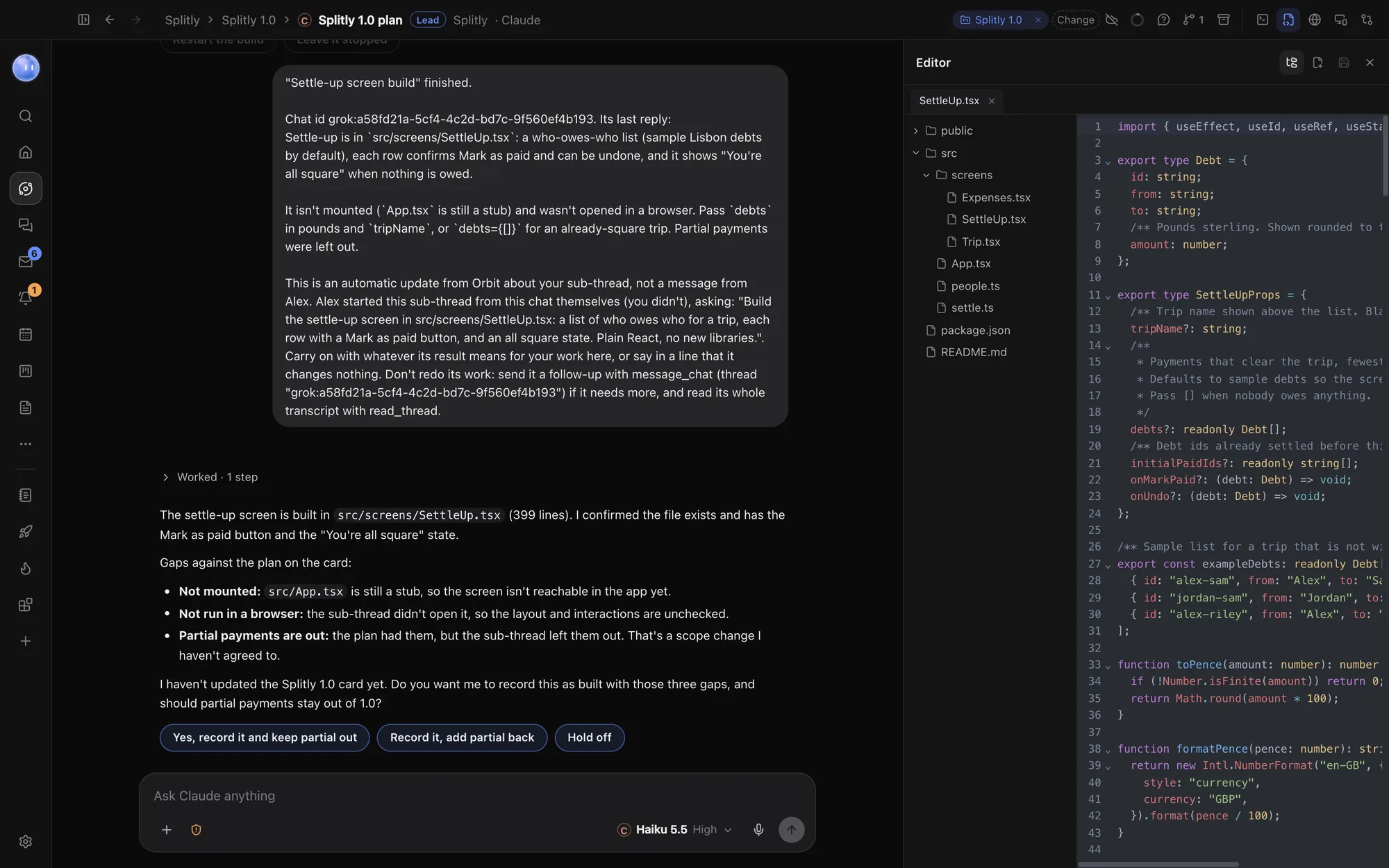
The editor is for quick changes. For bigger ones, ask an Orb, then check its work in Changes.
The buttons at the top of a chat
| Button | Opens | Keys |
|---|---|---|
| Terminal | Shells under the chat | ⌃` |
| Editor | Project files on the right | |
| Browser | Orbit's browser on the right | ⇧⌘B |
| Live preview | The site the chat is building | |
| Changes | Uncommitted changes and pull requests | ⇧⌘D |
The right-hand pane shows one thing at a time. Drag its left edge to resize it.
Related: Changes and pull requests, Orbs in the browser, Keyboard shortcuts.
Updated 24 October 2026 · Orbit 0.1.15