Help/Your day
Briefings
Your Moon sends a short briefing each morning and evening: what's on, what's due, what's waiting on you and what got done. This page covers what's in each one and how to set them up.
What's in a briefing
A briefing is a few short lines per section, with the counts in a headline at the top, such as "2 meetings · 3 planned · 1 due · 2 waiting on you".
| Morning (07:45 to start) | Evening (18:30 to start) |
|---|---|
| Meetings today | Done today: tasks ticked off, projects delivered or completed, and work your Moon handed off that finished |
| Time blocks and tasks planned for today | Slipped: today's unfinished blocks and tasks, and overdue projects |
| Due: projects due or overdue, and lead follow-ups | Tomorrow: meetings, blocks and anything due |
| Waiting on you: approvals and questions in chats, draft replies, flagged messages | Still waiting: new messages and anything waiting on you |
| New messages since the last briefing | |
| Juno overnight: what your Moon did since the last briefing, including anything that failed |
Each line links to where it lives: a meeting opens the Planner, a project opens the Board, an approval opens its chat.
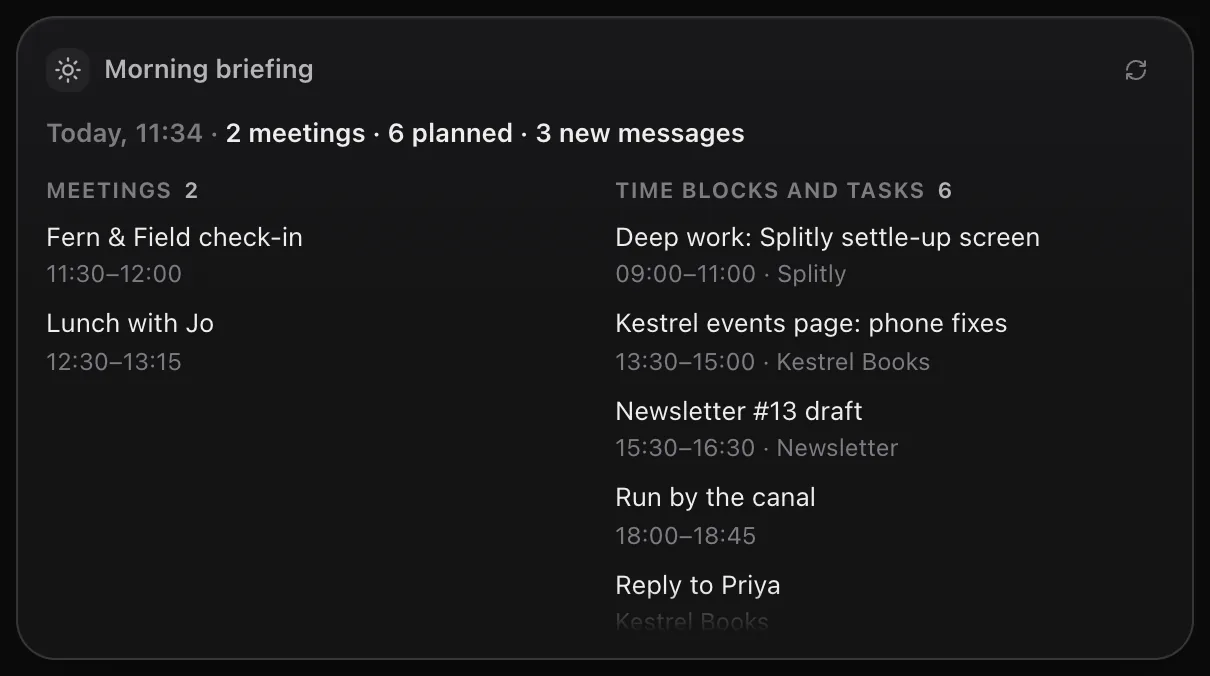
Orbit builds briefings on your computer from what it already has: your Planner, Board, Inbox, approvals and your Moon's activity. No AI model runs to make one, so a briefing costs nothing from your plan and still arrives when a connector is down.
Where briefings show up
- Home: in the Briefing widget. Use the menu at its top to read earlier briefings.
- Your phone: as a notification that opens the briefing, if you've paired the phone app. See Orbit on Android.
- Your Moon: it can read the latest briefing, so you can ask it about anything in there.
Change the times or turn them off
- Open Settings and choose your Moon's section (it carries your Moon's name, for example Juno).
- Find Morning briefing and Evening briefing. Use the switch to turn each one on or off, and set the time beside it.
Get one now
Click Brief me now in the Briefing widget on Home, or next to the evening briefing in Settings. Orbit makes one straight away and sends it to Home and your phone.
Briefings and quiet hours
Quiet hours are set in the same Settings section. If the morning briefing's time falls in quiet hours, it waits until they end. If the evening briefing's time falls in quiet hours, it's made and kept on Home, without a notification. Each briefing comes once a day, and if your computer was asleep at the time, it still comes up to three hours late.
Common questions
Does a briefing use my Claude or Grok limits?
No. Orbit puts it together from data on your computer without running a model.
Why is a section missing from my briefing?
Every section is there, but an empty one shows a short line instead, such as "No meetings today." or "Nothing waiting on you." Sections with more than six items show the first six and a count of the rest.
Related: Home and widgets, Scheduled jobs and nudges, Journal.
Updated 24 October 2026 · Orbit 0.1.15