Help/Your day
Planner
The Planner is your calendar and time blocks in one place. Block out your day by hand, see your meetings beside it, or ask an Orb to plan the week for you.
Open the Planner
Click Planner in the left rail. Along the top, four tabs switch the Planner between its pages:
- Calendar: the time grid, described on this page.
- List: every task, grouped by when it's due. See Tasks and My Work.
- My Work: everything assigned to you and where you've been mentioned.
- Workload: how much each person has on this week. See Workload.
Pick a view
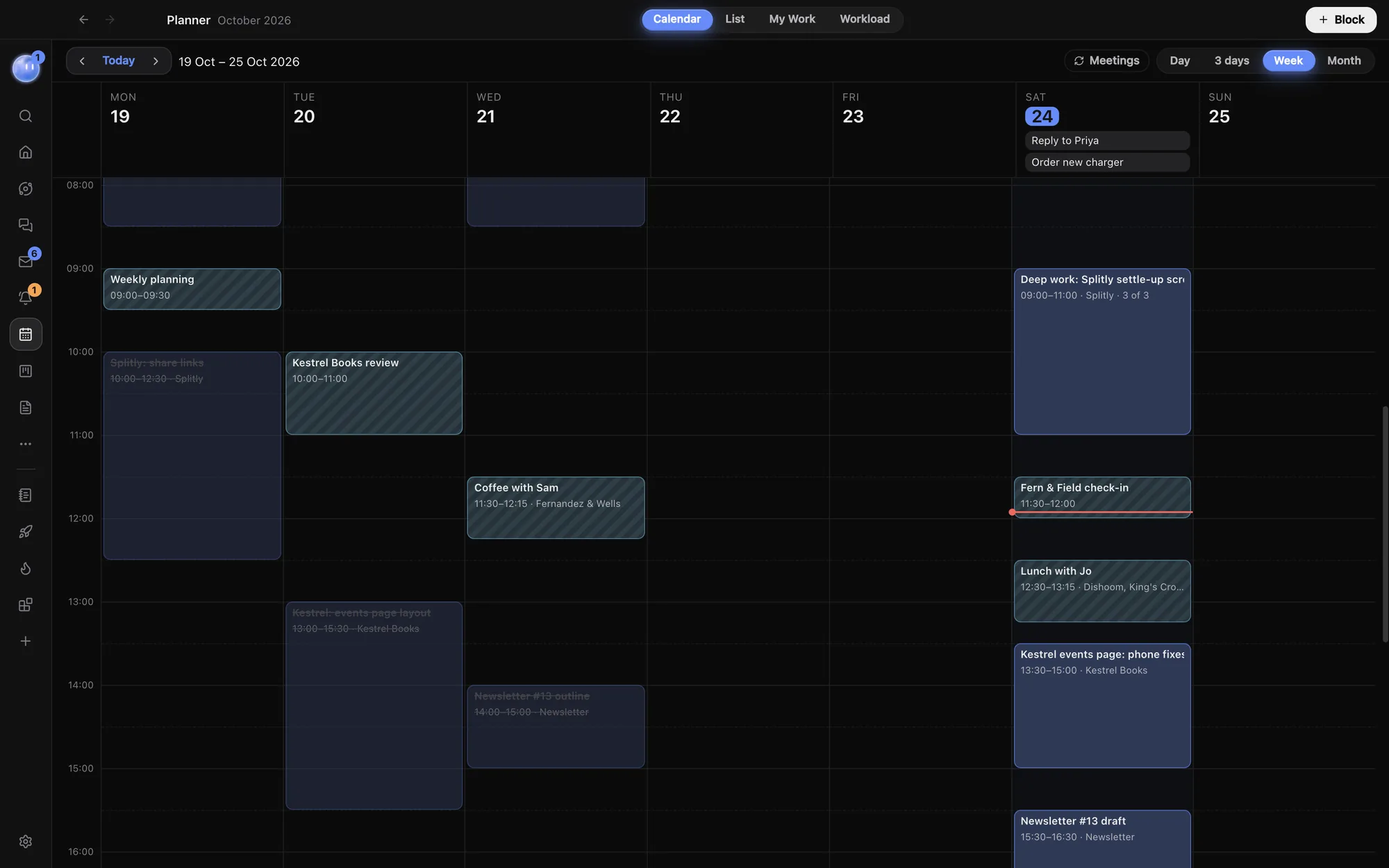
On the right of the toolbar, choose Day, 3 days, Week or Month. Use the arrows to go back and forward, and Today to jump back. In Month, click a date to open that day.
Add a time block
A time block is a task with a time: "Write the Kestrel Books proposal, 10:00 to 11:30".
- Drag down an empty part of the grid to draw the block, or click Block in the header to start one shortly after now.
- Type what you're doing in What are you doing? and press Enter.
- Fill in anything else you need in the panel: Day, Time, Client, Notes and sub-tasks.
Drag a block to move it, even to another day, and drag its top or bottom edge to change its length. Times snap to 15 minutes. Blocks that overlap sit side by side.
What a block can hold
| Field | What it's for |
|---|---|
| Starts and Due | The dates the work runs between, separate from when it's on the Planner. |
| Estimate | How long it should take. Workload adds these up. |
| Repeat and Until | Every day, every weekday, every week, every 2 weeks, every month, every 3 months or every year. |
| Blocked by | Other tasks that have to be done first. |
| Sub-tasks | Steps to tick off. Drag them to reorder. |
| Project tag | Files the task under one of your projects. |
| Team | Assign a teammate, once you're on a team. See Teams and teammates. |
To keep a task on its day without a time, use the button beside Time to take it off the Planner. It stays in the List.
Meetings
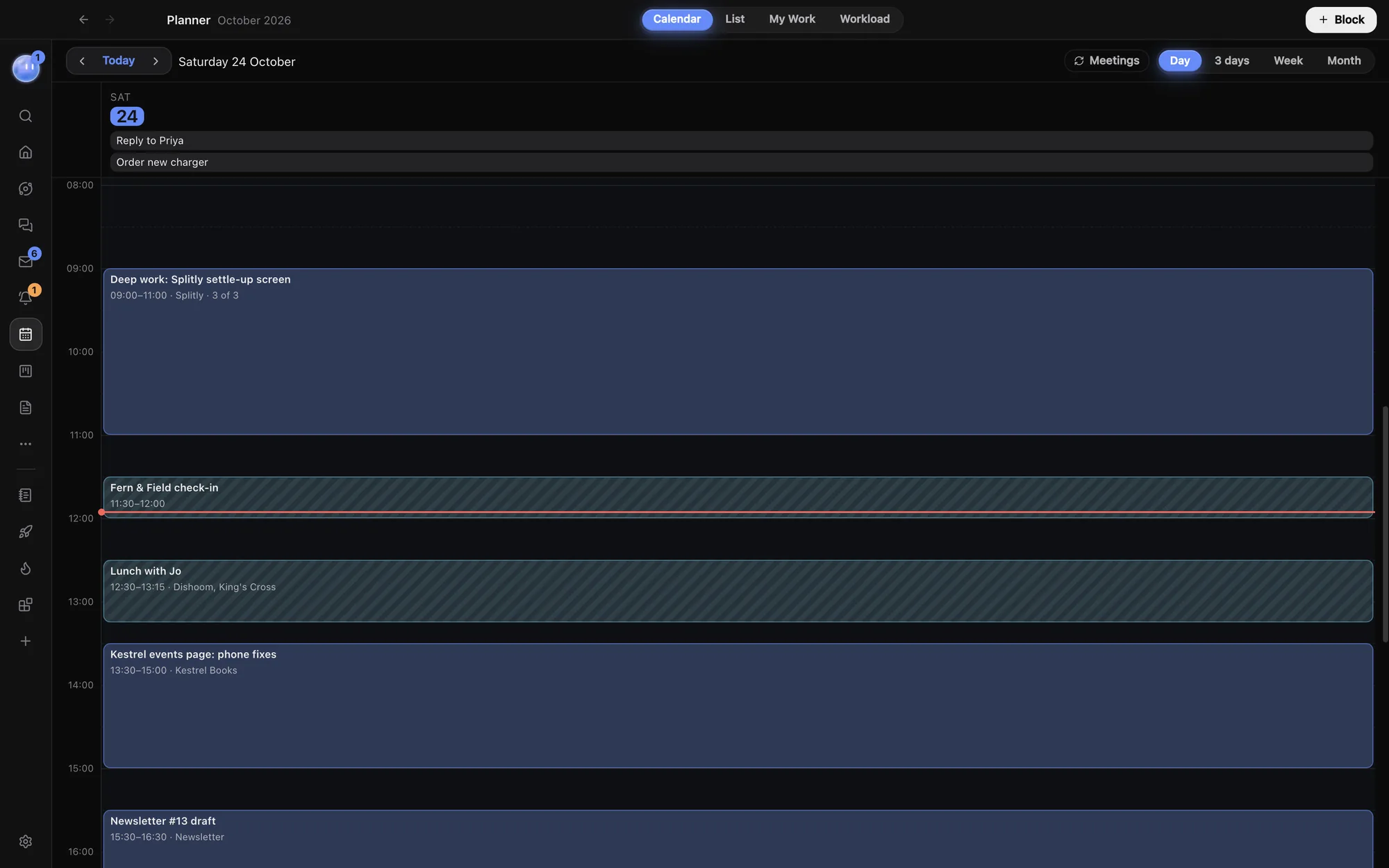
Meetings from your calendars show in the grid next to your blocks. With Google Calendar connected, events you organise can be dragged and resized like blocks, and the Event button adds a new one. If an event has a video link, a button on it joins the call. Calendar links and accounts show their events read only. To connect a calendar, see Google Calendar.
Let an Orb plan for you
Any Orb, and your Moon, can read and change the Planner. Ask in plain words, for example "Block two hours each morning this week for the Splitly build, around my meetings", and the blocks appear. The block's panel shows which chat added it, with a button to open that chat.
Common questions
Is the Planner on my phone?
Yes. The phone app shows the Planner live, with Day and 3 days views you swipe between. See Orbit on Android.
What's the difference between a block and a calendar event?
A block is your own task with a time, kept in Orbit. A calendar event lives on your Google Calendar, with guests and a Meet link if you like. When you start a new block with Google Calendar connected, a Calendar event button turns it into an event instead.
Related: Google Calendar, Tasks and My Work, Briefings.
Updated 24 October 2026 · Orbit 0.1.15